
Features
Using AI Assistant
The AI Assistant in the Free Shipping Bar app helps you quickly configure your bar, answer questions, and guide you through settings using simple prompts.
To access the AI Assistant, open the configuration page of your bar in the app, look for the AI Assistant button floating at the bottom-right corner of the screen, and simply click it to open the chat window.
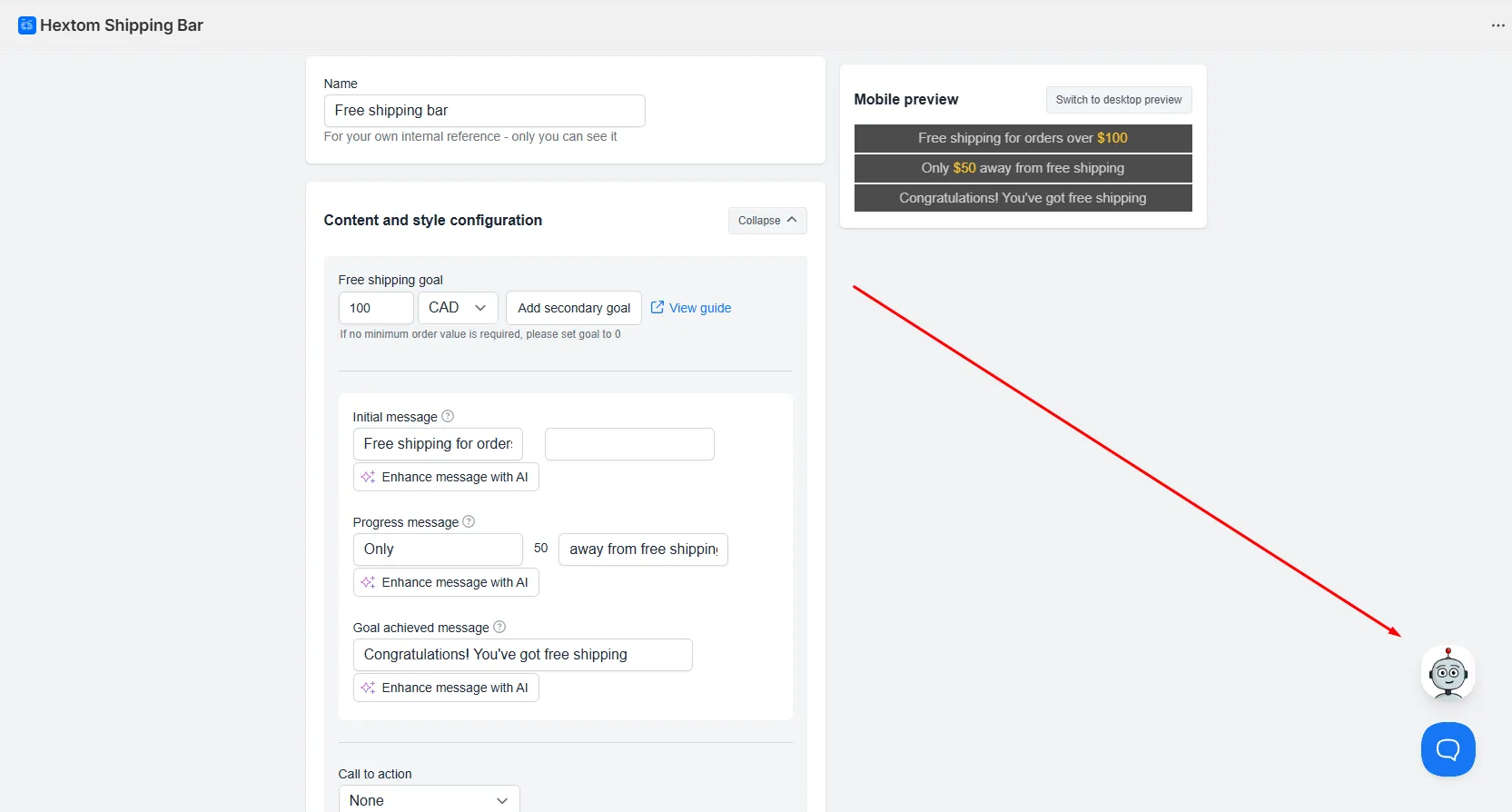
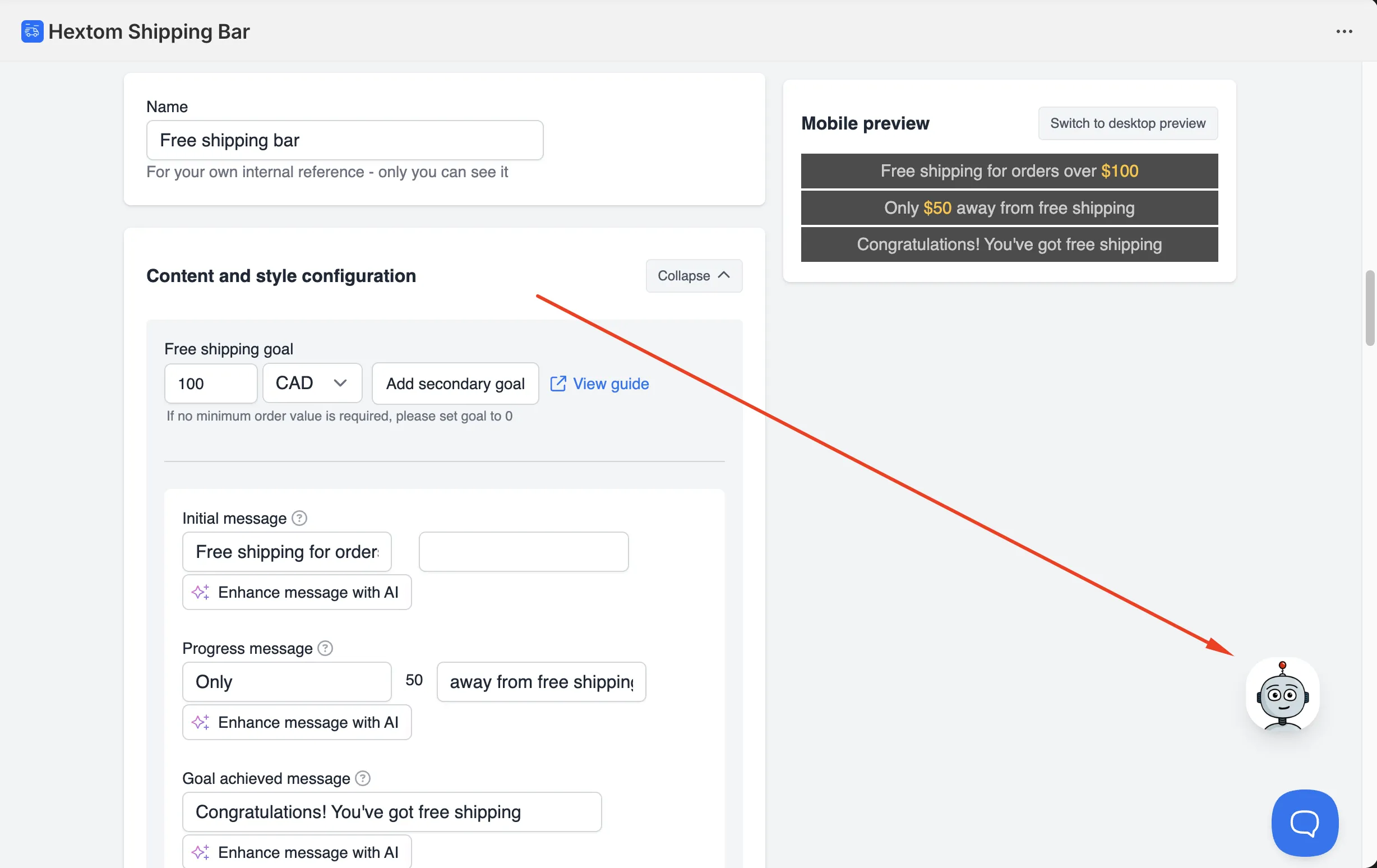
Once opened, you will see a welcome message:
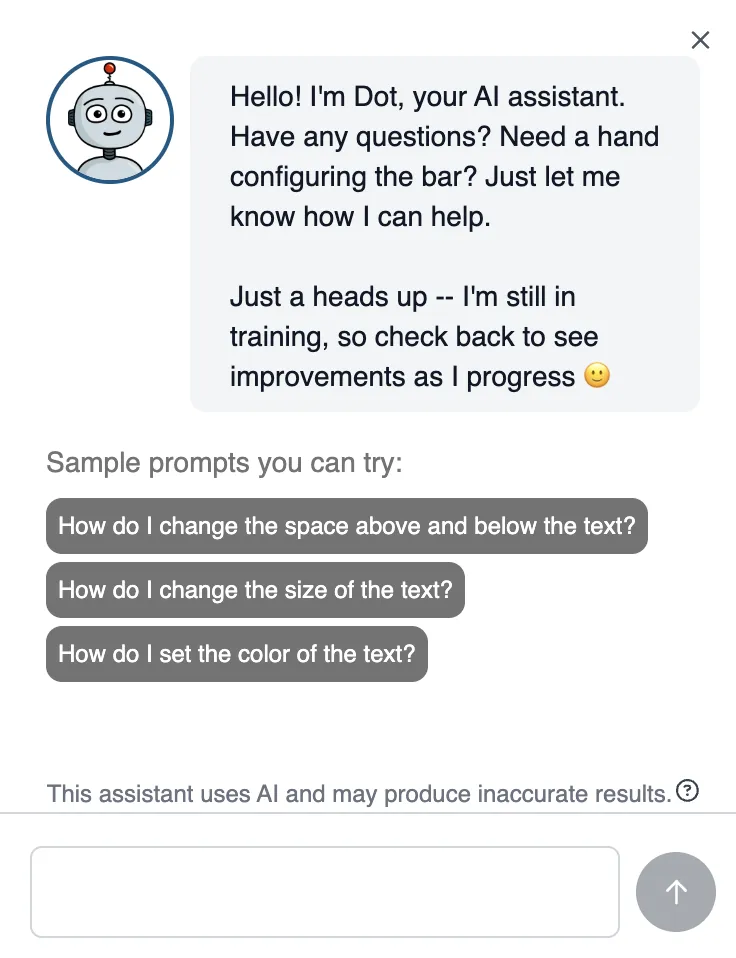
To help you get started, the assistant provides suggested prompts you can click, such as:
- How do I change the space above and below the text?
- How do I change the size of the text?
- How do I set the color of the text?
Clicking any of these will automatically send the question to the assistant.
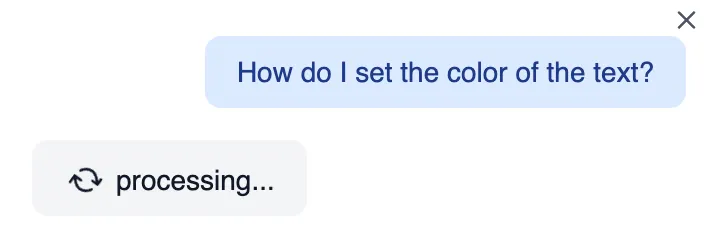
Example: Changing Text Color
If you select “How do I set the color of the text?”, the assistant will give a response like:
Open the Content & Style Configuration section, expand the Font panel, then change the Font Size value (enter px or use the slider) and Save.
Note: if the bar targets both desktop and mobile the app caps font size on mobile. Would you like me to change the size for you? If so, tell me the exact size (e.g. 18px) and whether it should apply to desktop, mobile, or both.
Need Assistance?
If you have concerns or need further help, feel free to email us at help@hextom.com!