
Features
How to use Translation feature
The Free Shipping Bar has a built-in translation feature powered by Hextom: Translate & Currency. This allows you to display bars in multiple languages, helping you reach more markets.
How to Create a Translation for the Bar Message
- Go to the Free Shipping Bar app and edit or create the bar you would like to translate.
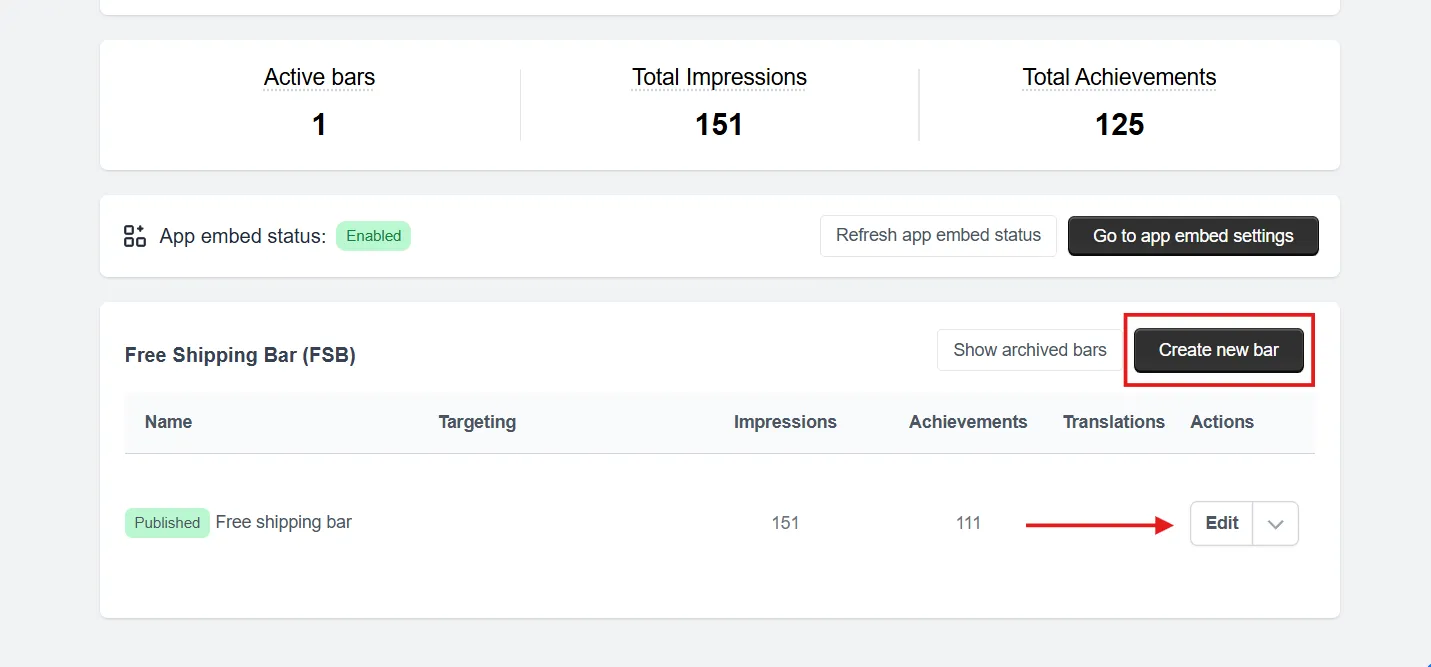
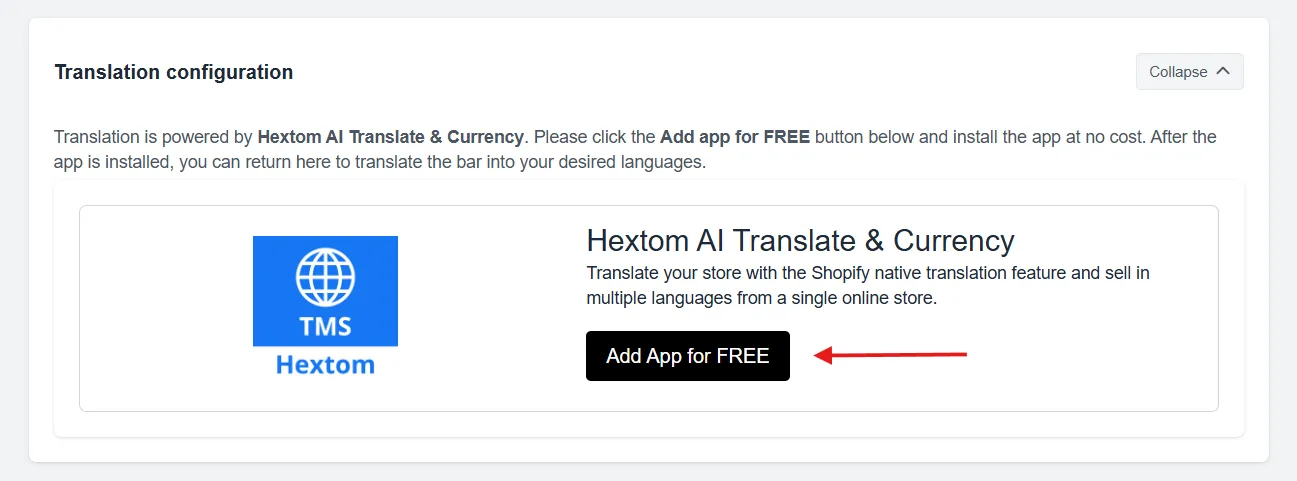
- Navigate to the Translation Configuration section within the bar settings. If you haven’t installed Hextom: AI Translate & Currency yet, click Add App for FREE, which will redirect you to the Shopify App Store, where you can install the app.

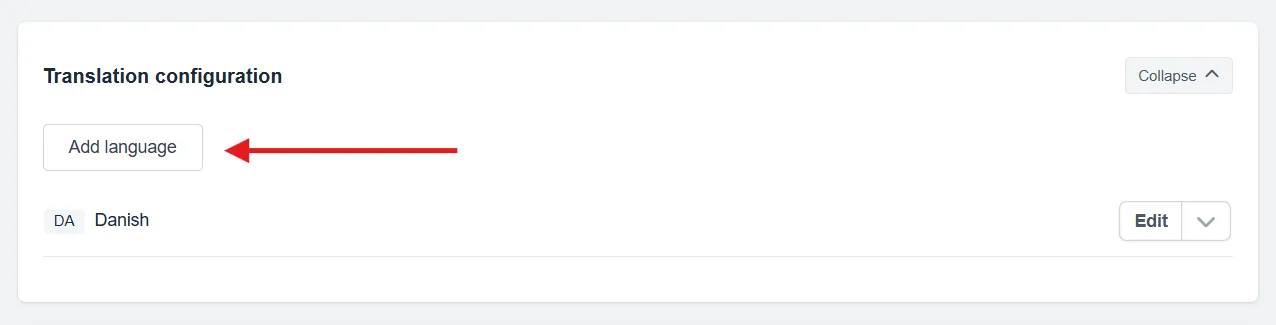
- Once installed, click Add language and select the language you’d like to translate your bar message into.

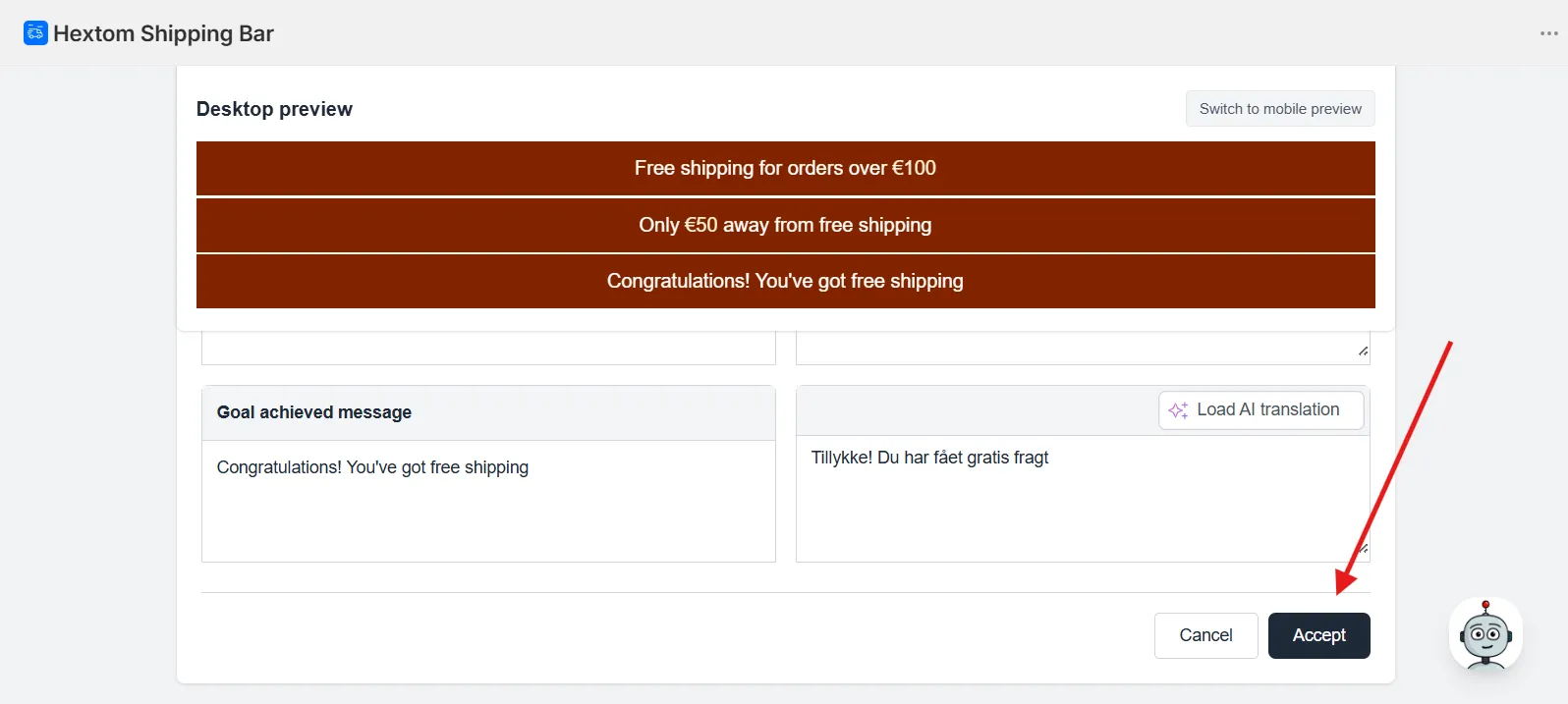
- Once a language is selected, you have two options:
- Click Load AI translation to automatically populate the fields with an AI-generated translation.
- Or manually enter your preferred translation directly into the message field.
- Then click Accept button to save the language translation.
- Then you can add more language by clicking the Add language button.
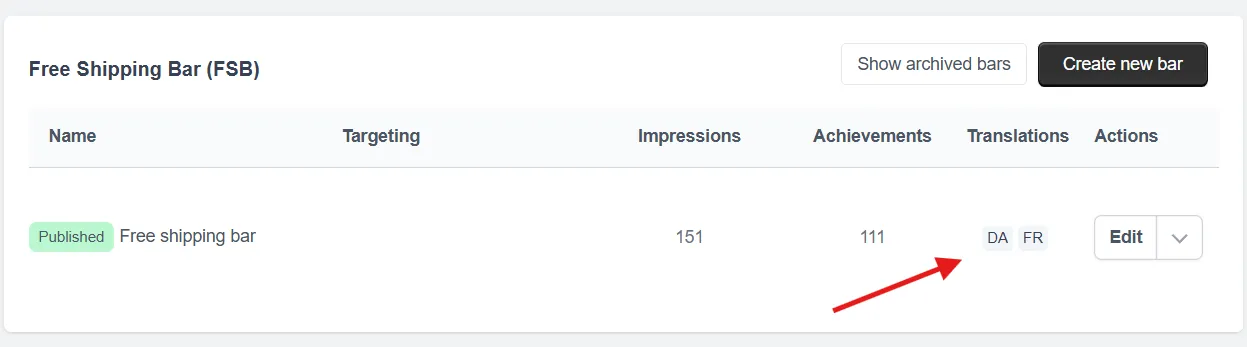
After saving the bar, you’ll be able to see all the languages your bar has been translated into.
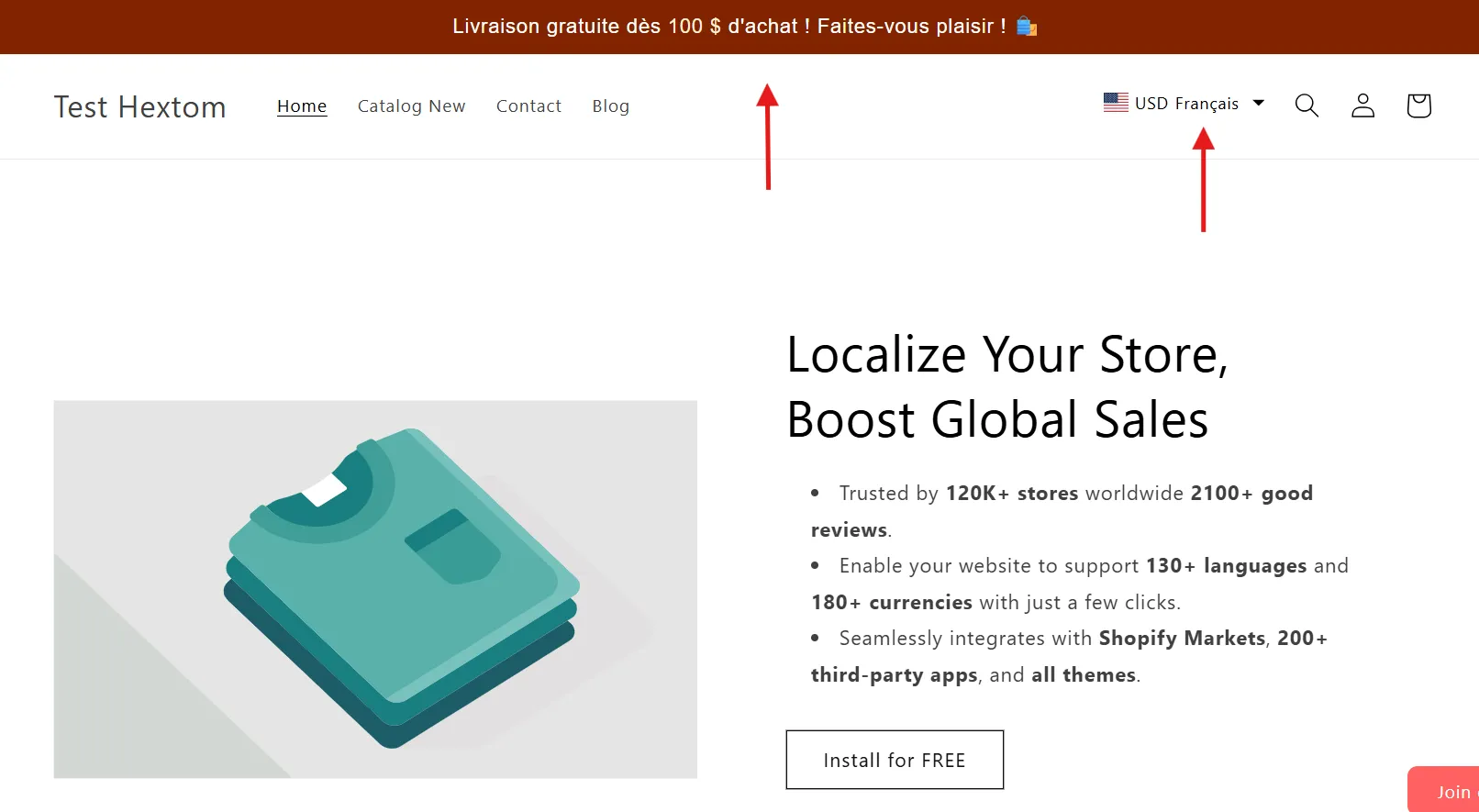
Now that the bar has been translated, when you visit your store and set the language to one of the translated languages, the bar should display in that language:
How to Update a Translation for the Bar Message
After updating your bar message, make sure to also update the translation entry to ensure the correct translation is displayed.
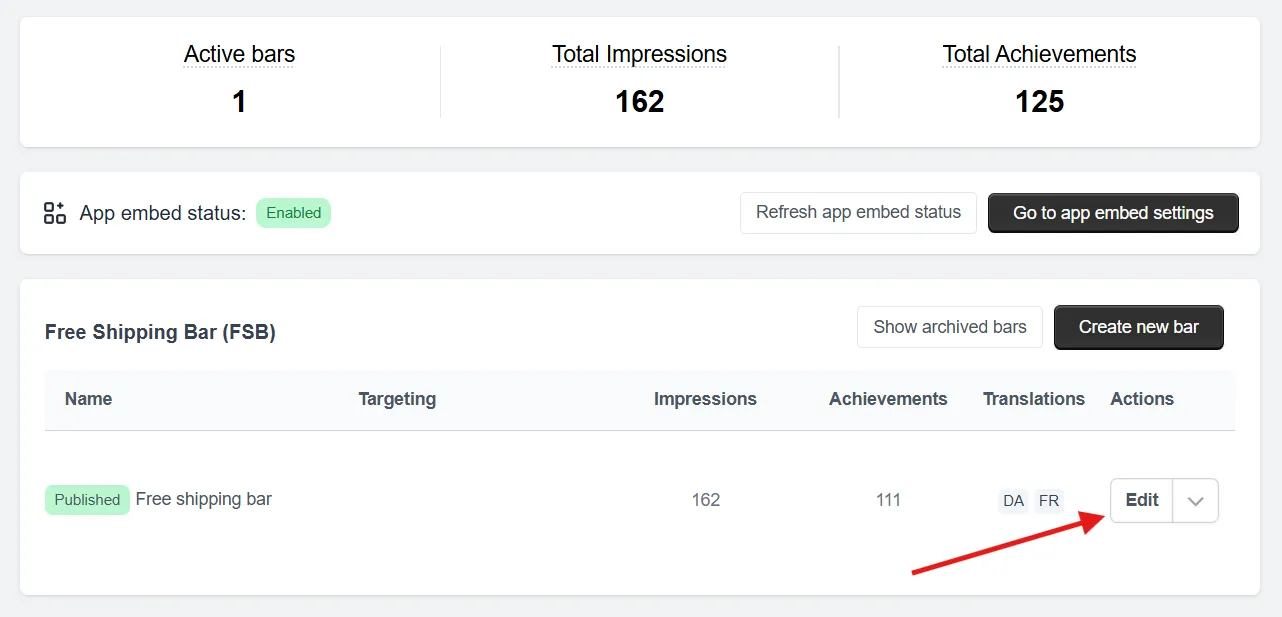
- Click Edit next to the bar you’d like to update and go to the Translation Configuration section.
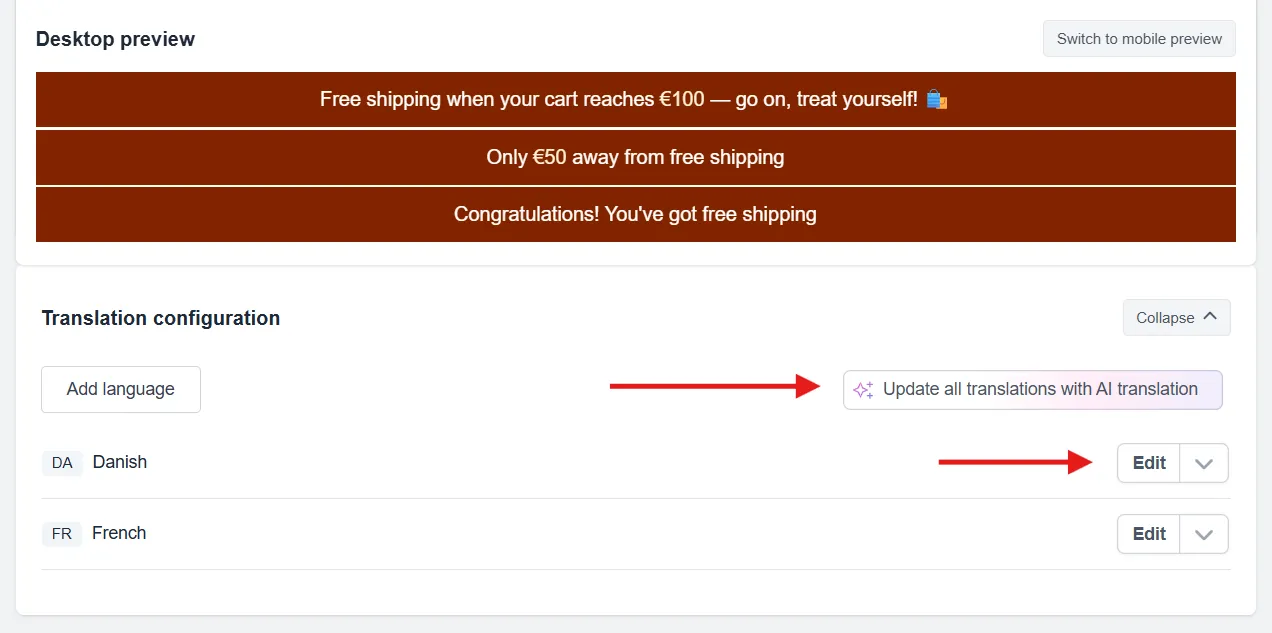
- You can either update the translation by clicking the Edit button, or simply click Update all translations with AI translation Load AI Translation to let the AI automatically update all the language translation.
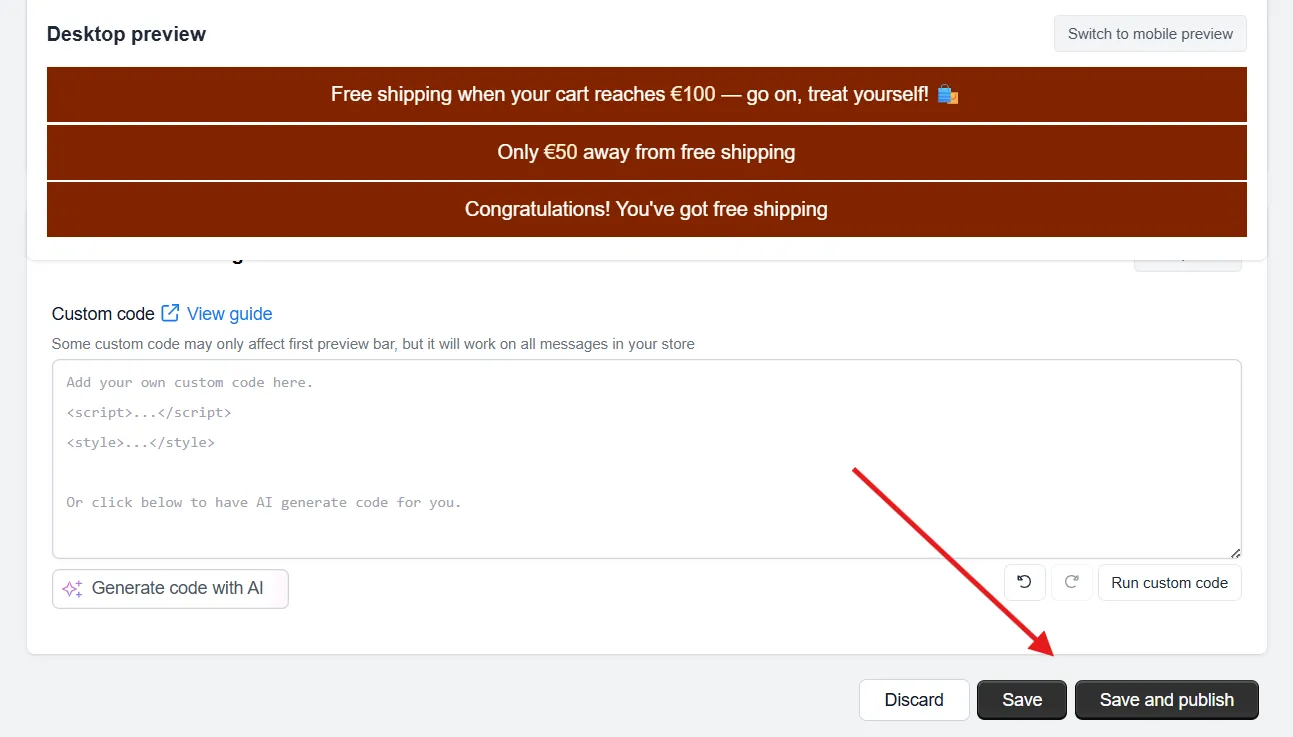
- Save the changes.
How to Delete a Bar Translation
-
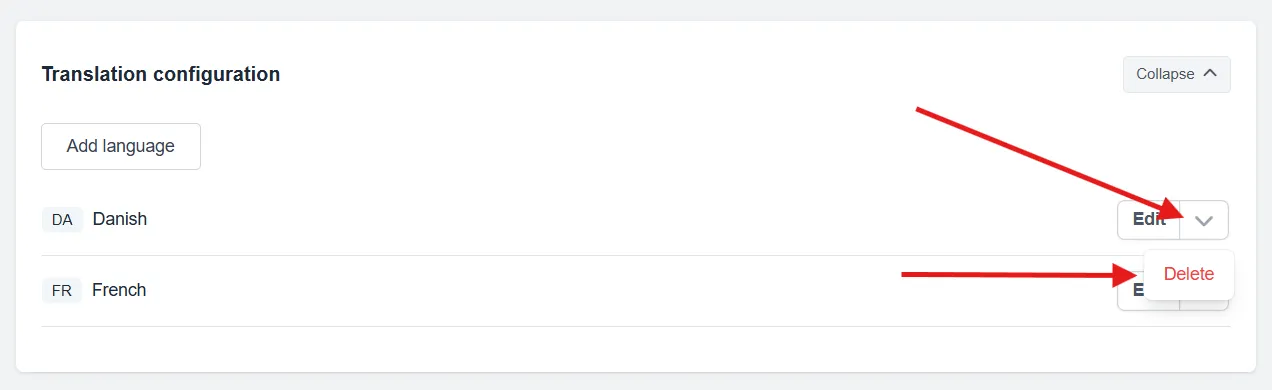
Go to the Translation Configuration section of the bar you’d like to update.
-
Click the dropdown button and select Delete.
- Save the bar and the message will no longer be displayed in that language.
If you have any questions or concerns, feel free to reach out to us at help@hextom.com