FAQs
My Bar Is Covering Another Element – How to Fix It
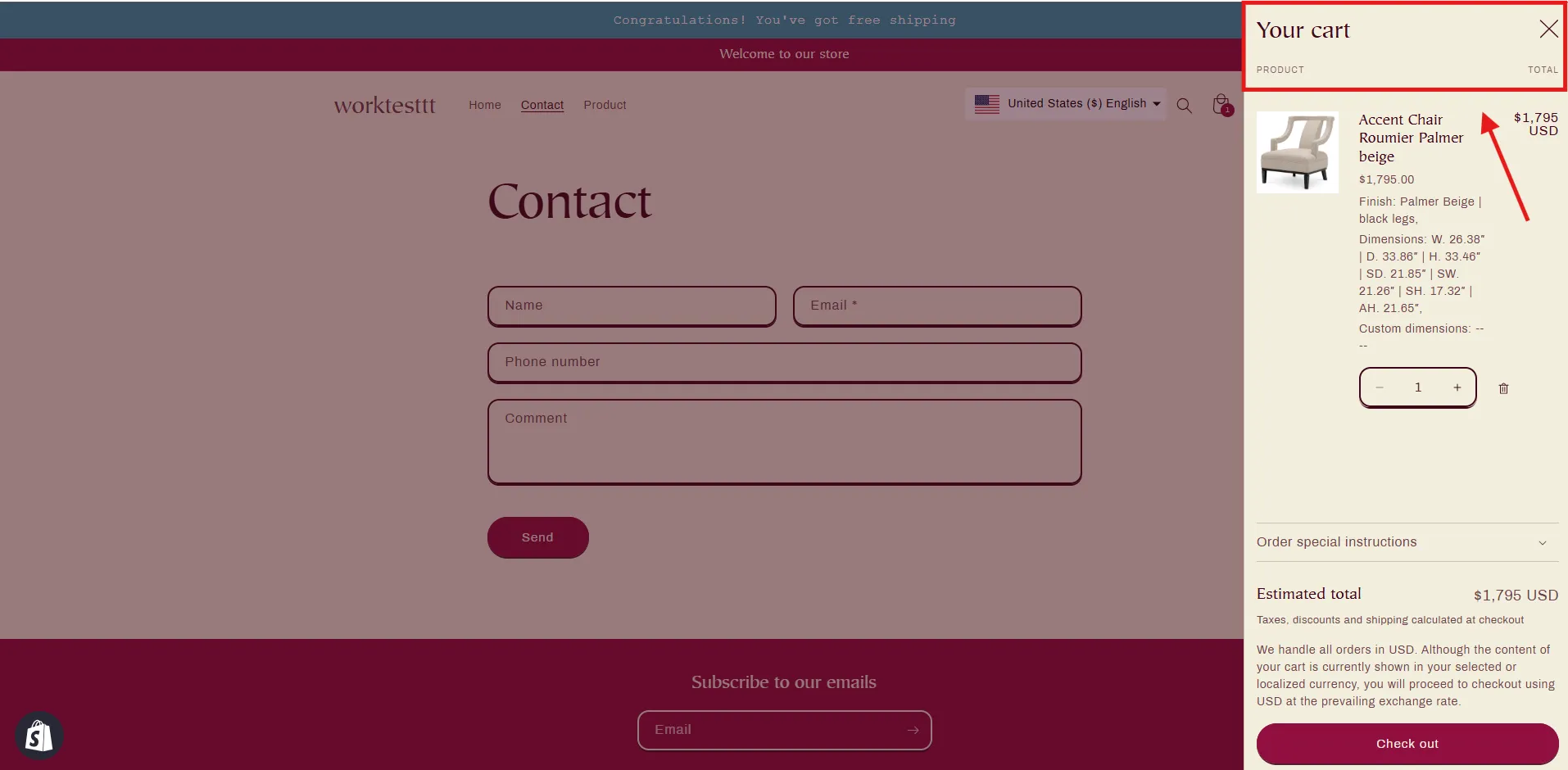
There are times when the Free Shipping Bar ends up covering another element when it should stay behind. In this example, the bar should be behind the cart drawer, but you can see that it’s covering the top:
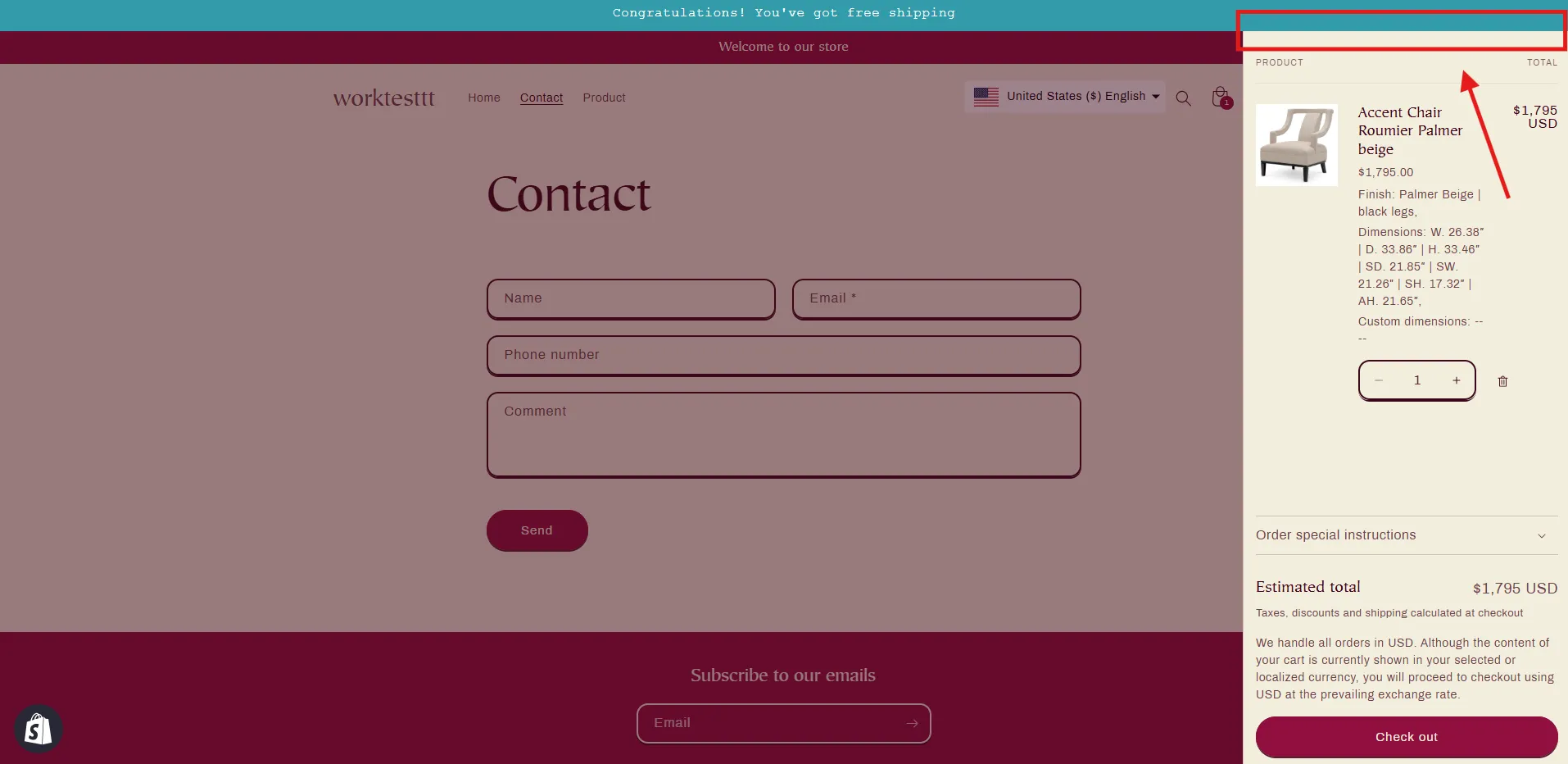
This is because both elements have a property called the z-index. The item with the higher z-index will be in front of the other.
Adjusting the Order (Z-Index)
To fix it, you can try adjusting the z-index of the bar, to get it behind the drawer.
- From your Shopify admin, go to the Free Shipping bar app and click Edit on the bar you need to edit.
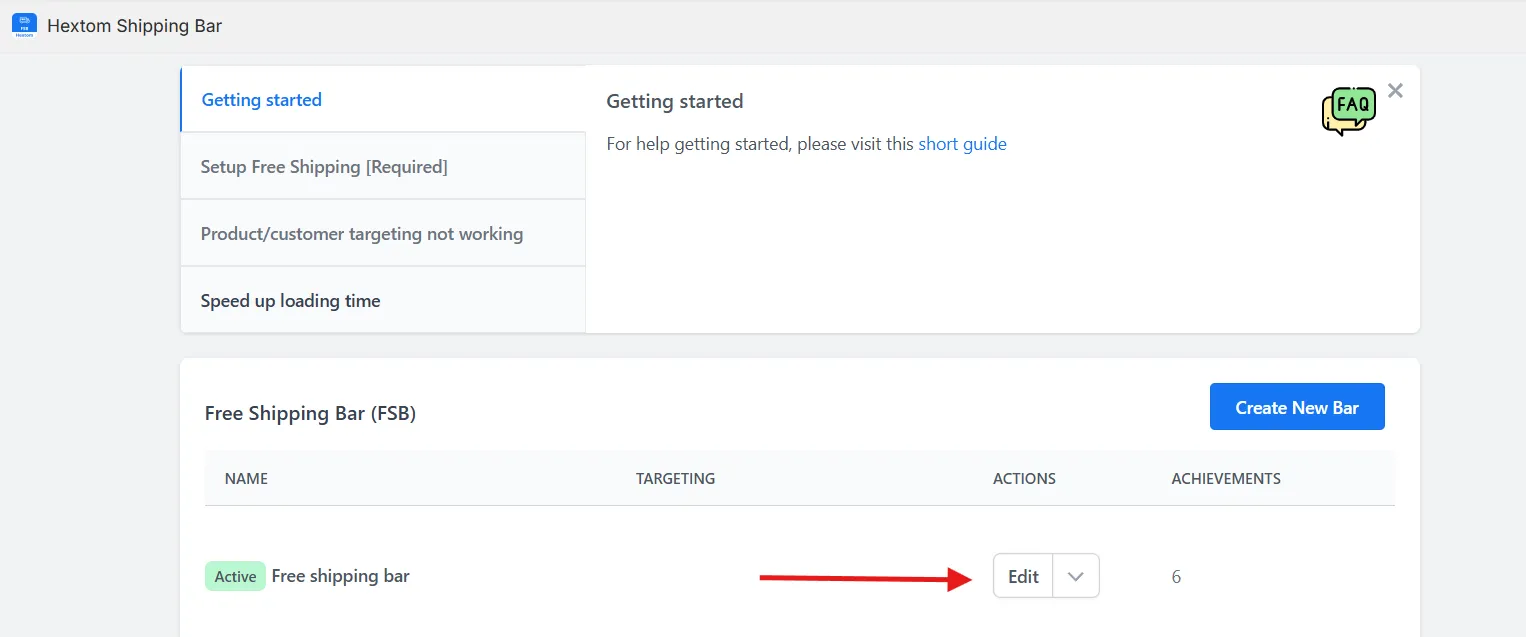
- In the custom code area of the bar configuration (at the bottom of the page), copy and paste in the following code:
<style>
#fsb_background{z-index: 99 !important;}
</style>
Like so,
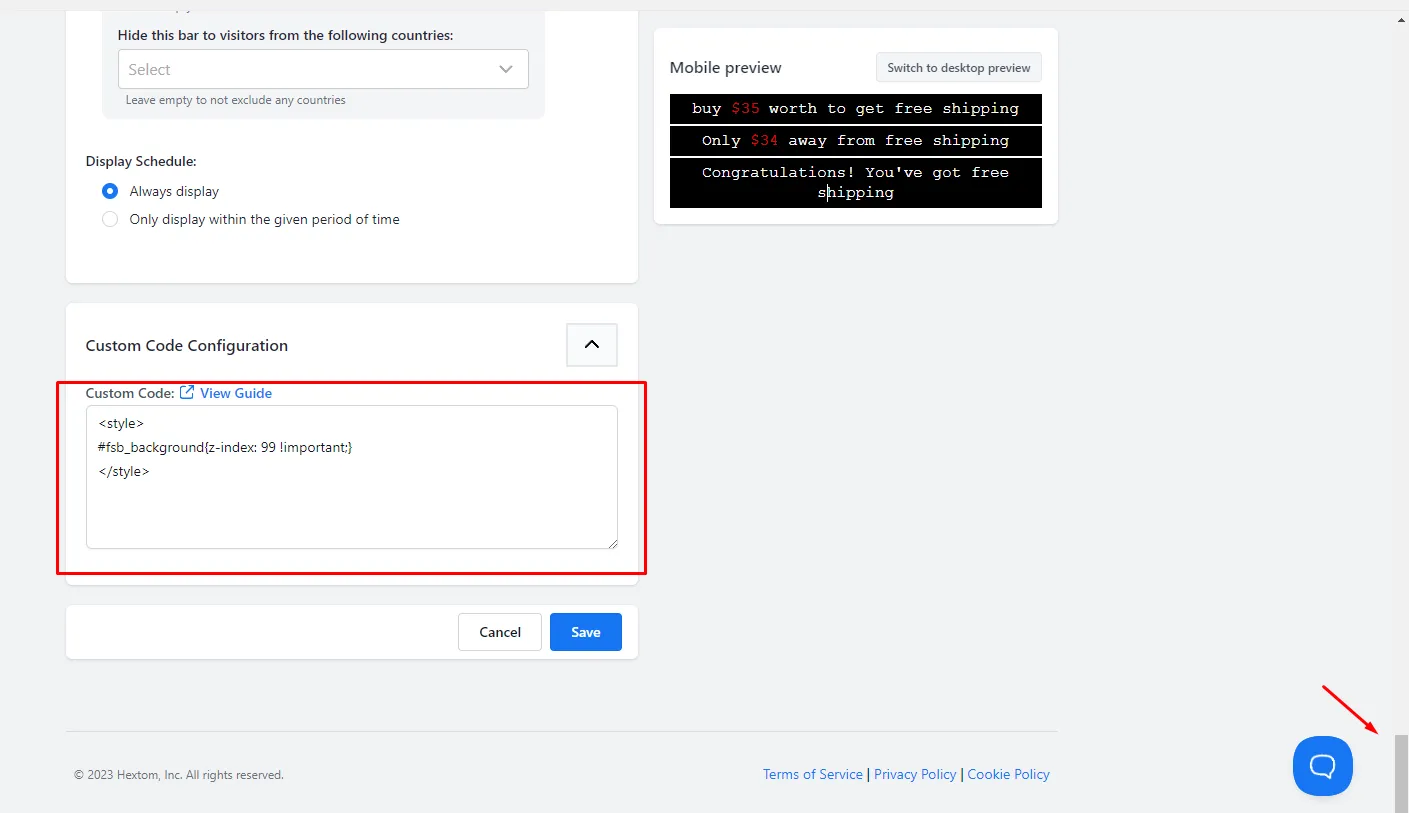
- Once this is done. We can now check our store, and it should fix the order(z-index) of the bar.
What to Do If It Still Doesn’t Work
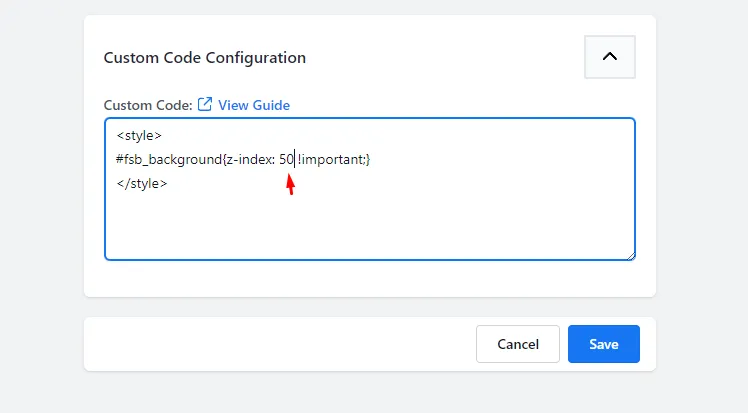
- If it still doesn’t work, try guessing a lower number. Start with 50, save the bar, and test the page to see if the issue is resolved.
-
If the bar still covers other elements, pick a lower number, say 25, and test. Keep trying this until the bar is no longer covering elements that it shouldn’t.
-
The advance (and more precise) method involves using the browser inspector to get the z-index of the element. That method is beyond the scope of this tutorial.
If you have any trouble adjusting the z-index, please contact us at help@hextom.com