
FAQs
How do I place the bar anywhere on my site with 2.0 Theme?
If you are using a Shopify Online Store 2.0 theme and want to place your Free Shipping Bar in a location other than the default top or bottom positions, you can use the Placeholder option. This lets you position the bar exactly where you want it — such as inside specific sections, below the add‑to‑cart button, or above subtotal in the cart page.
Before you begin, make sure:
- Your bar is set to Placeholder in the app’s Display configuration.
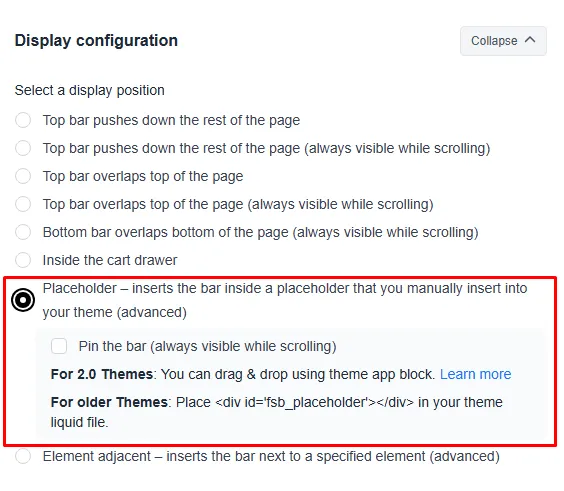
- Your theme supports App Blocks (Shopify 2.0).
- You have enabled the FSB theme app embed (recommended for best performance).
There are three ways to manually place the bar:
- Option 1: Place the placeholder code in your theme
- Option 2: Place an app block in your theme
- Option 3: Add a custom liquid block
Option 1: Place the placeholder code in your theme
Use this when you want full control via code.
-
Copy the placeholder snippet below:
<div id="fsb_placeholder"></div> -
In Shopify admin, go to Online Store > Themes and click Edit Code.
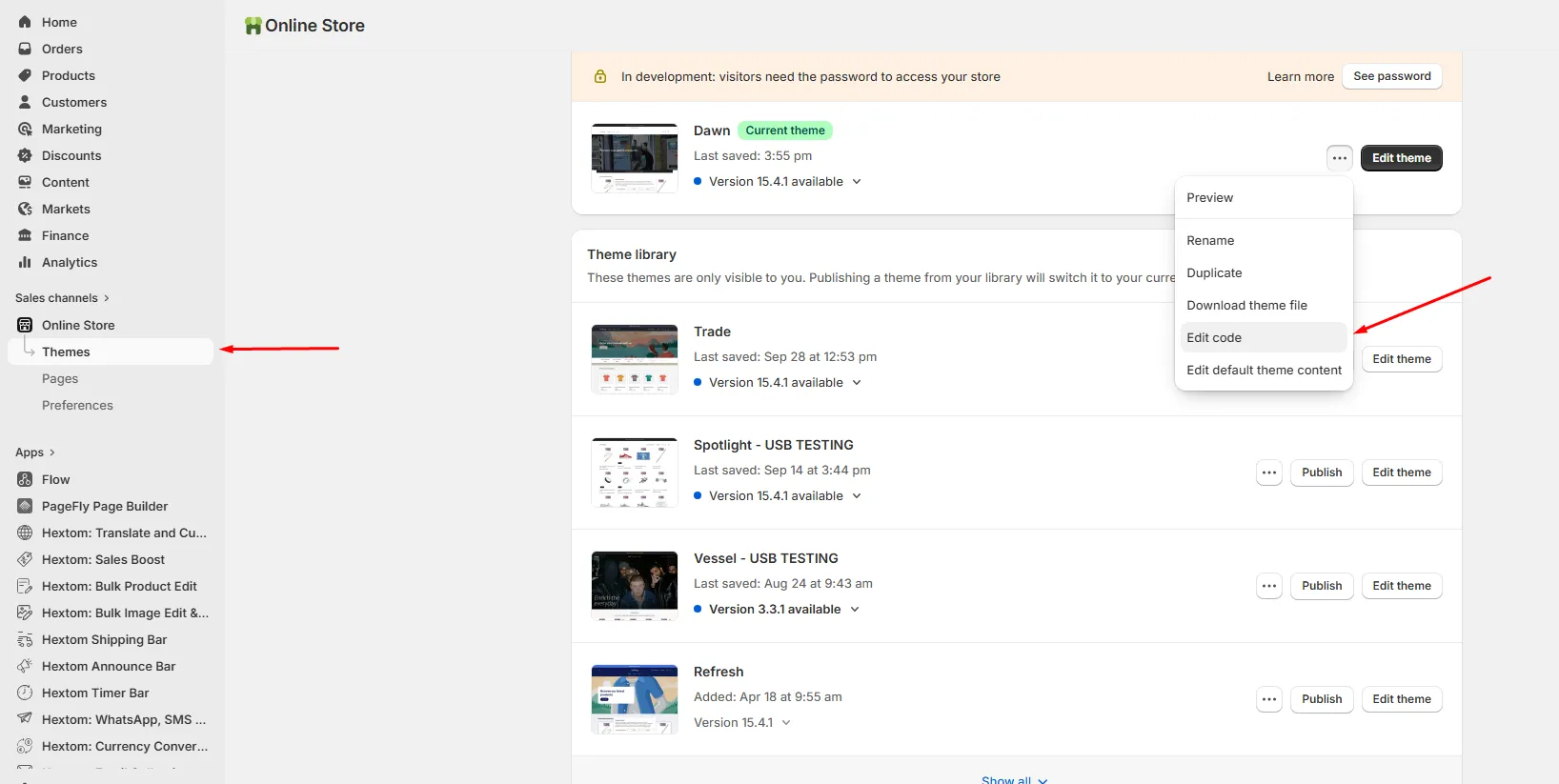
-
Open the template file where you want the bar to appear (for example, theme.liquid, a section, or a template file).
-
Paste the code in your theme code, as shown here:
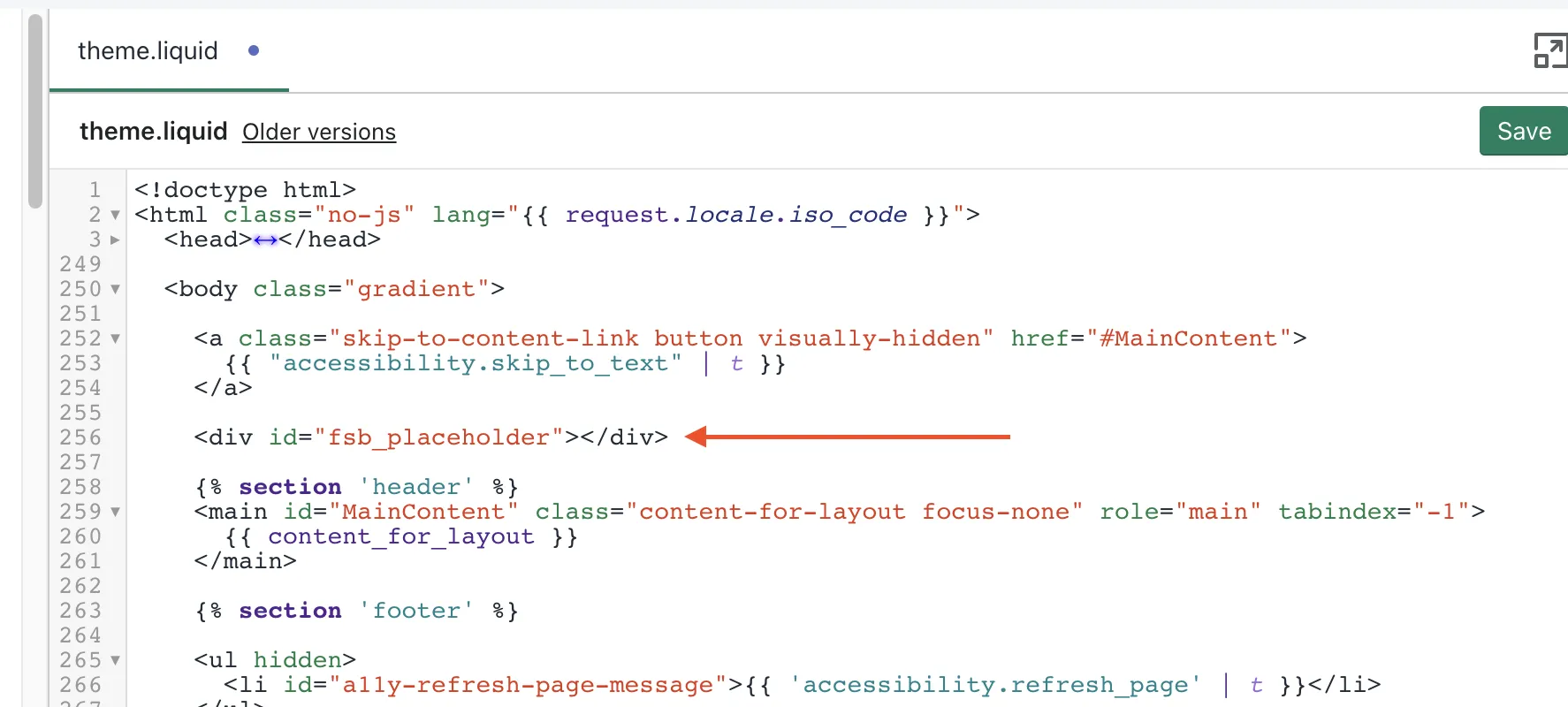
-
Save your changes and preview your store.
That often works, but there can sometimes be some unexpected results with some themes. Also, some themes don’t have a body section that can be easily edited, and instead you’ll see something like this:

Option 2: Place an app block in your theme
This does not require editing code directly.
Step 1: In the app dashboard, confirm Placeholder option is selected:
Step 2: In Shopify admin, go to Online Store > Themes > Customize:
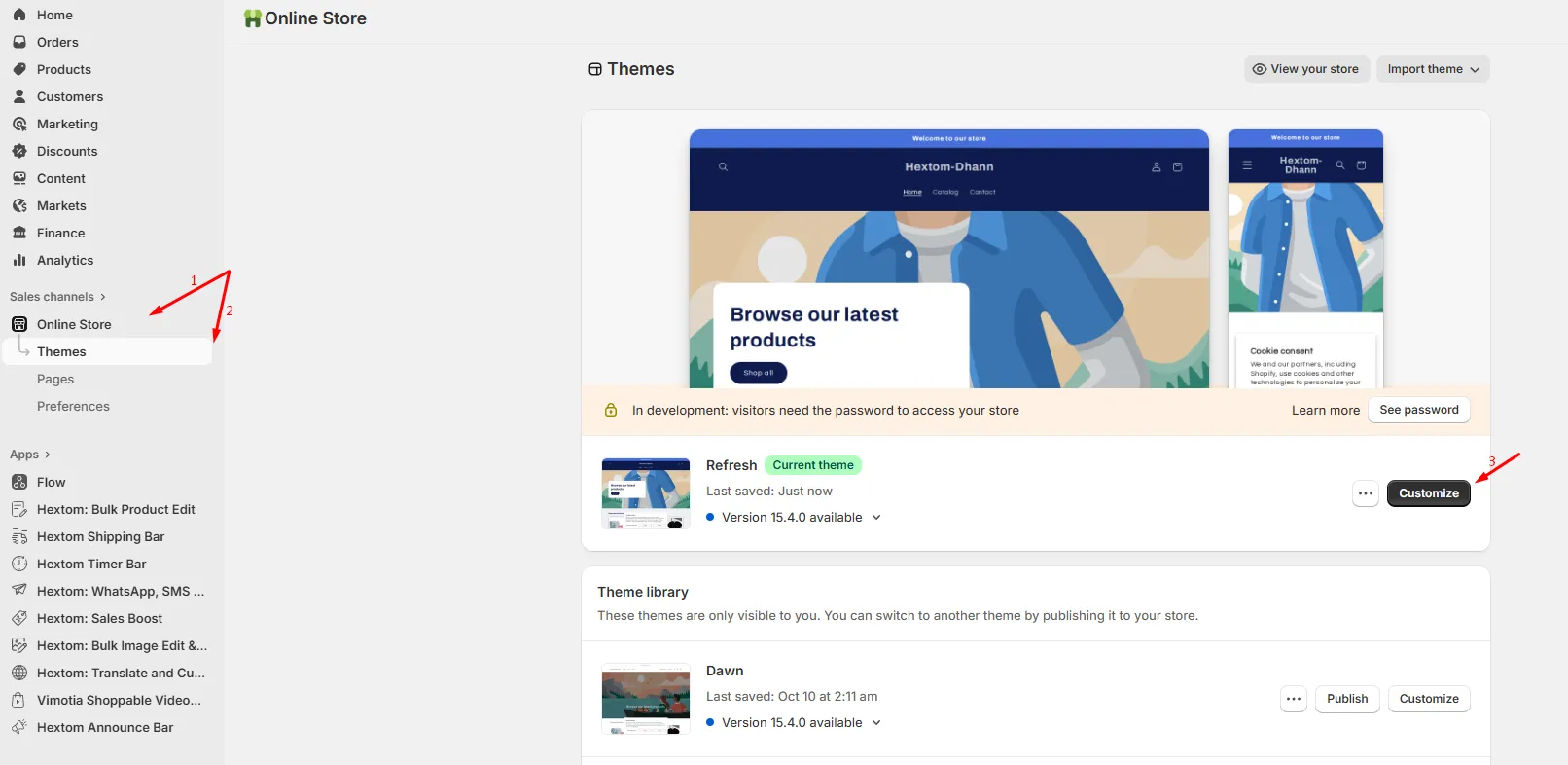
Step 3: Choose the page you want to edit (Home, Product, Cart, etc.)
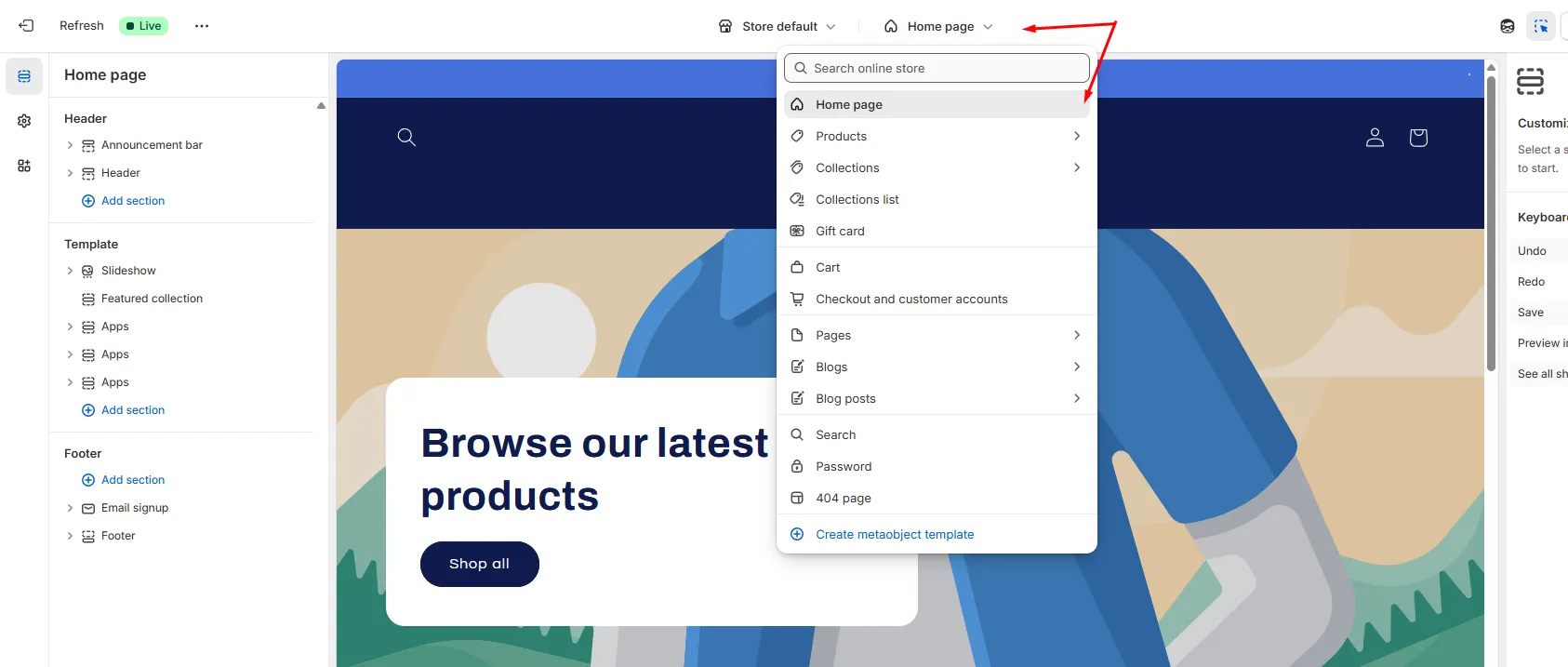
Step 4: Add the bar as it’s own section. To do that, you can click on Add section:
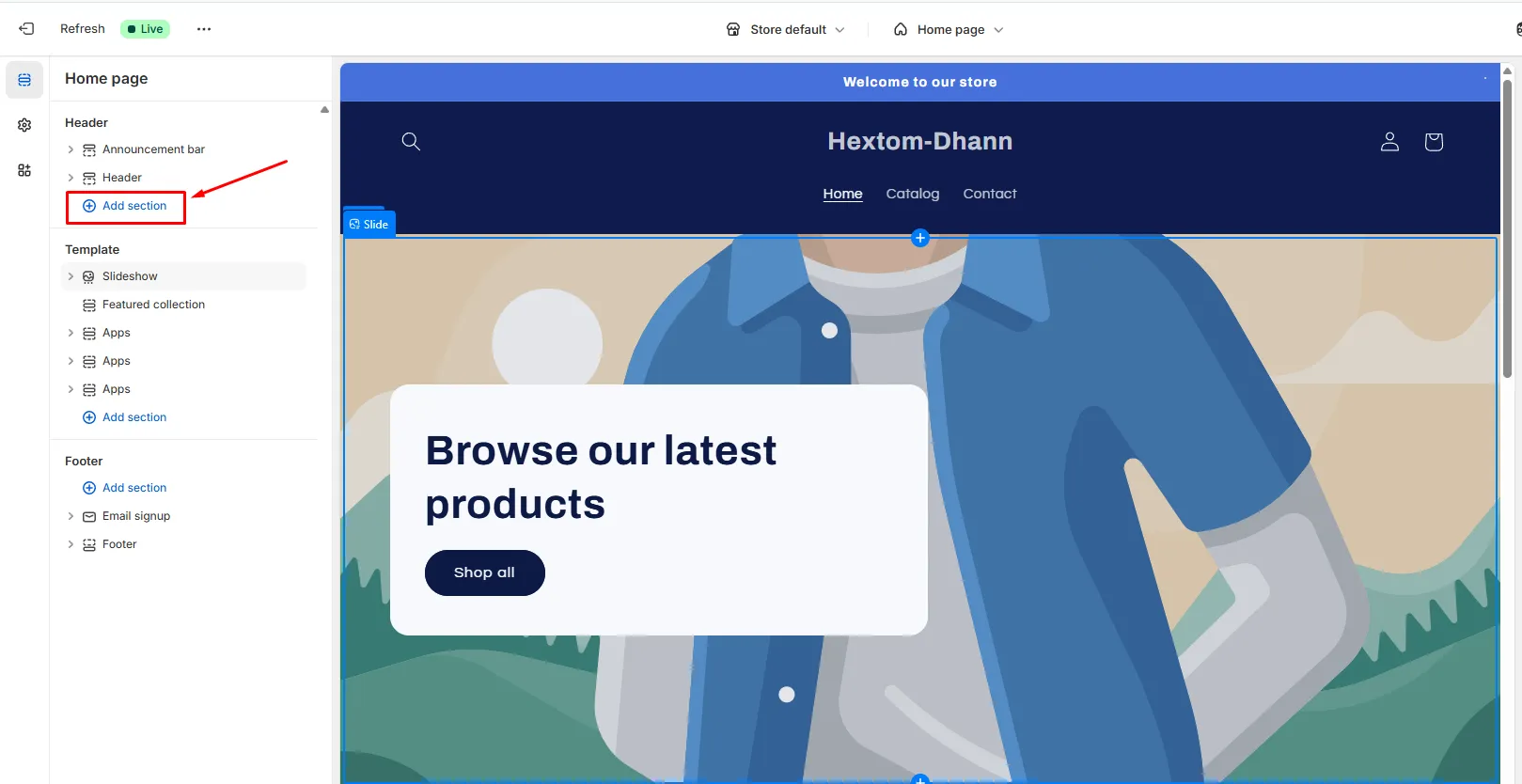
Then scroll to the bottom and you’ll see a section called Apps. Among the options, you’ll see Free Shipping Bar:
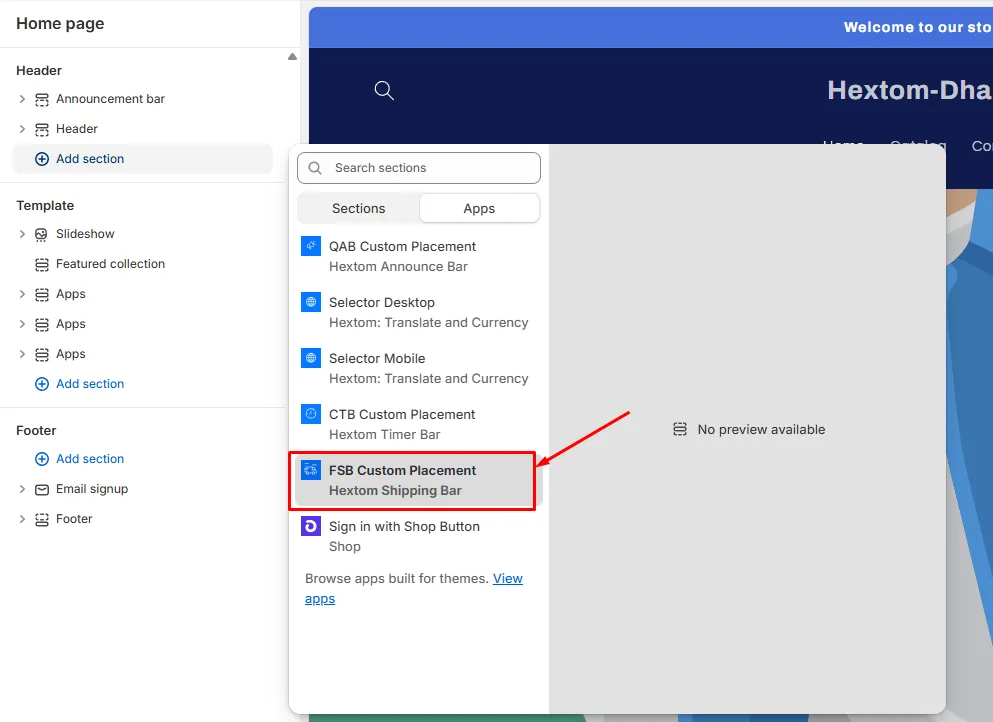
Click on it to add it to your page. It will then be at the bottom of the sections.
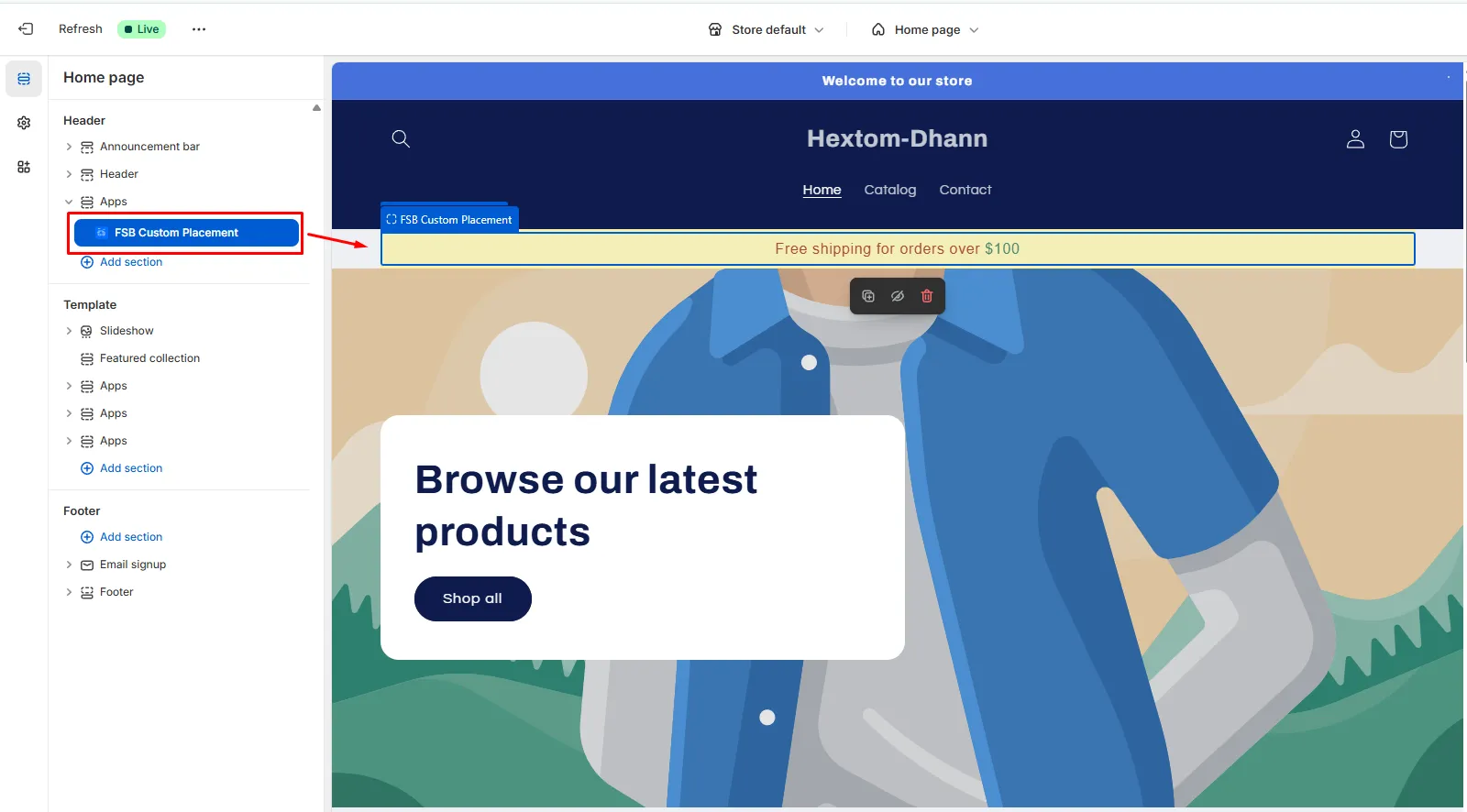
Step 5: Position the block where you would like. You can use the dotted tab to move the bar around in the layout:
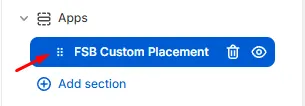
You may find yourself trying to drag the bar by grabbing the dotted tab for the FSB Custom Placement block. But that won’t work. You need to grab and move the dotted tab of the Apps element.
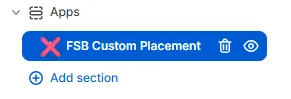
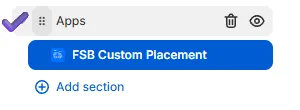
And you should be able to see the bar that has been prepared in the app configuration rendered into the preview window:
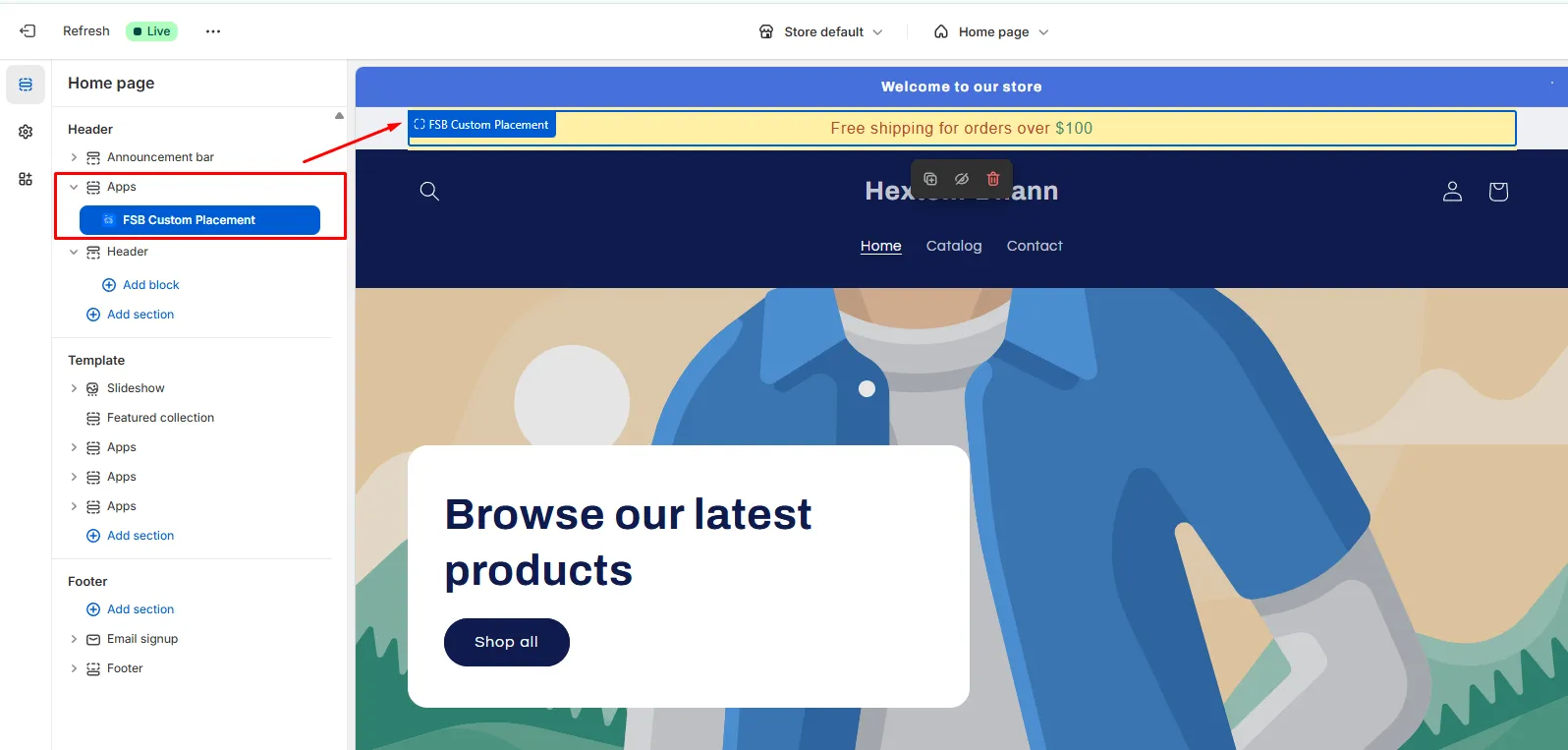
If you click on the section, you’ll see that there are no customizable settings. All the settings are still set in the app. But this allows you to place the bar in your theme more easily.
Here are some examples of what you can do with the following steps.
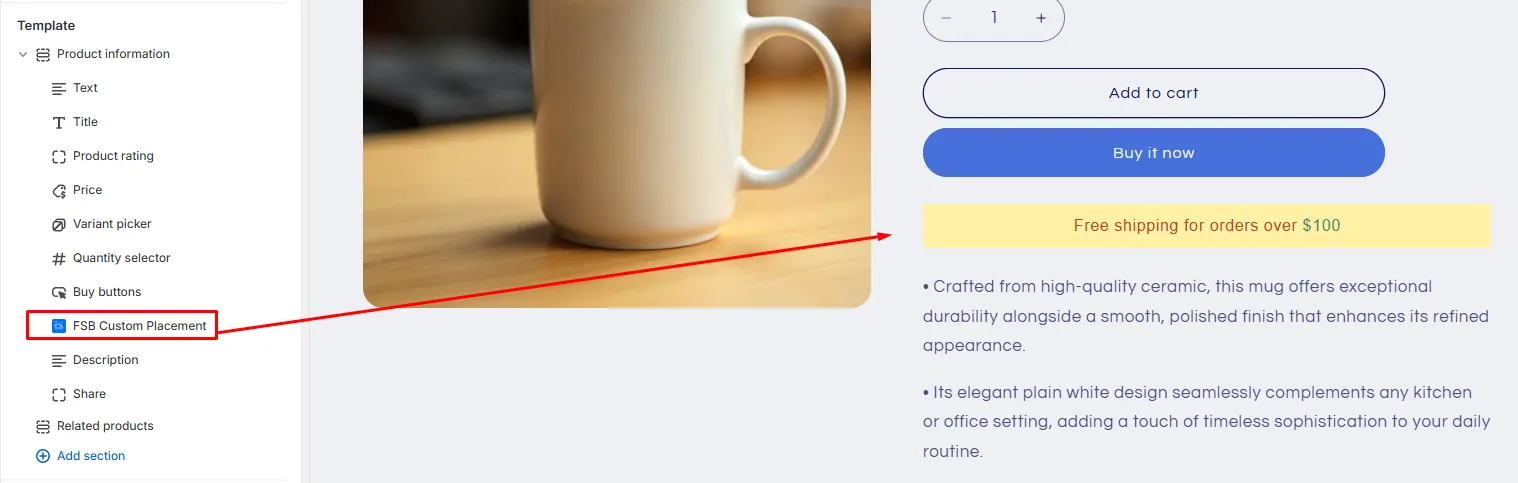
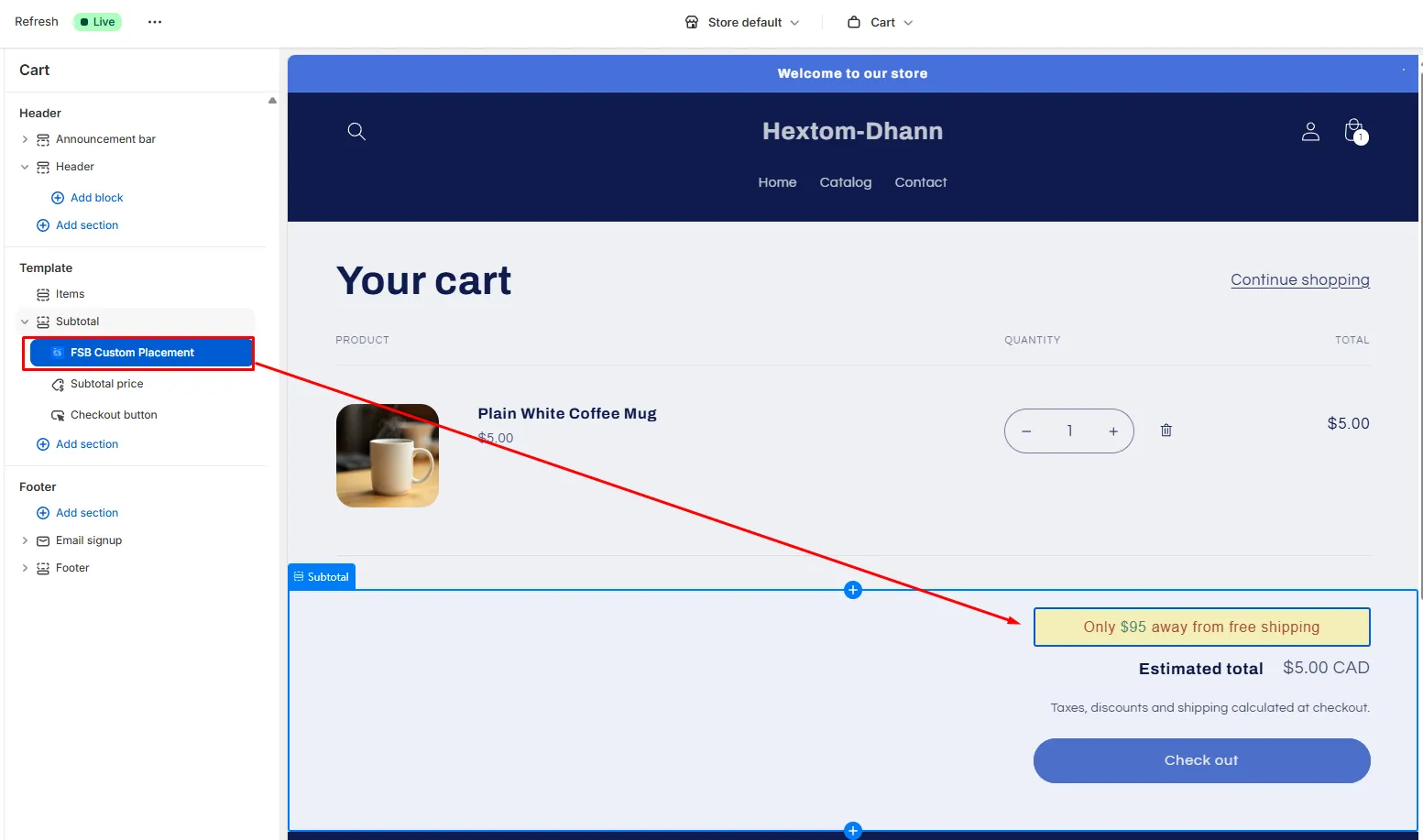
We can use the App Block approach to customize placement such as placing the bar below the Add to cart button on product pages or above the subtotal in the cart page.
Switch over to the product page and choose Default product:
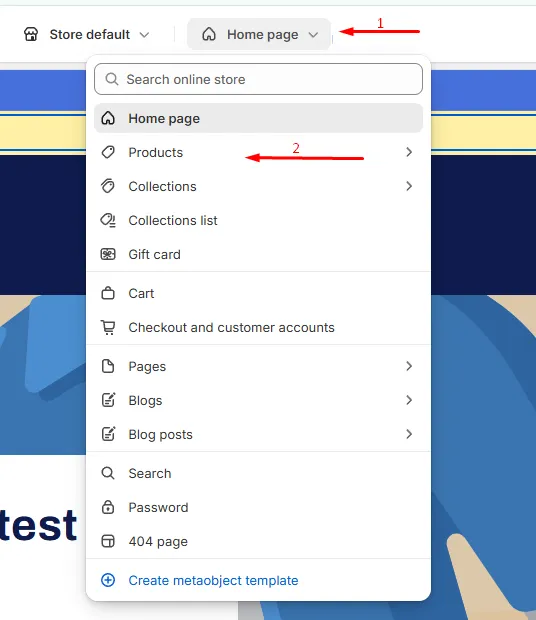
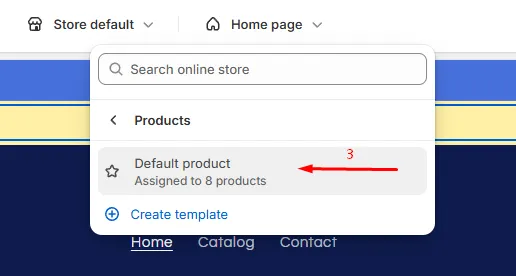
A product page will display.
From here, you can choose to add the bar as a section or a custom liquid, just as in the above example. But you can also add the bar as part of the item description, placing the bar below the add to cart button. Here’s how.
In the left side menu, click Product information to open the section and see all of its components.
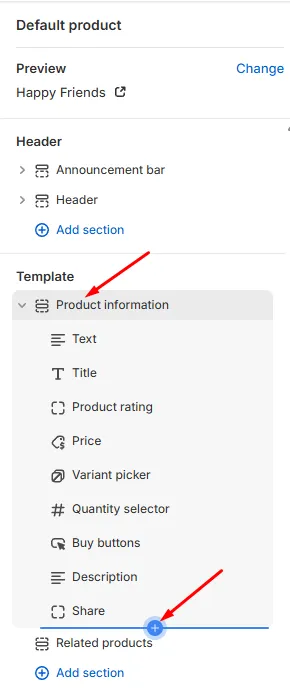
At the bottom, click Add block. Select FSB Custom Placement.
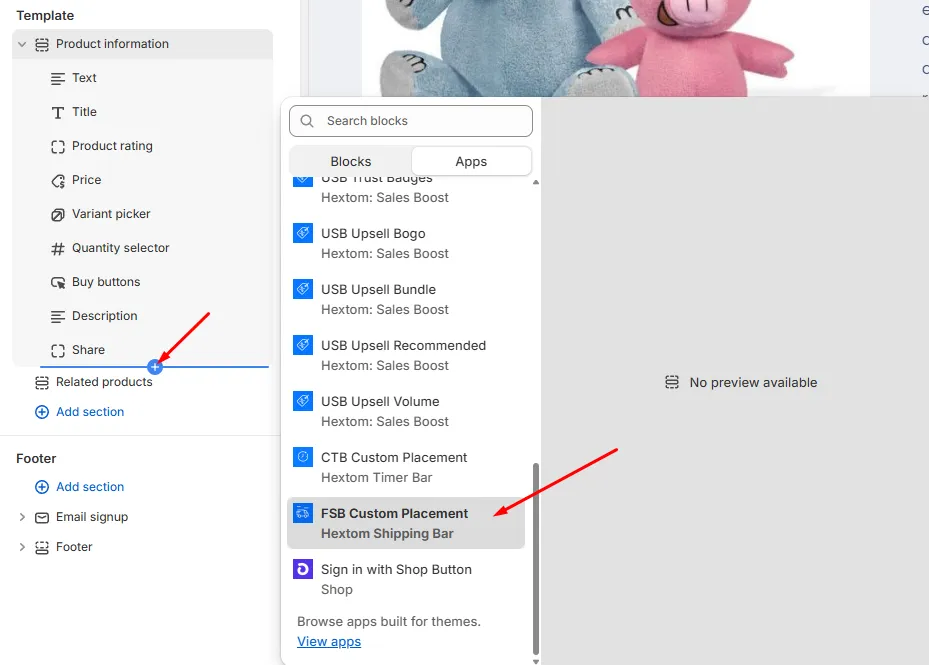
The App Block will be added to the bottom of the section.
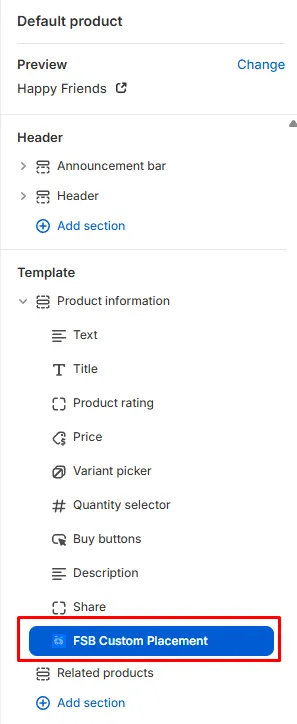
You’ll then be able to use the dotted tab to drag it around the section.
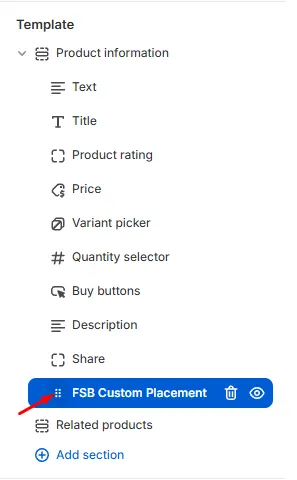
You can drag it to just under the Buy buttons.
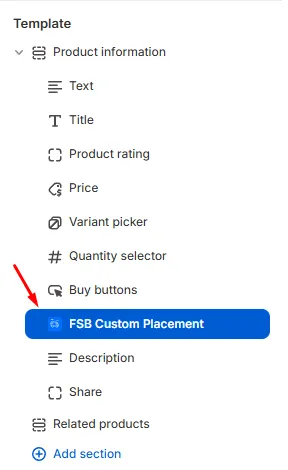
Now you’ll be able to see the bar placed underneath the Buy it now / Add to cart buttons.
A similar approach can be used on the cart page. Using the top drop down, open the cart page layout:
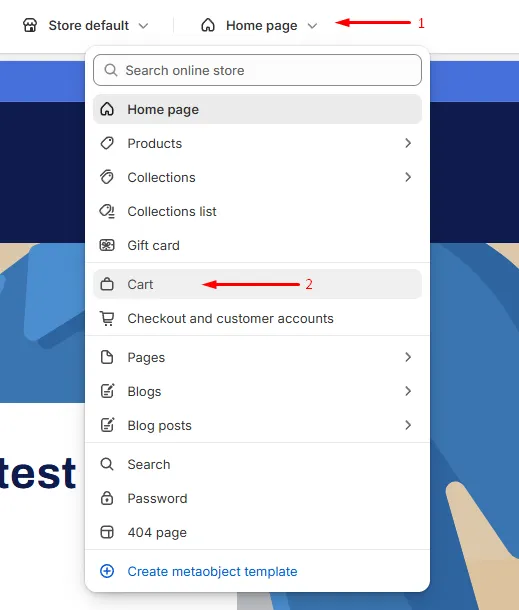
Using the same approach as before, you can click on Subtotal to open up the section and see the contents. In there you can click on Add block to add the FSB Custom Placement. In this example I dragged the block to above the subtotal.
Please note that if you are not using a Shopify 2.0 theme, you might not be able to add a section to certain pages.
Option 3: Add a custom liquid block
Use this if you want full‑width placement or precise control via the theme editor:
Step 1: Open your theme editor, and add a Custom Liquid section
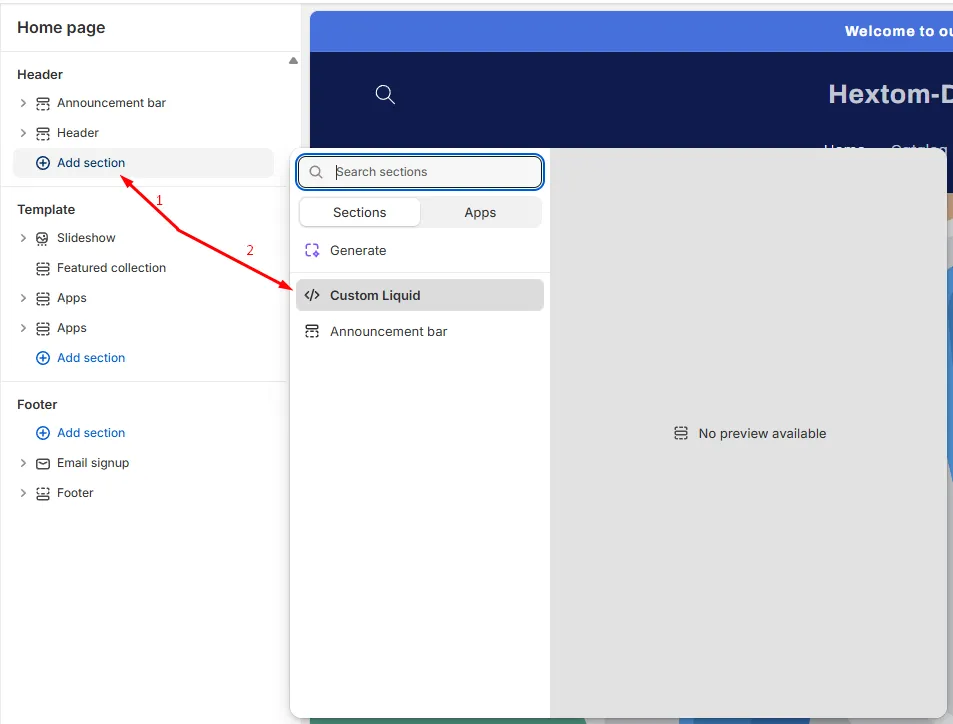
Step 2: Click on the newly created block. You will see an empty field where you can place your code. This is where you’ll place the placeholder code:
<div id="fsb_placeholder"></div>Step 3: Save and preview.
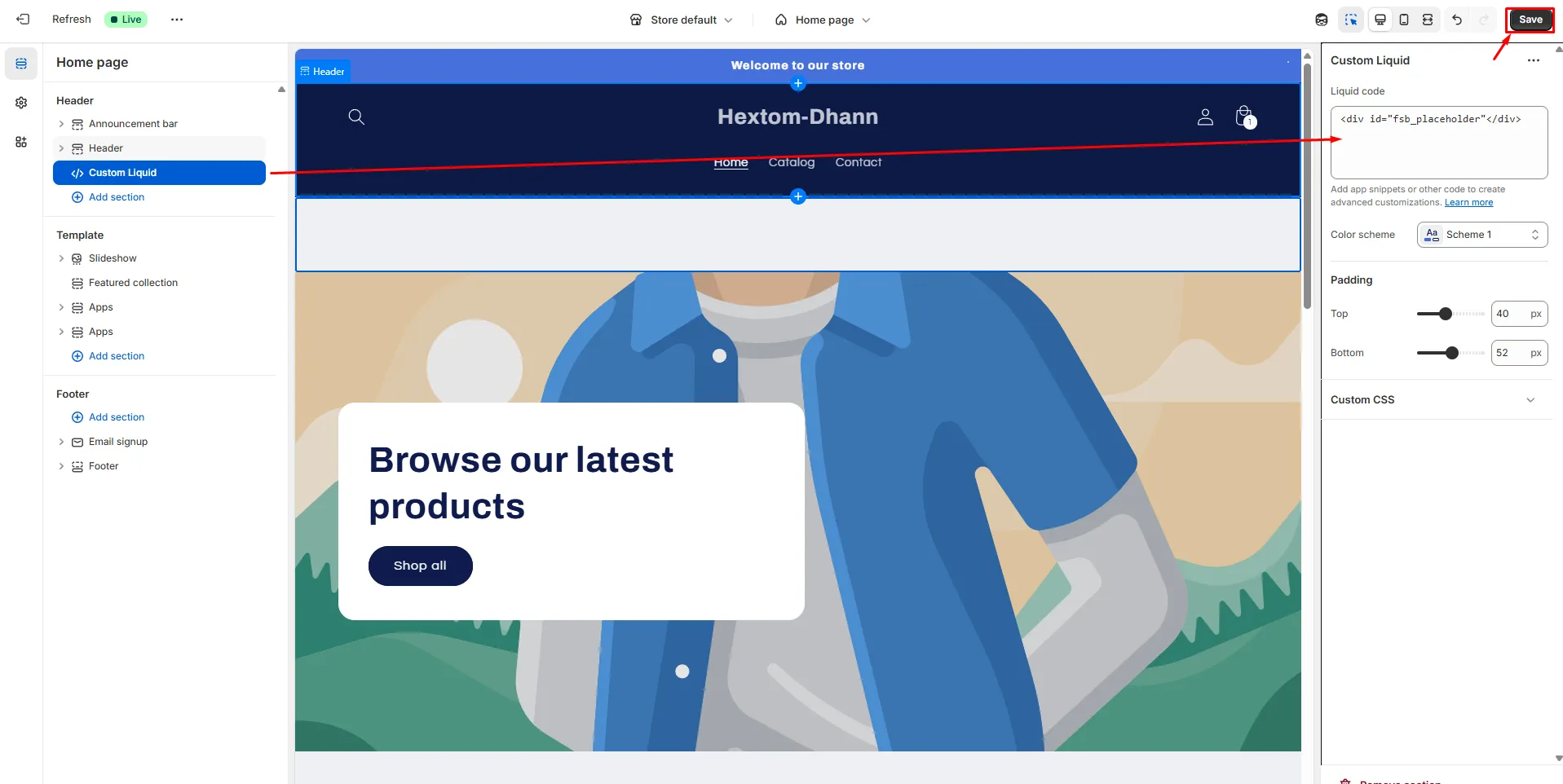
After saving, the page will refresh and you should be able to see the bar:
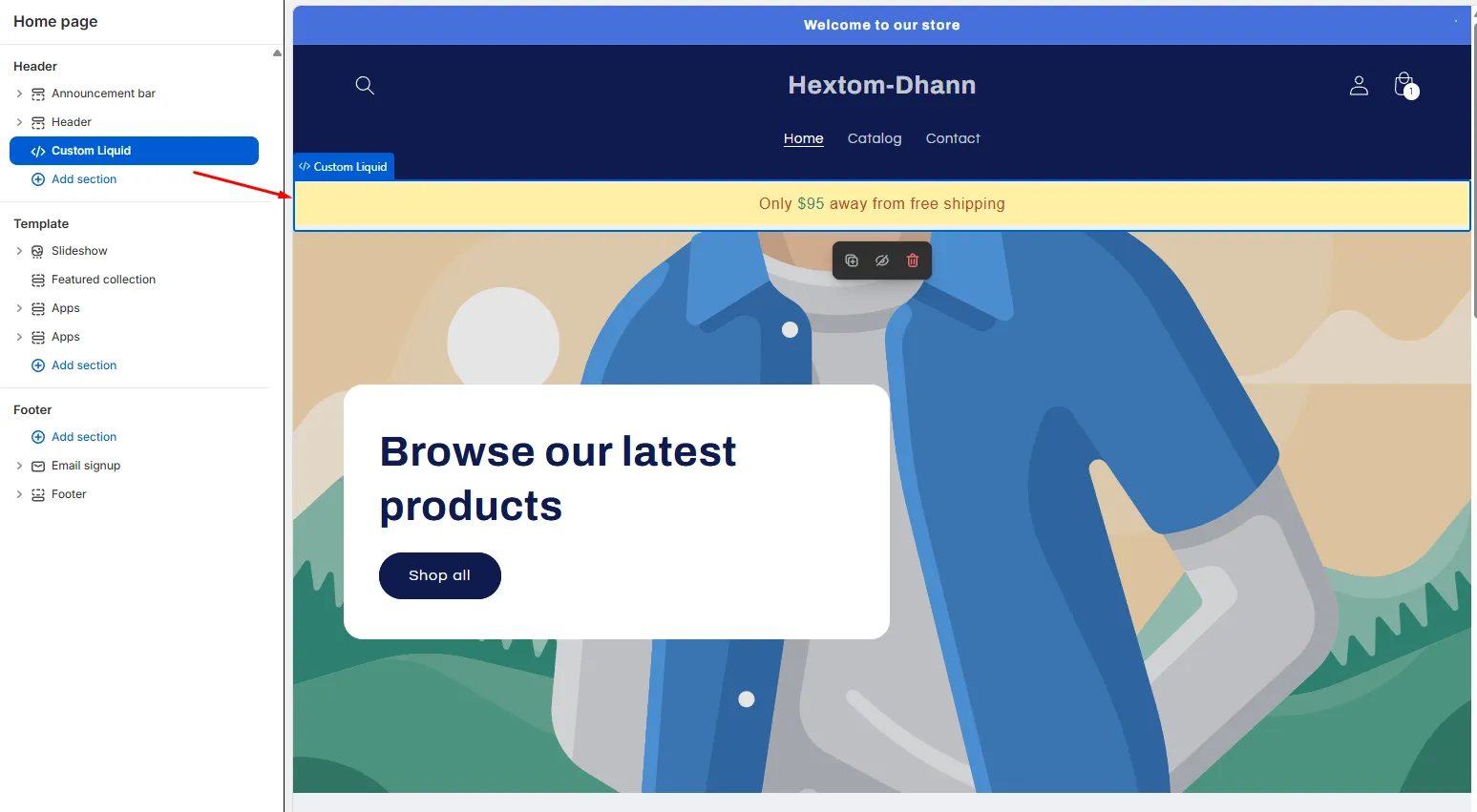
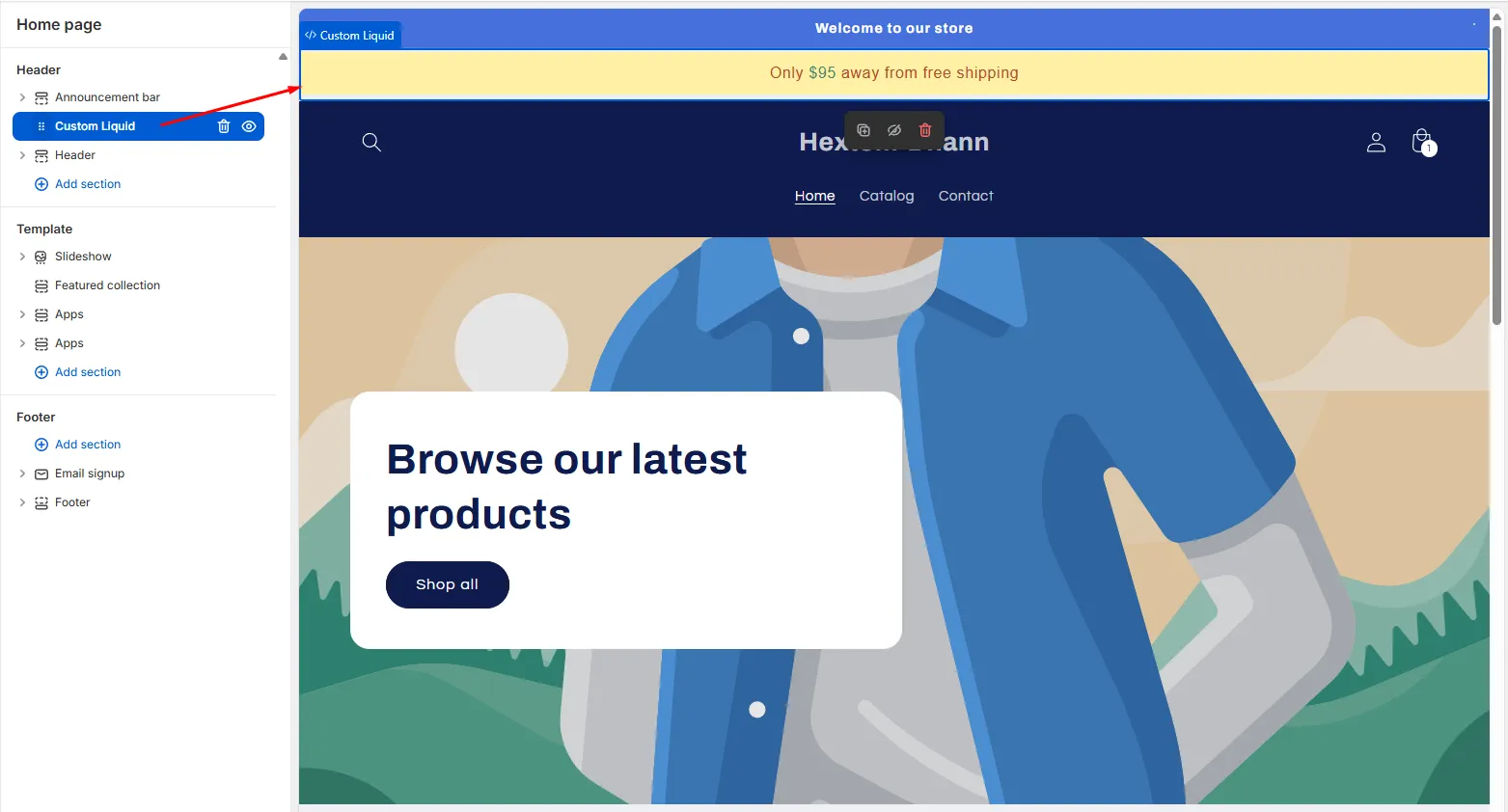
Step 4: Drag the Custom Liquid block to reposition as needed on the header. You cannot place the bar on the template using this approach.
Tips, Notes & Troubleshooting
- Make sure the app embed snippet is enabled in the theme customizer for best performance and compatibility.
- If the bar doesn’t show, clear preview settings and try another placement method.
- Not all theme sections allow block placement. In those cases, use placeholder code in the theme file or a custom liquid block.
If you have any questions or suggestions, feel free to contact our support team at help@hextom.com.