Features
Background Options

Hextom: Shipping Bar offers multiple options for bar backgrounds. In the basic plan, you can select a single color as the background. The premium plan allows access to gradients, patterns, and images as backgrounds.
Single Color
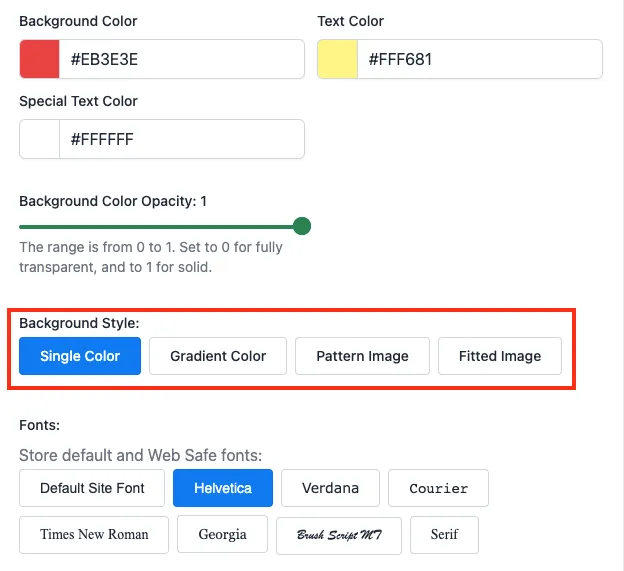
To use a single color as the background for the bar, select Single Color under Background Style.

You can set the background to a color of your choice using the color picker.

The Background Color Opacity slider controls the opacity of the background (how transparent or ‘see-through’ the background color is).
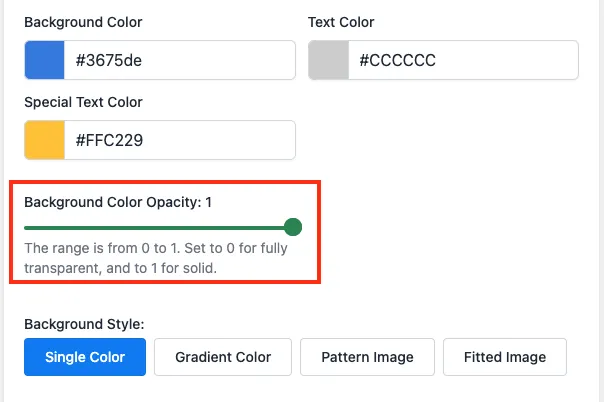
For example, if you set the opacity to 0.5, the bar will be half transparent, revealing content behind the bar.

This can be most visible while scrolling a page in your shop.
Gradient Color (Premium Plan Only)
The Gradient Color option allows you to use a 2 or 3 color gradient as the background.

The app provides an array of presets to choose from:
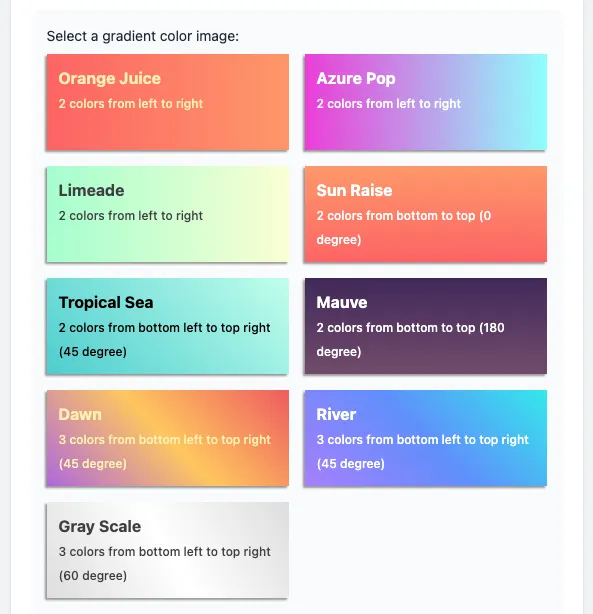

You can also customize the gradient to your liking by using the color pickers and gradient angle slider:

To have 3 colors in your custom gradient, click on a preset option that has 3 colors to open a 3rd color picker:
Pattern Image (Premium Plan Only)
The pattern image background takes a small image and repeats it, creating a pattern.

Simply click on the pattern you’d like to set as the background:

You can also load your own pattern (.jpg, .png, .gif) by dragging and dropping it into the drop zone:

Fitted Image (Premium Plan Only)
The Fitted Image option allows you to use a large image and fills the width of the background.

Simply click on the image you’d like to set as the background:

You can also load your own image (.jpg, .png, .gif) by dragging and dropping it into the drop zone.
You have the option to have the image scroll up and down, adding a bit of motion to the background which can help draw attention.
The Scroll Speed setting refers to how many seconds it takes the image to fully scroll the height of the image.
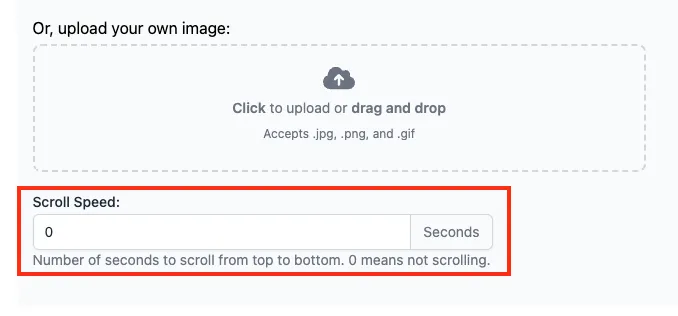
For example, if you set the scroll speed to 20, the image will smoothly scroll down, taking 20 seconds to reach the bottom. The image will then scroll back up over 20 seconds.

Setting the scroll speed to 0 will keep the image still.
Motion Effect (Premium Plan only)

In addition to the different background styles we have, you can also apply motion effects to your bar to make it more eye-catching for your customers.
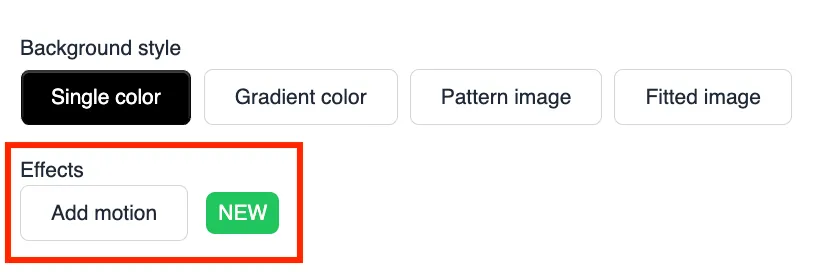
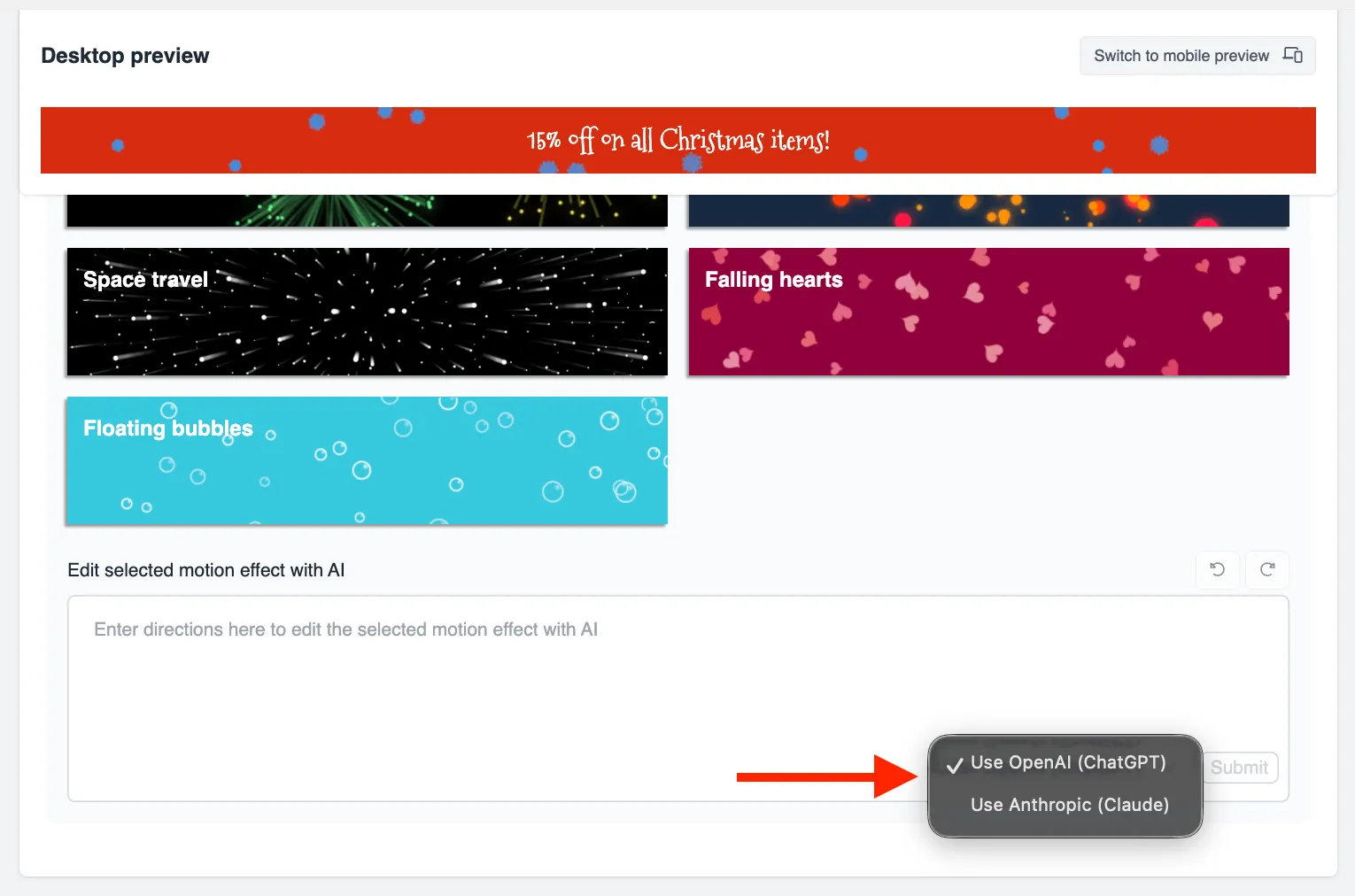
Simply select your preferred motion effect to apply it to the bar:
You can also use AI to customize the motion effect. Simply enter your prompt and click Submit. Once processing is complete, you will see the changes instantly in the preview.
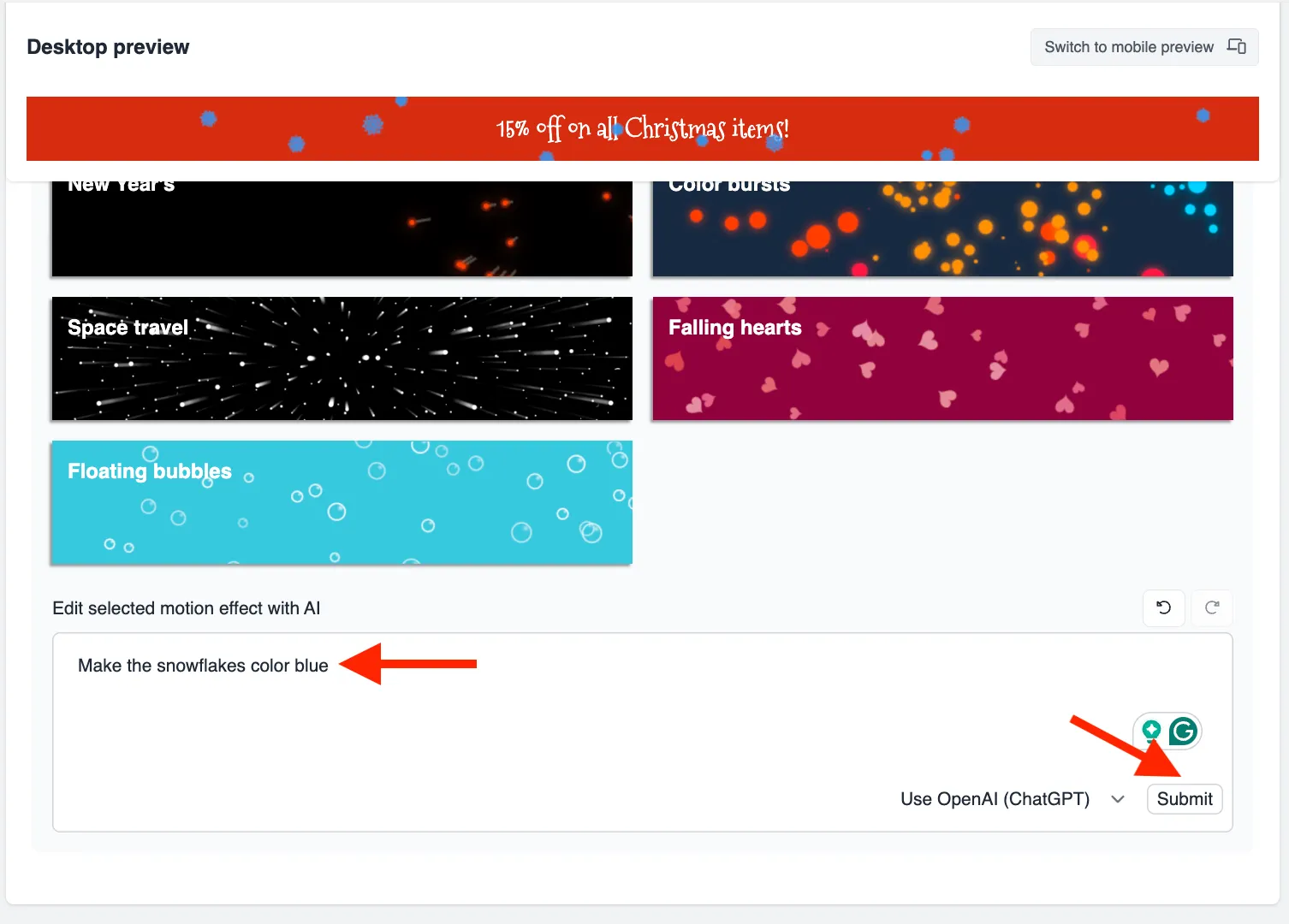
You can also select your preferred AI model to customize the motion effect. We offer both OpenAI (ChatGPT) and Anthropic (Claude), allowing you to choose the engine that best fits your creative needs.
Please feel free to reach out to help@hextom.com if you have any further questions or concerns.