
FAQs
How to Place 2 Bars at the top
By default, our bar apps are designed for easy setup with no coding required. However, this simplicity comes with one limitation: only one bar per app can be automatically positioned at the top of your store at a time.
If you want to display bars from two different apps at the top of your website, we offer two solutions:
- Place one bar at the top and another at the bottom – This is the simplest workaround.
- Use our Manual Placement Feature – This allows you to position bars from different apps at the top of your store. You can do this in two ways:
- App Block: Add your bar directly through the theme editor, no coding required.
- Manual Insertion: For more customization, you can insert placeholder code directly into your theme files.
Both options are designed to give merchants and developers flexibility, whether you prefer a quick setup or more control over customization.
How to Manually Place a Second Bar Using an App Block
In this example, we have the Free Shipping Bar enabled on the store and positioned as a top bar that pushes down the rest of the page and stays visible while scrolling.

Now we want to place a second bar, the Quick Announcement Bar app, at the top as well. Follow the steps below:
-
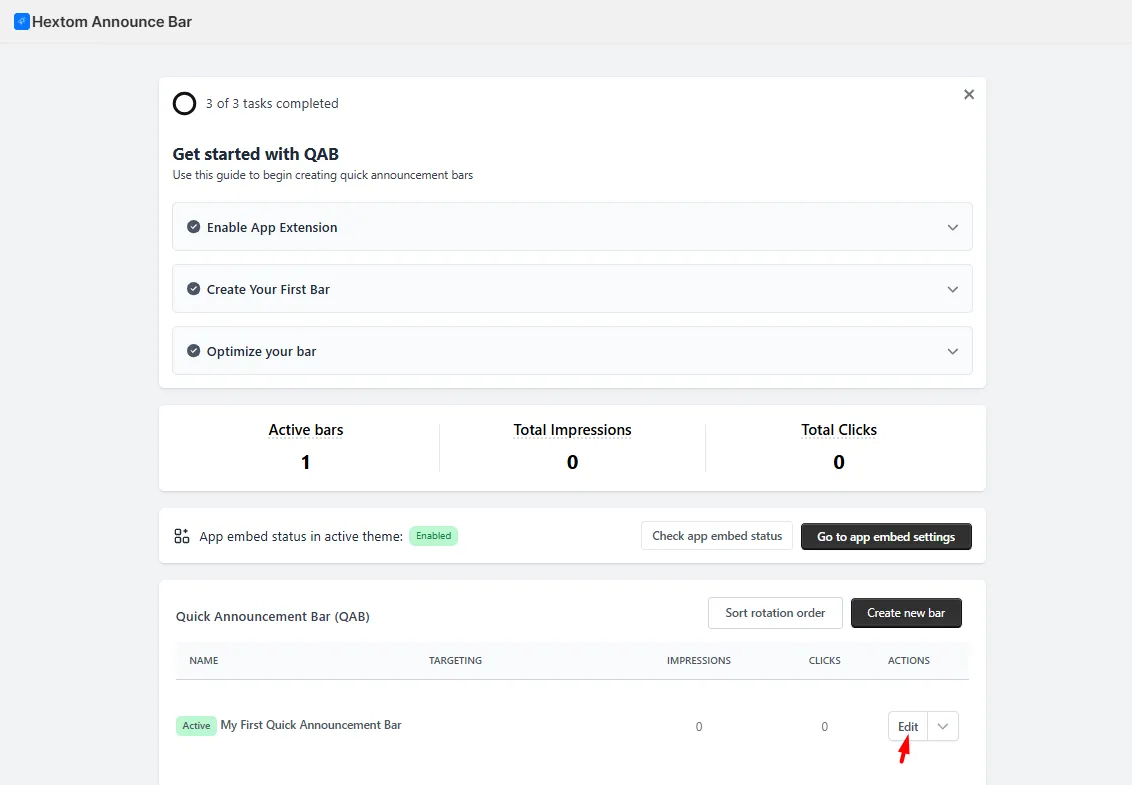
Go to Quick Announcement Bar app and then click Edit on the bar you want to configure.
-
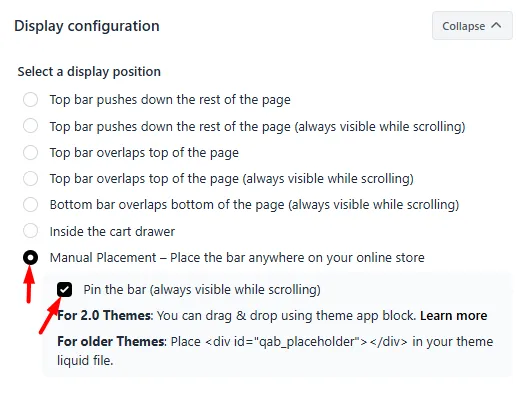
Navigate to the Display Position section, select Manual Placement, and make sure to save the changes. If you’d like the bar to always be visible, you can enable the Pin the Bar option.
-
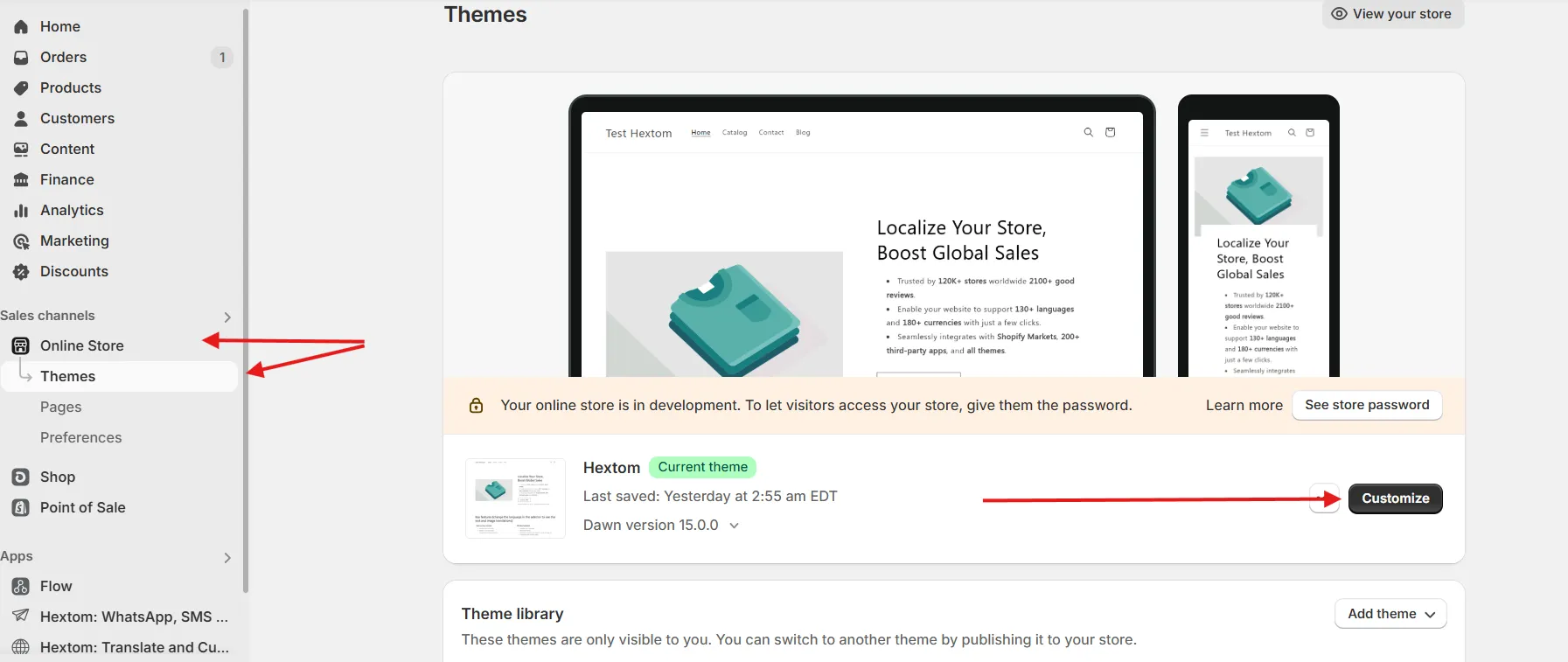
In your Shopify admin, go to Online Store > Themes and click Customize button:
-
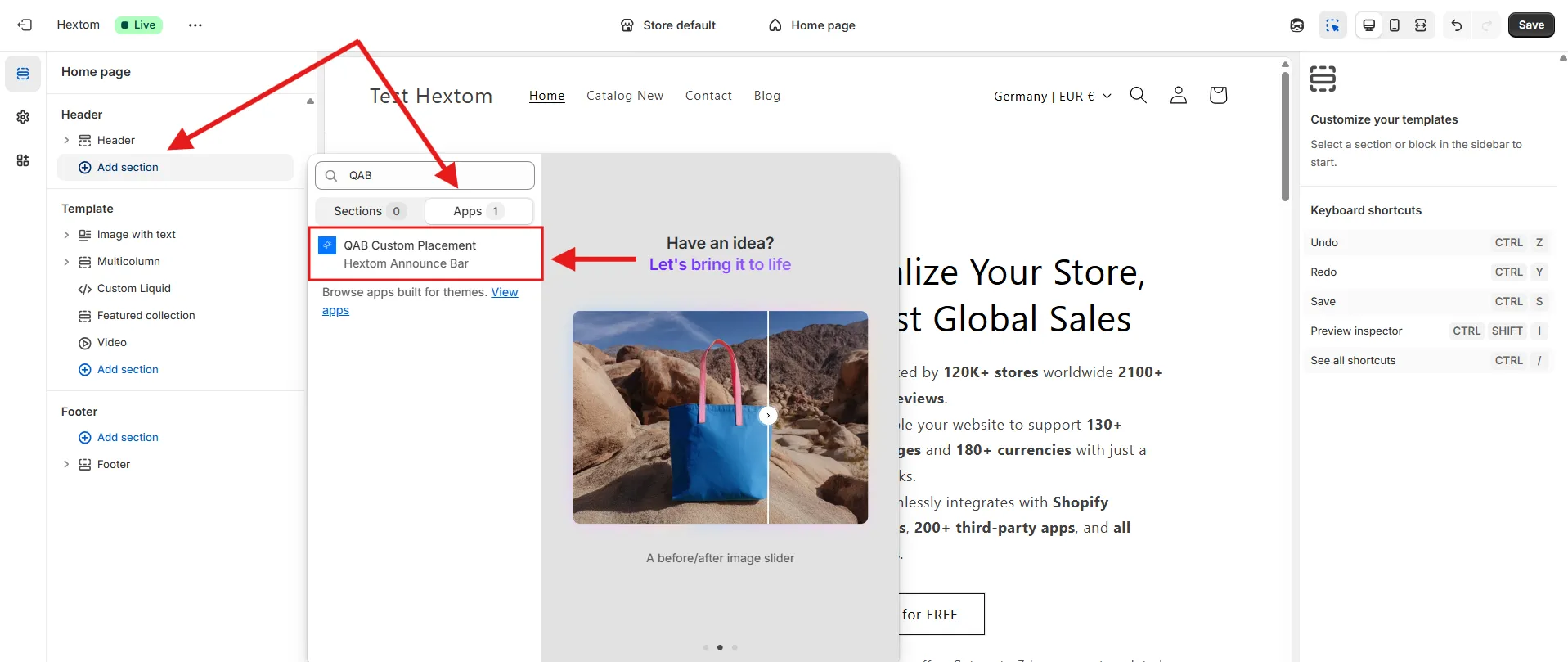

In the Header section, click Add Section > select Apps > then select Quick Announcement Bar or QAB Custom Placement.
-
Lastly, to change the position of the bar, simply drag and drop the app block to your desired location. Then, click the Save button.
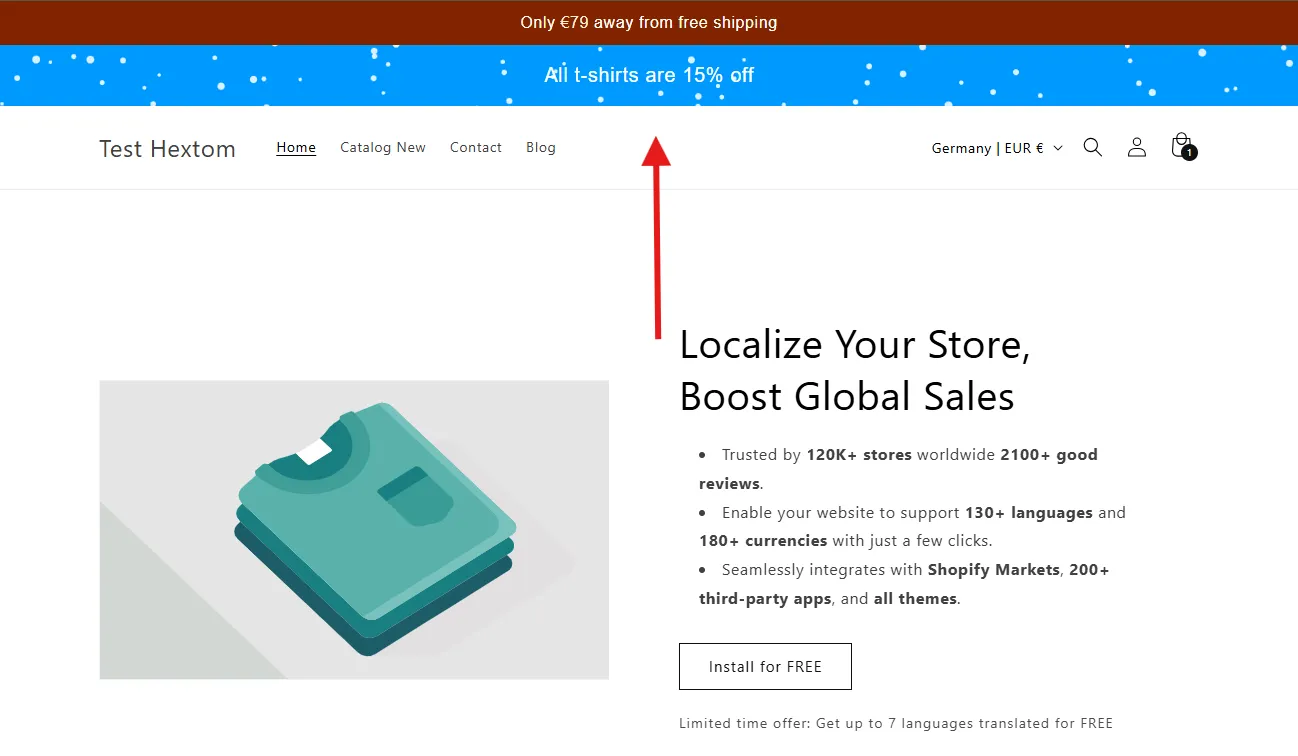
Here’s the result:
How to Manually Insert a Second Bar Into Your Theme Code
If the App Block option isn’t available in your theme, you can manually insert the second bar into your theme code. Follow the steps below:
-
Go to the relevant Bar app where you’d like to place the second bar. Then click Edit on the bar you want to configure.
-
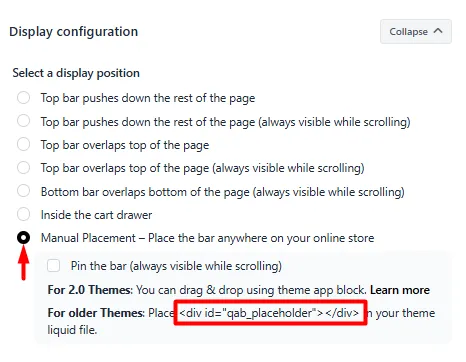
Navigate to the Display Position section and select Manual Placement. Then copy the code snippet:
<div id="qab_placeholder">
-
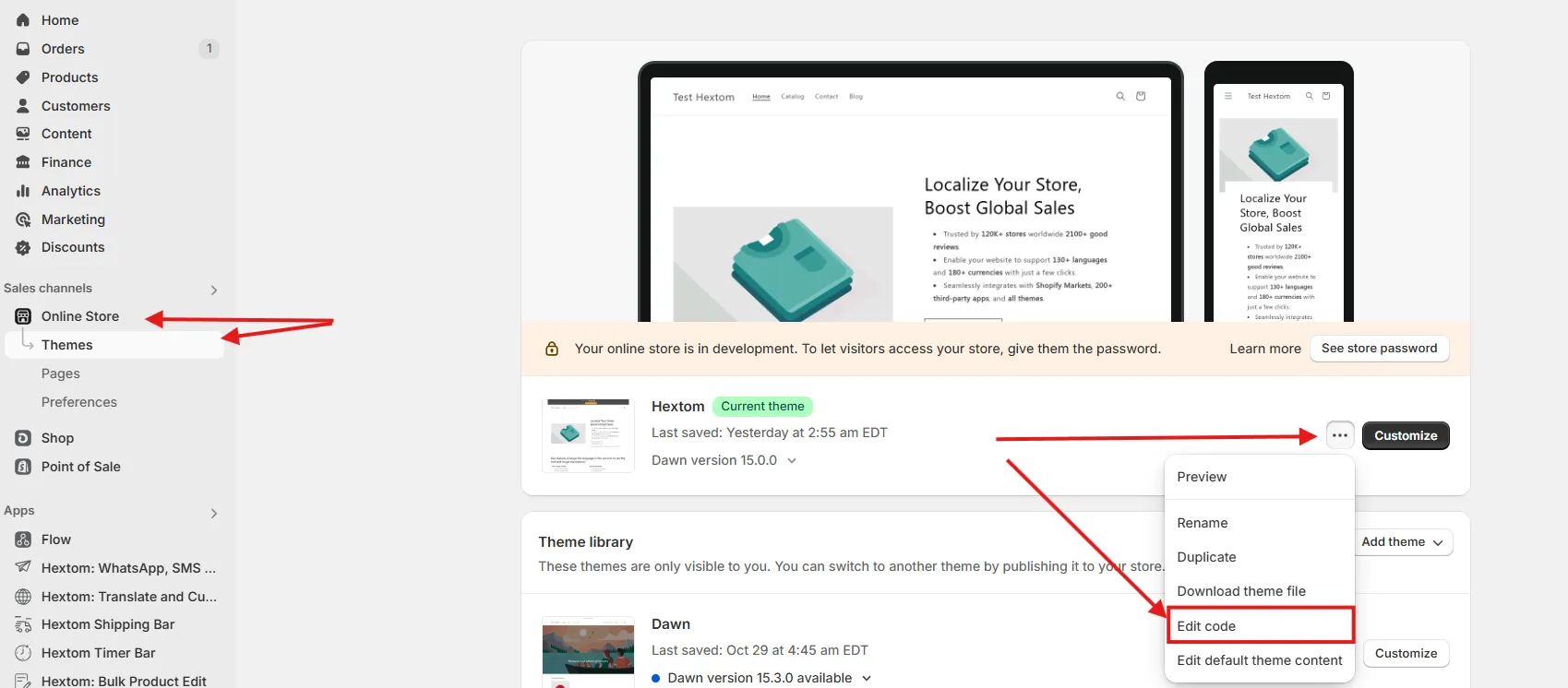
In your Shopify admin, go to Online Store > Themes. Then, click the three dots (•••) next to your theme and select Edit code.
-
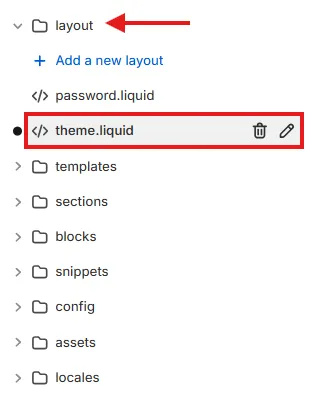
Inside the Layout folder, open the theme.liquid file.
-
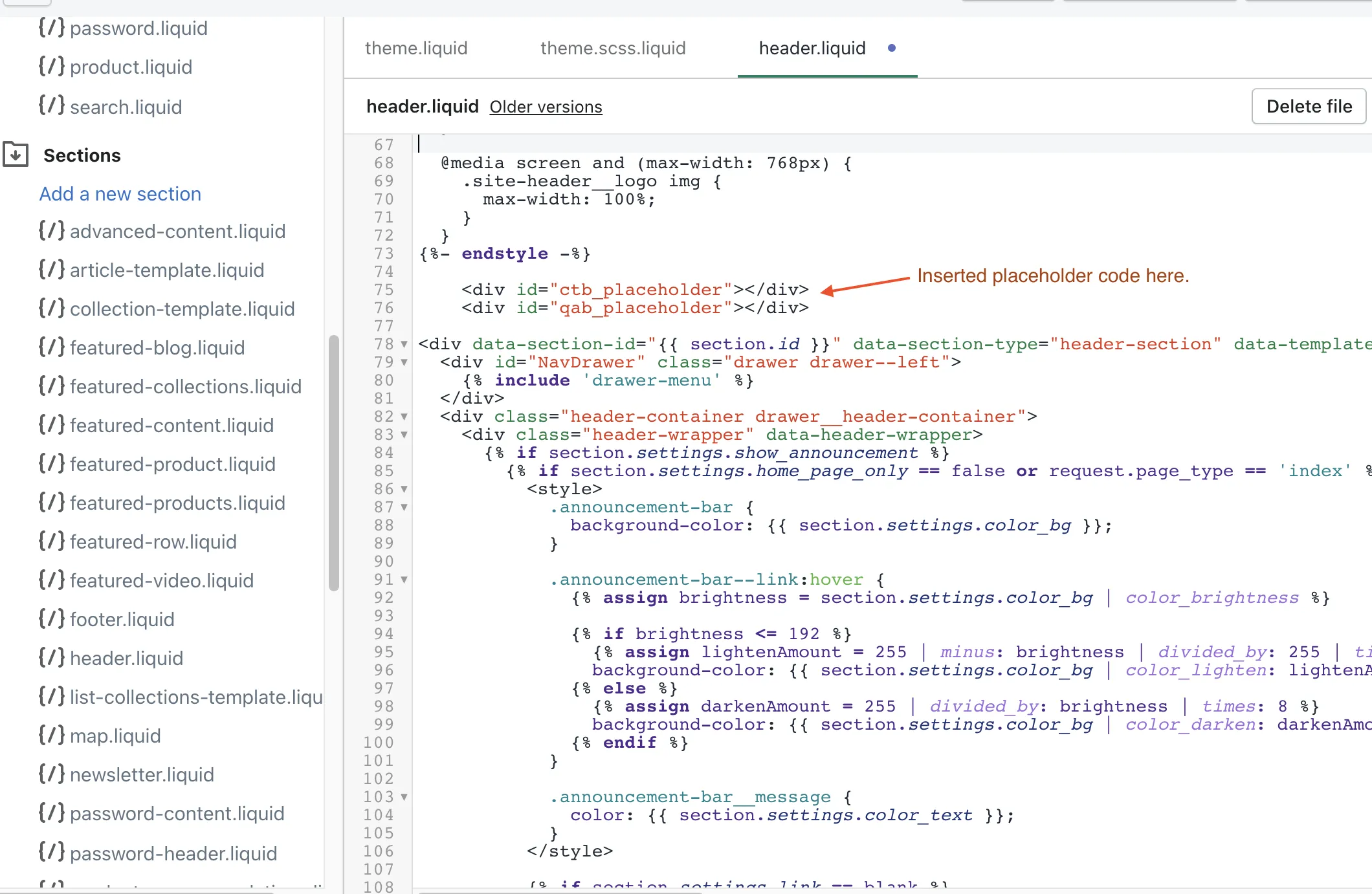
Paste the copied code above the header section, and make sure it’s placed after the
<body>tag.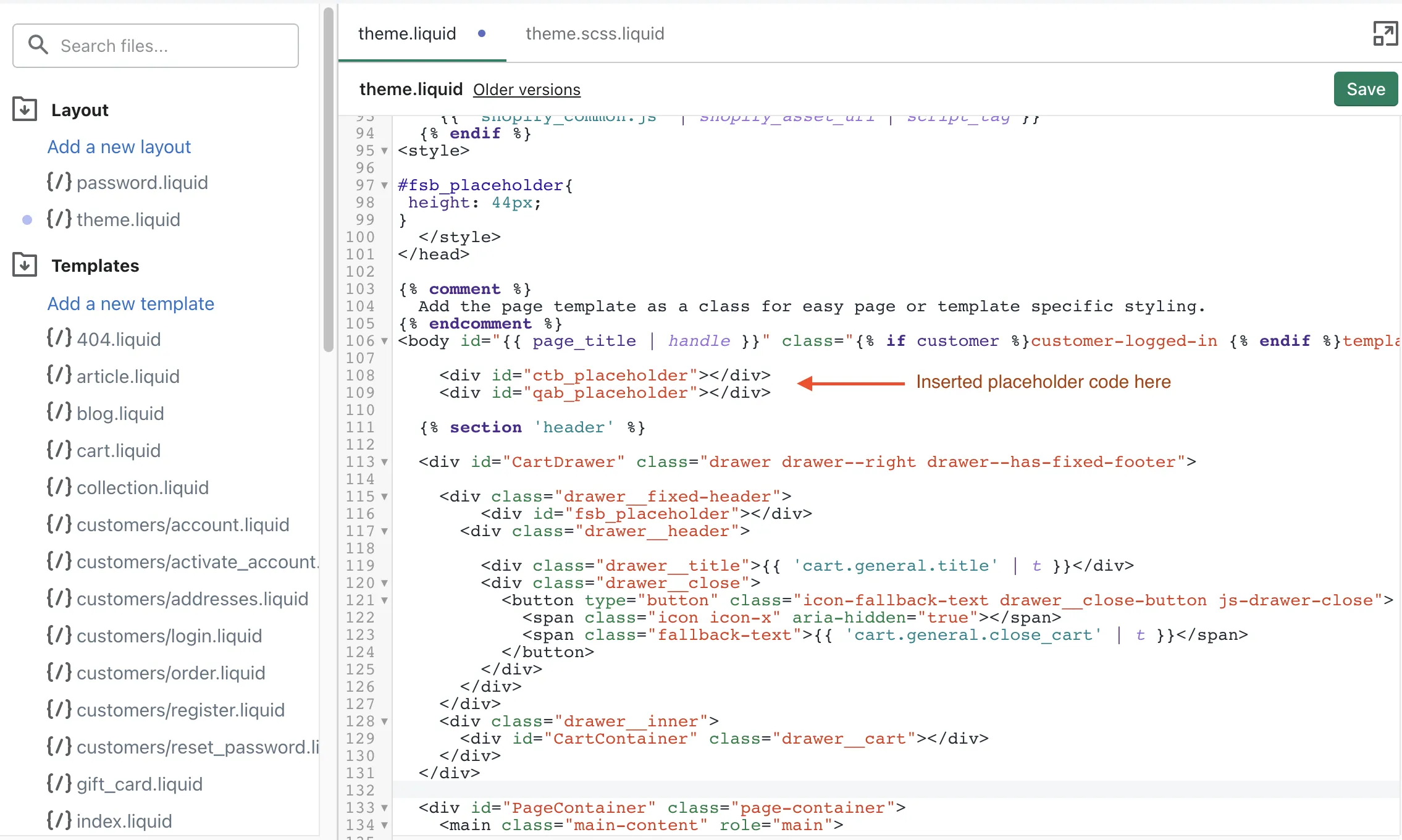
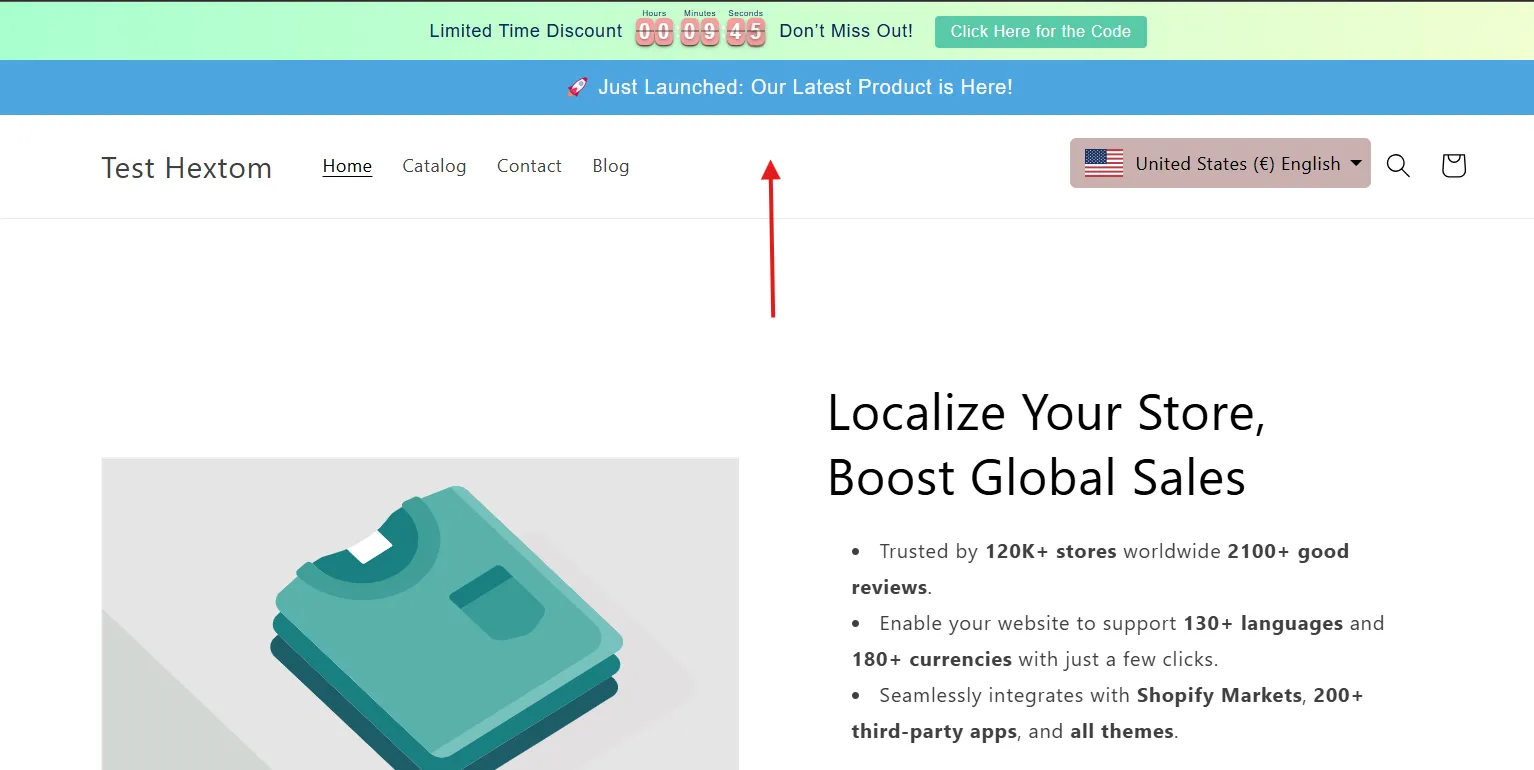
Here’s the result from the example insertion:
If you have any questions or concerns, please reach us out at help@hextom.com