
Getting Started
Getting Started With Hextom Free Shipping Bar
Welcome to the Free Shipping Bar!
Free Shipping Bar enables merchants to display progressive messages informing customers of their progress toward qualifying for free shipping. The app displays notifications as items are added to the cart, helping to increase average order value and boost sales.
First things first — set up free shipping in Shopify
The simplest approach involves creating a Free Shipping Discount in Shopify. For more granular control — such as excluding specific products or establishing region-specific rates — use Shopify’s Shipping Profiles instead. Relevant guides include:
Creating your first free shipping bar
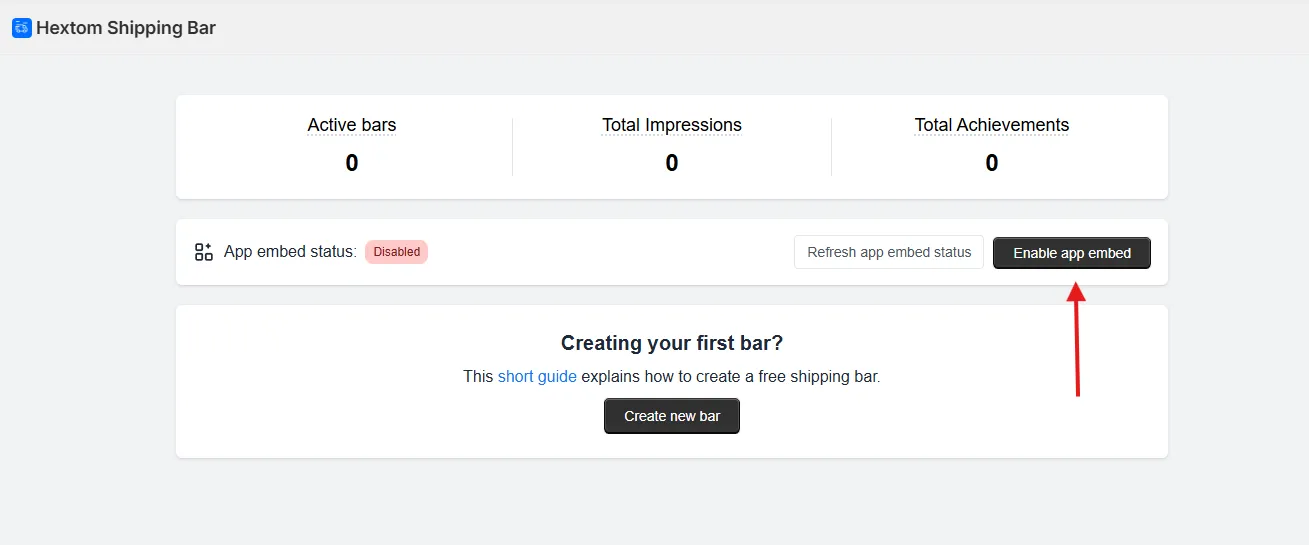
1. Enable the App Extension (Recommended)
Enable the Free Shipping Bar app extension in theme settings for faster loading and essential feature functionality. Click the designated button in the app dashboard to activate it.
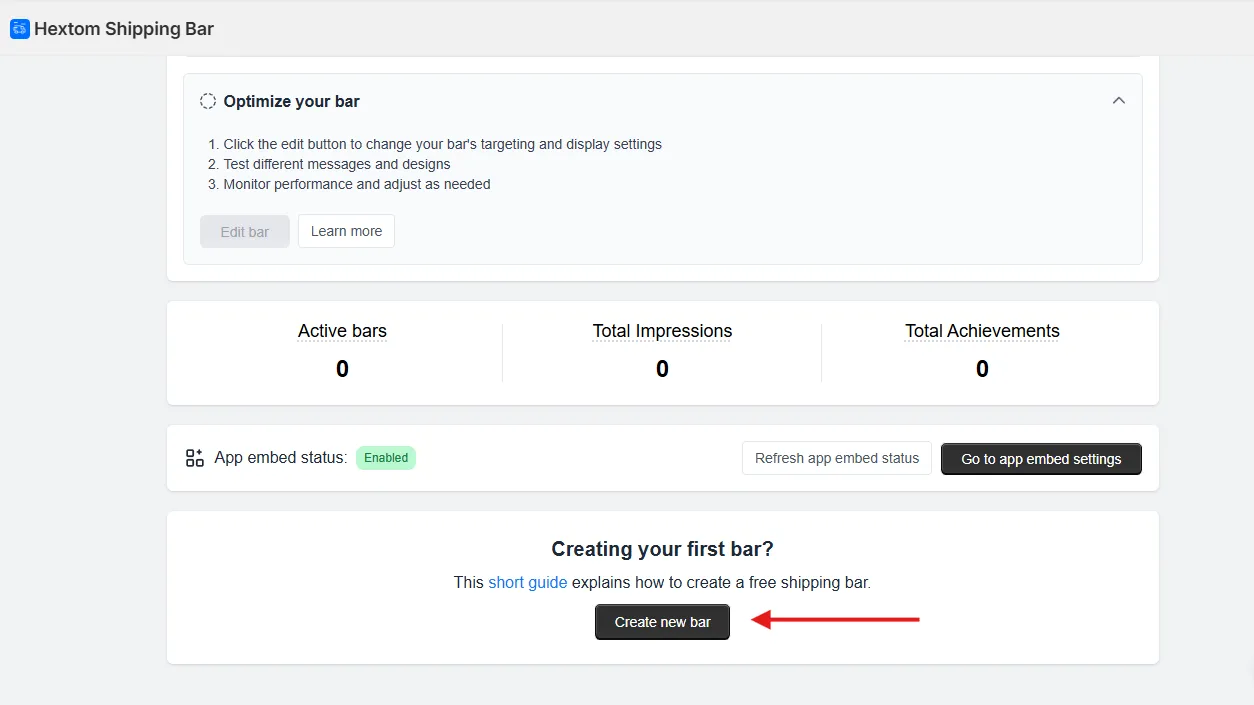
2. Click the Create New Bar button

3. Pick a template
Select a design matching your store’s aesthetic. Premium templates display on the right and require a premium plan to save.
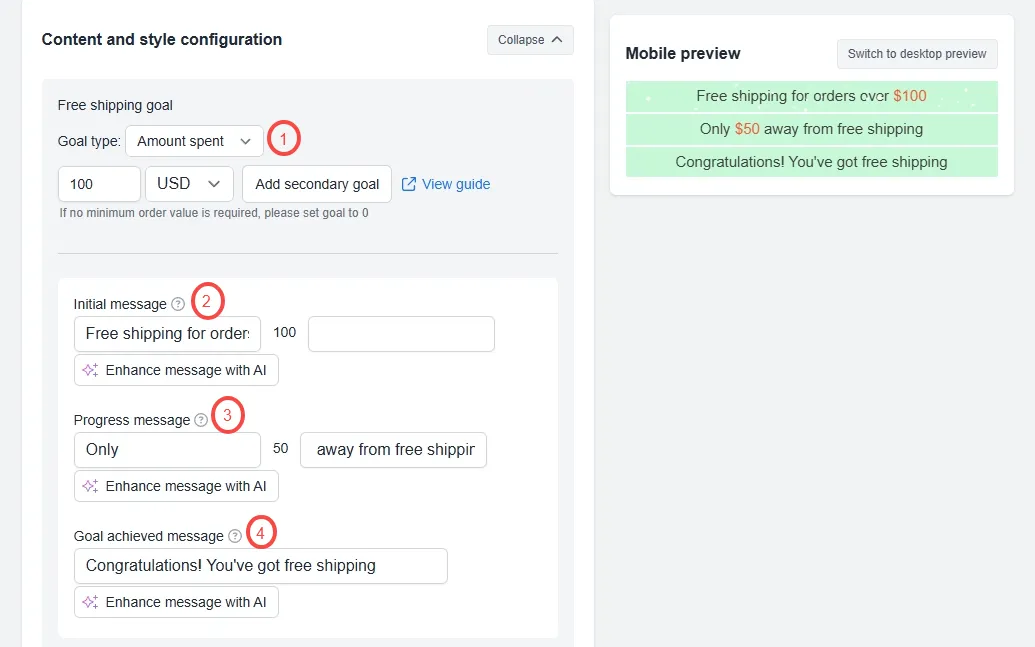
4. Configure your bar
Configure the following essential options:
-
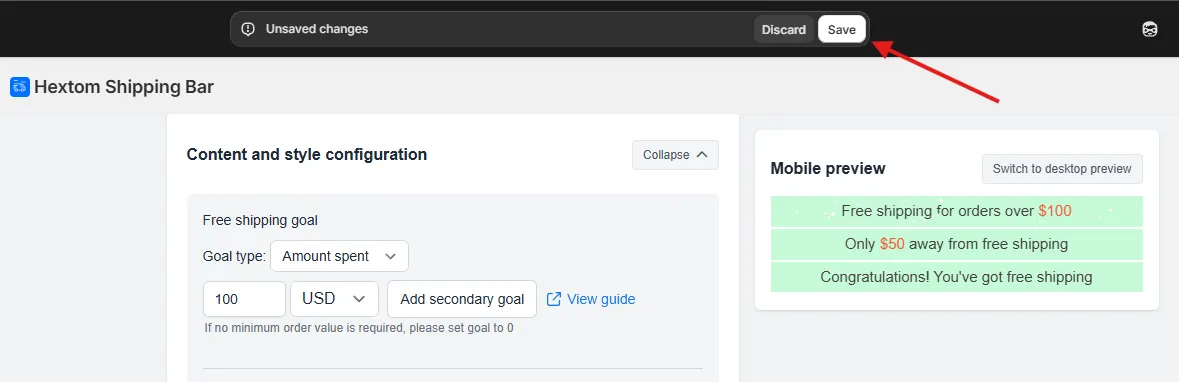
Free Shipping Goal: Set the threshold to unlock free shipping using either:
- Spend-based (e.g., $100 minimum)
- Item count-based (e.g., 3 items minimum)
-
Initial Message: Displayed when the cart is empty
-
Progress Message: Displayed as customers add items
-
Goal Achieved Message: Shown when customers reach the free shipping threshold
5. Save your bar
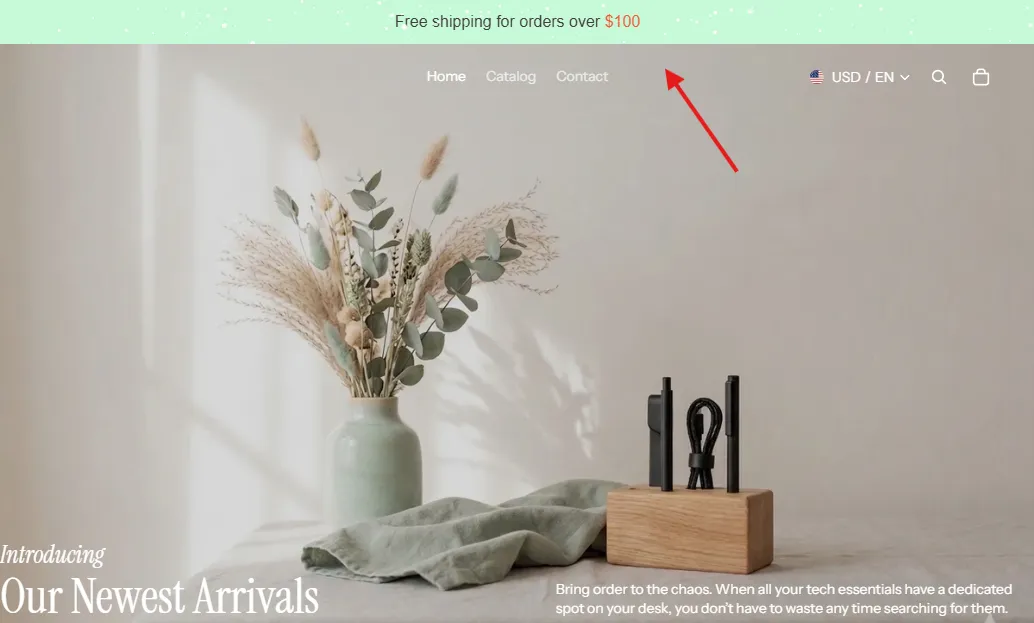
After configuring core settings, save your bar. The bar will appear at the top of your store’s pages immediately.
Making changes to your bar
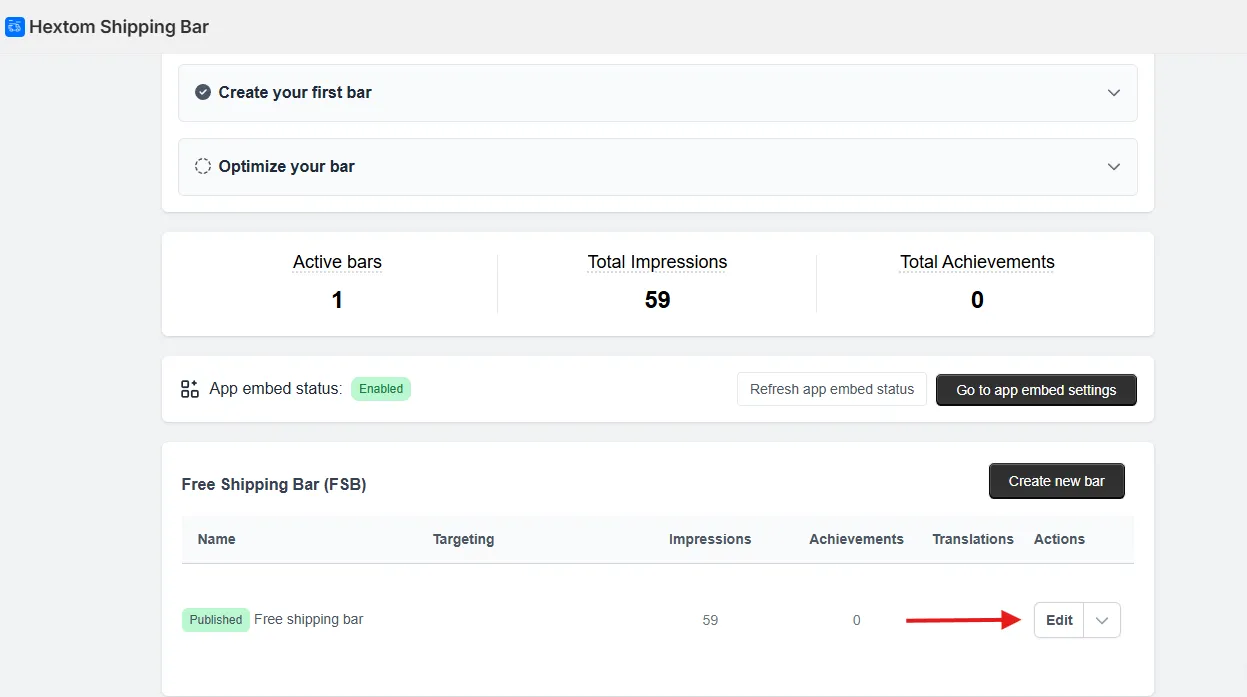
To modify an existing bar, return to the app dashboard and select the Edit button for your desired bar. After making changes, save and refresh your store to see updates immediately.
There’s a lot more to explore!
After mastering the basics, explore the full features guide for advanced options including translation, market and country targeting, and currency conversion.