
Features
Targeting: Device, Digital Product, and Customer
Free Shipping Bar offers various targeting features to help you select when to display a bar.
Device Targeting
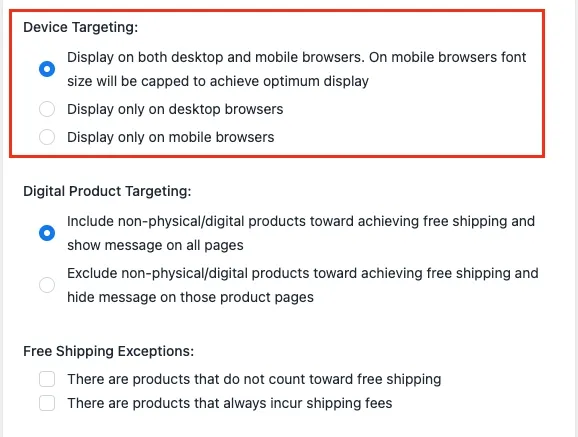
By default, the bar will display on both desktops and mobile devices:
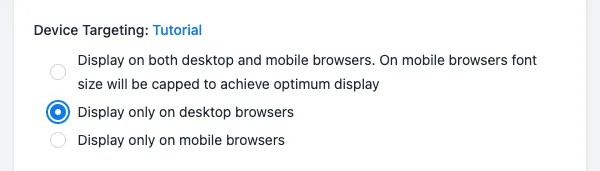
Desktop Only
Alternatively, you can set the bar to display only on desktop devices. When this option is selected, the bar will not be visible on mobile devices, only on desktop computers.
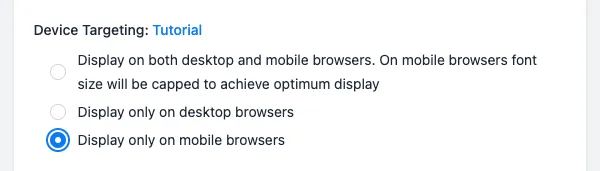
Mobile Only
You can also choose for the bar to display only on mobile devices. When configured this way, there are no restrictions on font size for the bar.
Digital Product targeting
By default, the bar will include all products in its calculation of how much more is needed to achieve free shipping.
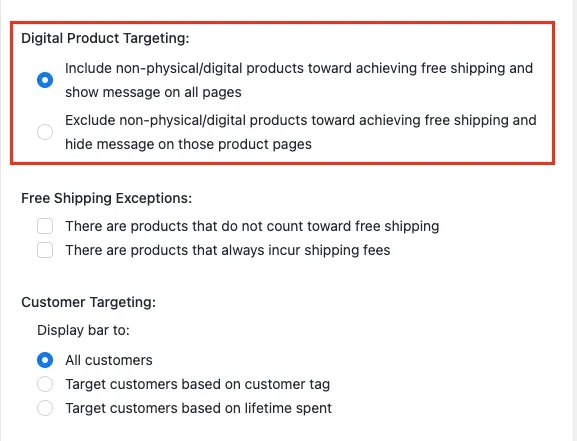
However, you can choose to exclude non-physical or digital products from the calculation toward free shipping.
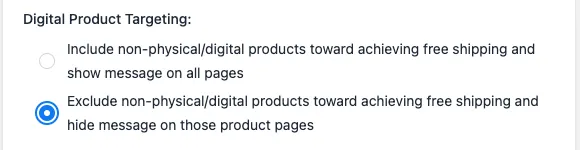
Products can be categorized as physical or non-physical in their product settings:
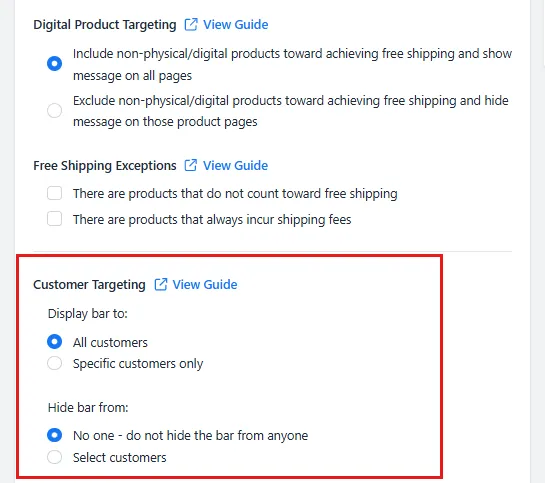
Customer Targeting
By default, all customers, logged in or not, will have the bar displayed.
Customer Logged-in
You can choose to target the bar to only display to customers who are logged in:
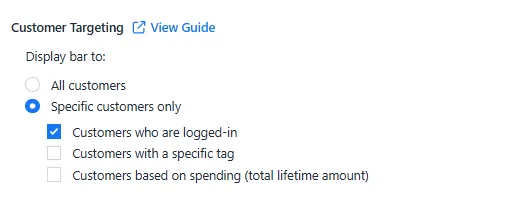
Customer Tag
You can choose to target the bar to only display to customers with a specific tag:
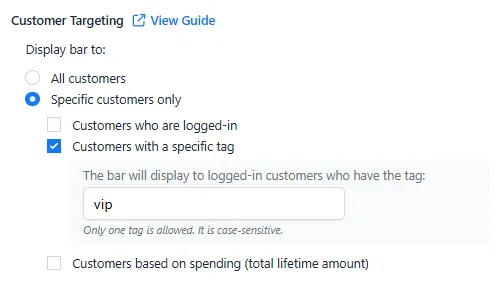
In this example, the bar is being set to only display to customers with the tag ‘vip’.
Be sure to set the same tag to the customers you wish to be able to see the bar:

In this example, the bar will only display for customers who are logged in and have the vip tag.
Lifetime Spent
Another way to target customers is by the amount that they’ve spent in your store since registering an account.
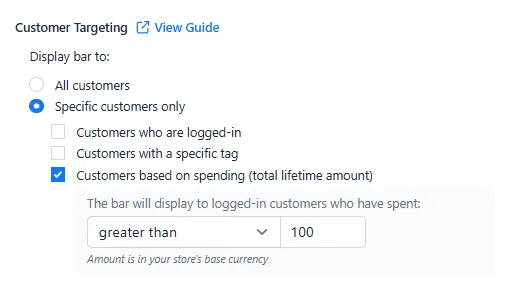
In this example, the bar will only display to logged in customers who have spent more than 100, the currency is in your shop’s base currency.
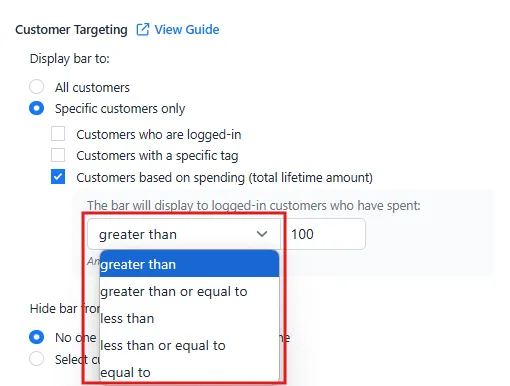
You can also adjust the condition for the amount spent by using the dropdown next to the field:
Hiding the Bar
Similar to targeting the bar so that only certain customers can see it, you can set the bar to be hidden from certain customers.
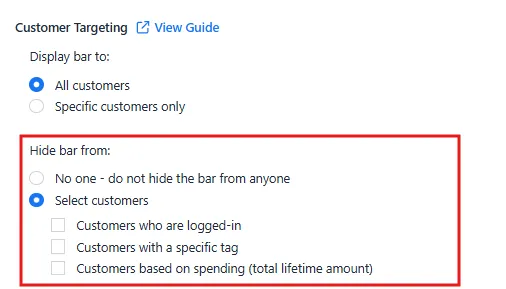
-
Hiding by Tag or Logged-In
When you hide the bar based on customer tags or by logged in, the non-logged-in customers will still see the bar. The bar will be hidden only for customers who are logged in and/or have the specified tag assigned to them.
-
Hiding by Amount Spent
This option works differently. It applies only to logged-in customers. If a customer is not logged in, the bar will not display at all. For logged-in customers, you can set conditions based on their total spending. The bar will be hidden if their total amount spent meets the specified condition, whether that is greater than, less than, greater than or equal to, or less than or equal to the amount you set.
If you have any questions or concerns, feel free to reach out to us at help@hextom.com