
FAQs
How do I place the bar anywhere on my site with an older Theme?
If you are using an older Shopify theme and want to place the Free Shipping Bar in a specific position (not just top or bottom), you can use the Placeholder option. This gives you the flexibility to insert the bar exactly where you need it.
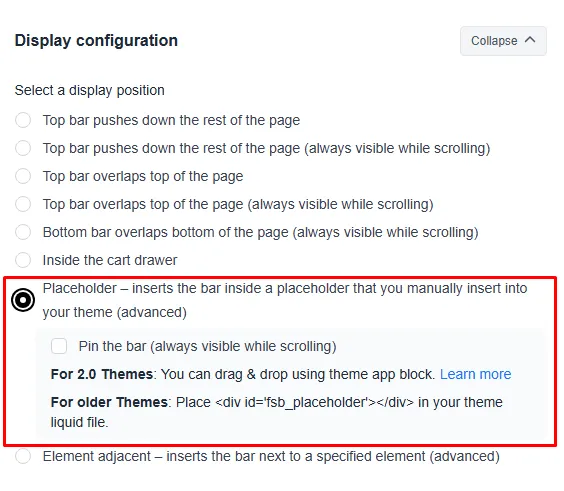
Before you begin, make sure to select the Placeholder option under the Display configuration section.
Additionally, we recommend working on a duplicate theme and hiring a developer if you are not comfortable editing code. We do not provide customization services.
Now, there are two ways to do this:
Insert the Placeholder Code to Your Theme
This option inserts a small piece of code in your theme where you want the bar to appear. You may follow these steps:
- Copy the placeholder code below:
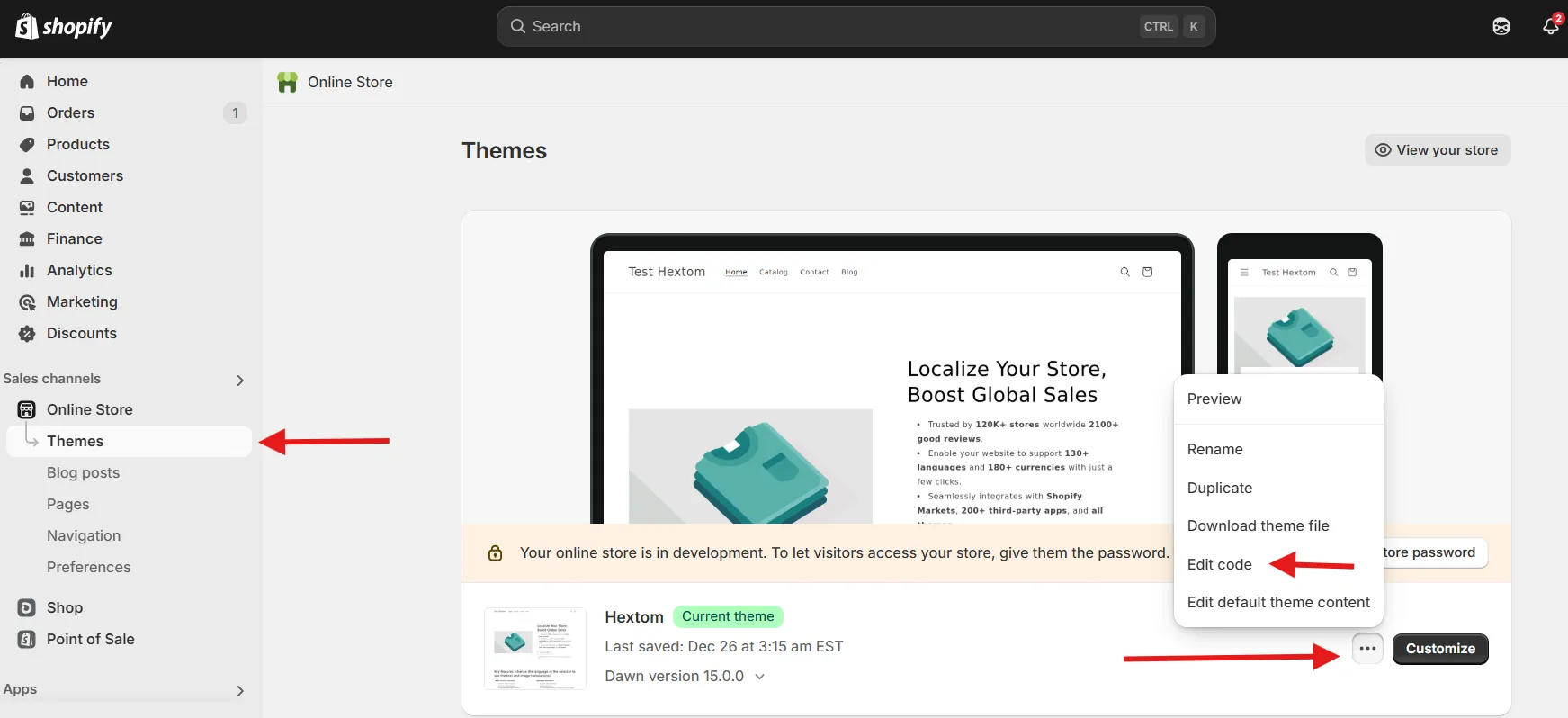
<div id="fsb_placeholder"></div>- In your Shopify admin, go to Online Store > Themes > click the three dots next to your theme, then click Edit Code.
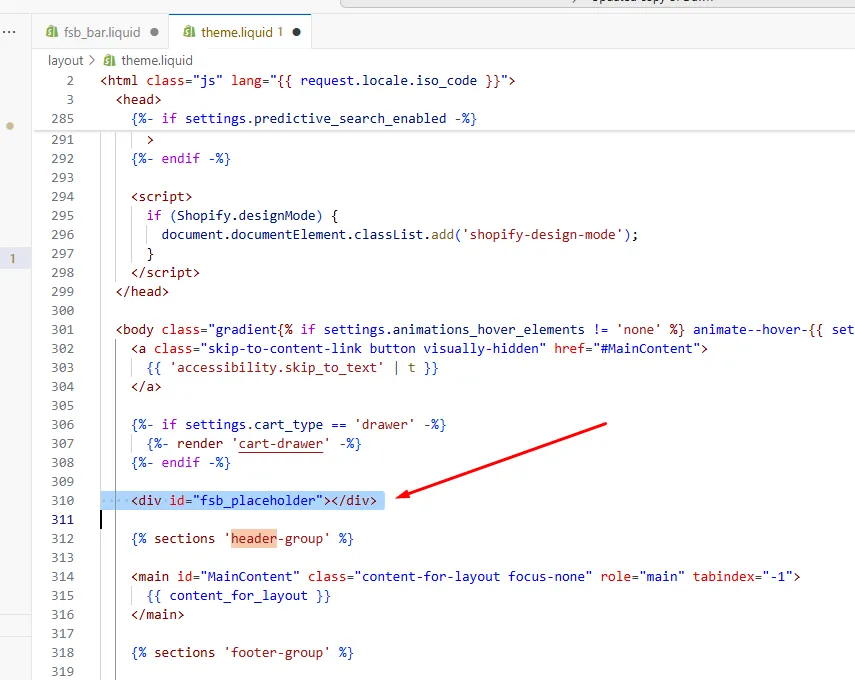
- Open the template or layout file where you want the bar to appear. For example, you can add it to a theme.liquid file. We will place the shipping bar above the store’s header. We’ll paste the placeholder code before the header of the theme, as shown in the image below.
- Save your changes and test your storefront.
Use Custom Section to Display the Bar
If you want to add the bar visually in the theme editor, you can create a custom section. You may follow these steps:
- In Shopify admin, go to Online Store > Themes.
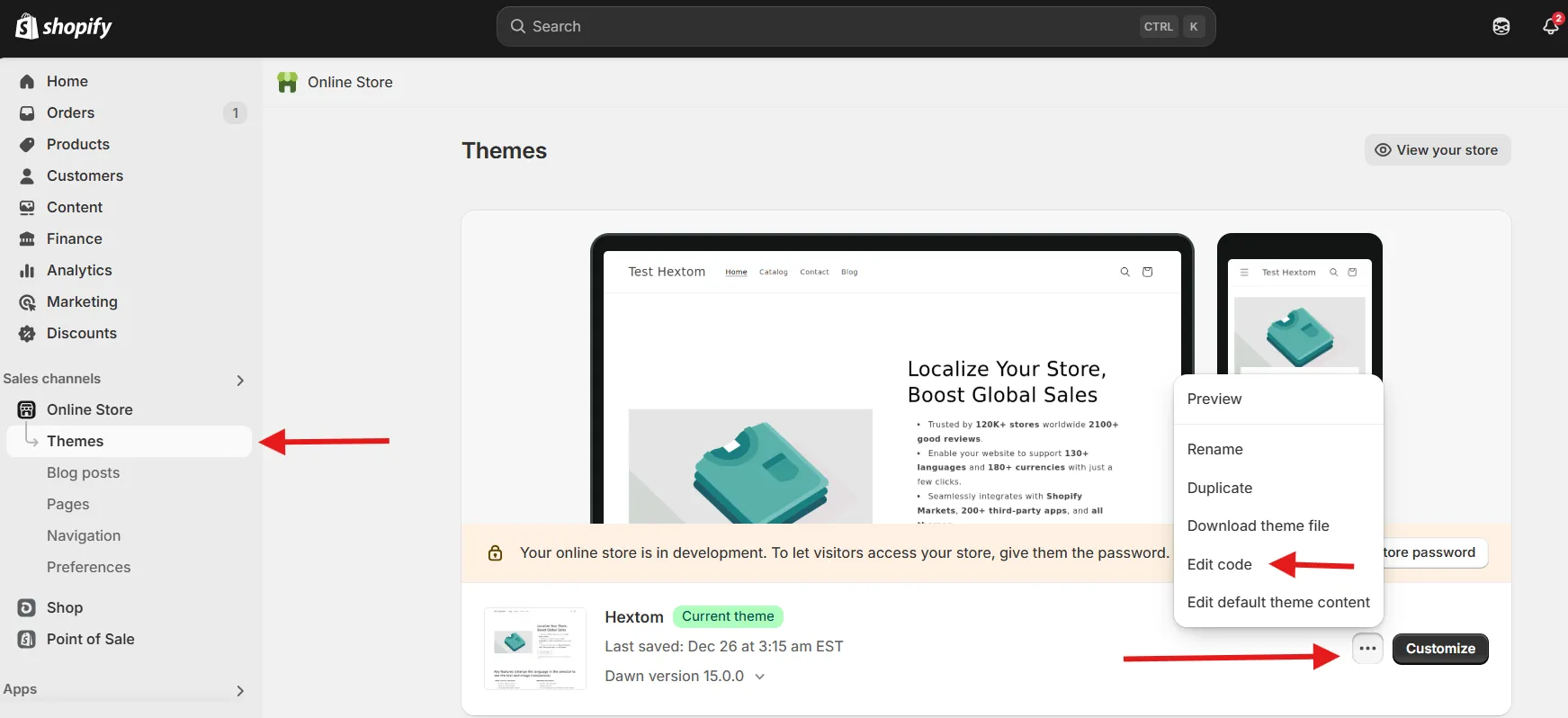
- Click the 3 dots > Edit Code on the theme you want to edit.
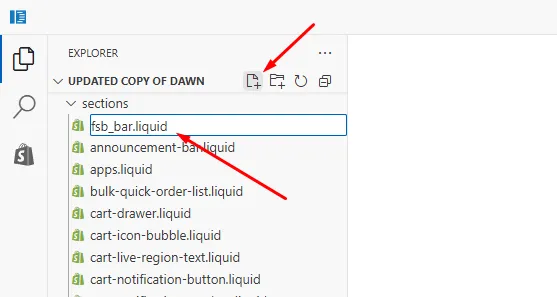
- In the sections folder, click the New File icon and create a liquid file with your own preferred name. In the example below, we’ll name it fsb_bar.liquid.
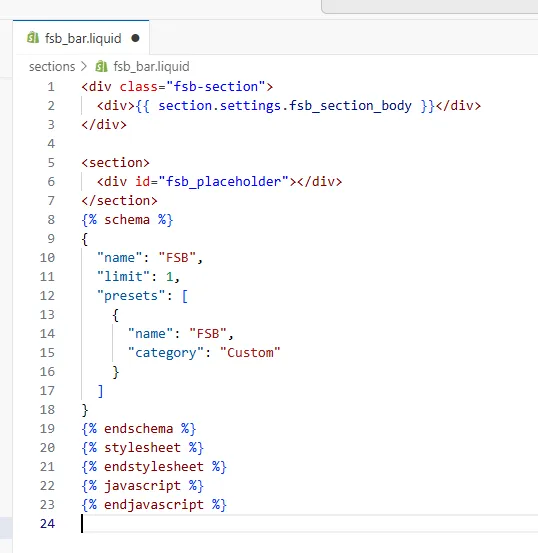
- A new file will be created. Paste the code below within the file:
<div class="fsb-section">
  <div>{{ section.settings.fsb_section_body }}</div>
</div>

<section>
  <div id="fsb_placeholder"></div>
</section>
{% schema %}
{
  "name": "FSB",
  "limit": 1,
  "presets": [
    {
      "name": "FSB",
      "category": "Custom"
    }
  ]
}
{% endschema %}
{% stylesheet %}
{% endstylesheet %}
{% javascript %}
{% endjavascript %}
Like so:
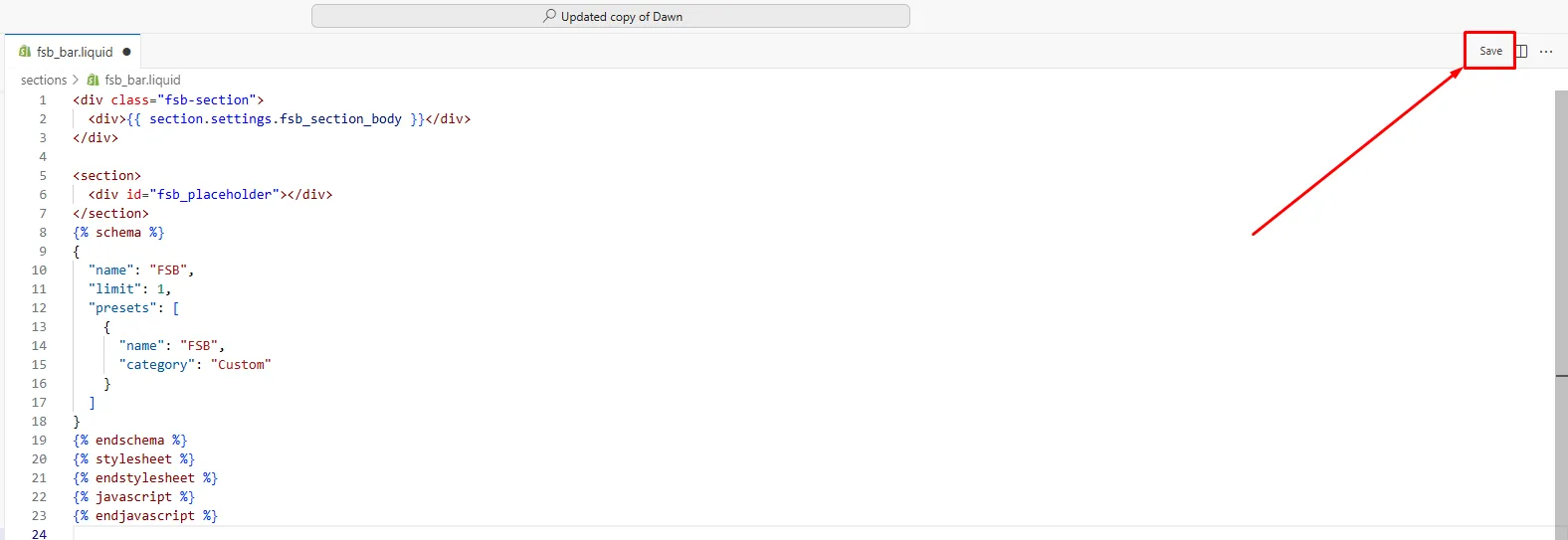
- Then save the file by clicking the Save button at the top right.
Add the Section to Your Theme
From here, you have 2 options for adding the section to your theme:
Option 1: Insert the section in a Liquid file by adding the {% section 'fsb_bar' %} code like so:

Option 2: Place the Section Visually in the Theme Editor
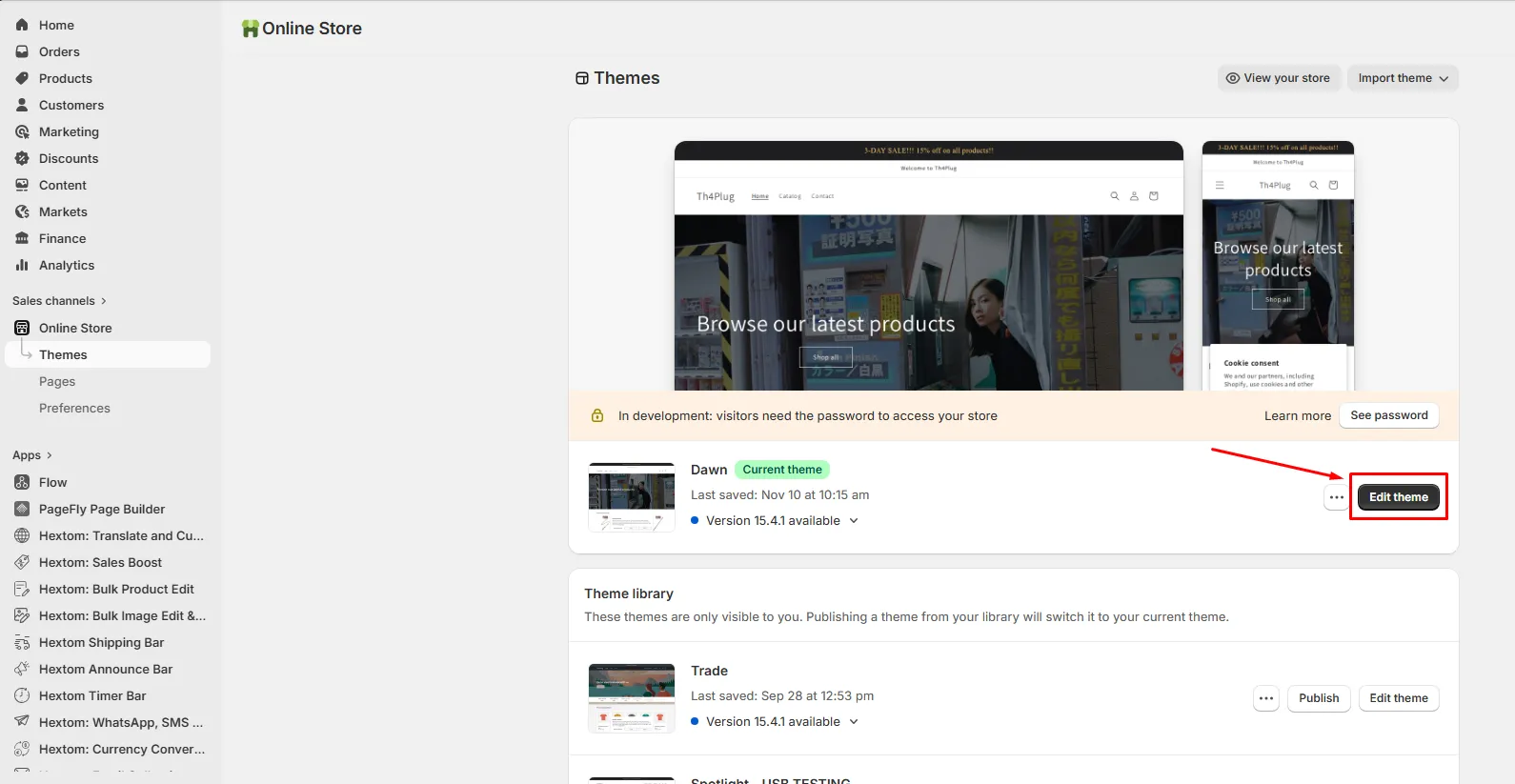
- In the Shopify admin, go to your Online store > Theme > click Edit theme.
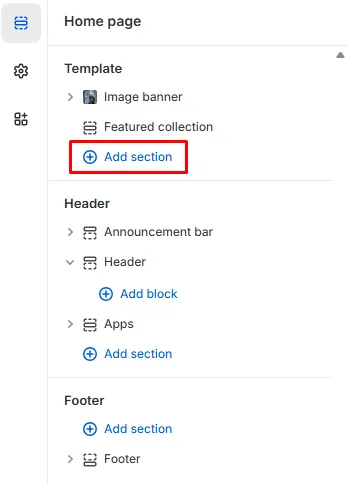
- In the left sidebar, click Add section.
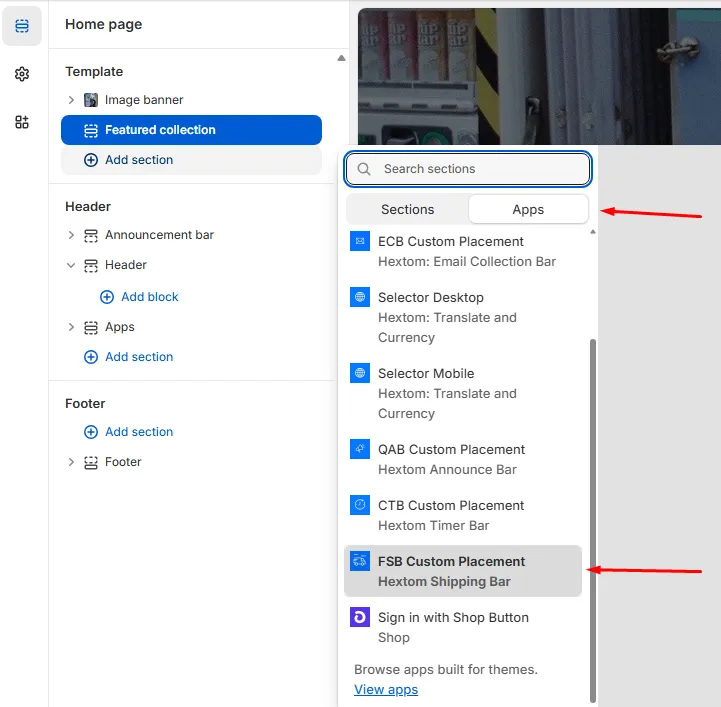
- Click the Apps tab and select the FSB Custom Placement.
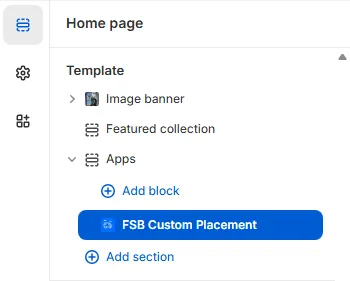
- The FSB Custom Placement section will be added at the bottom of the layout.
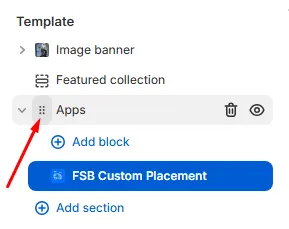
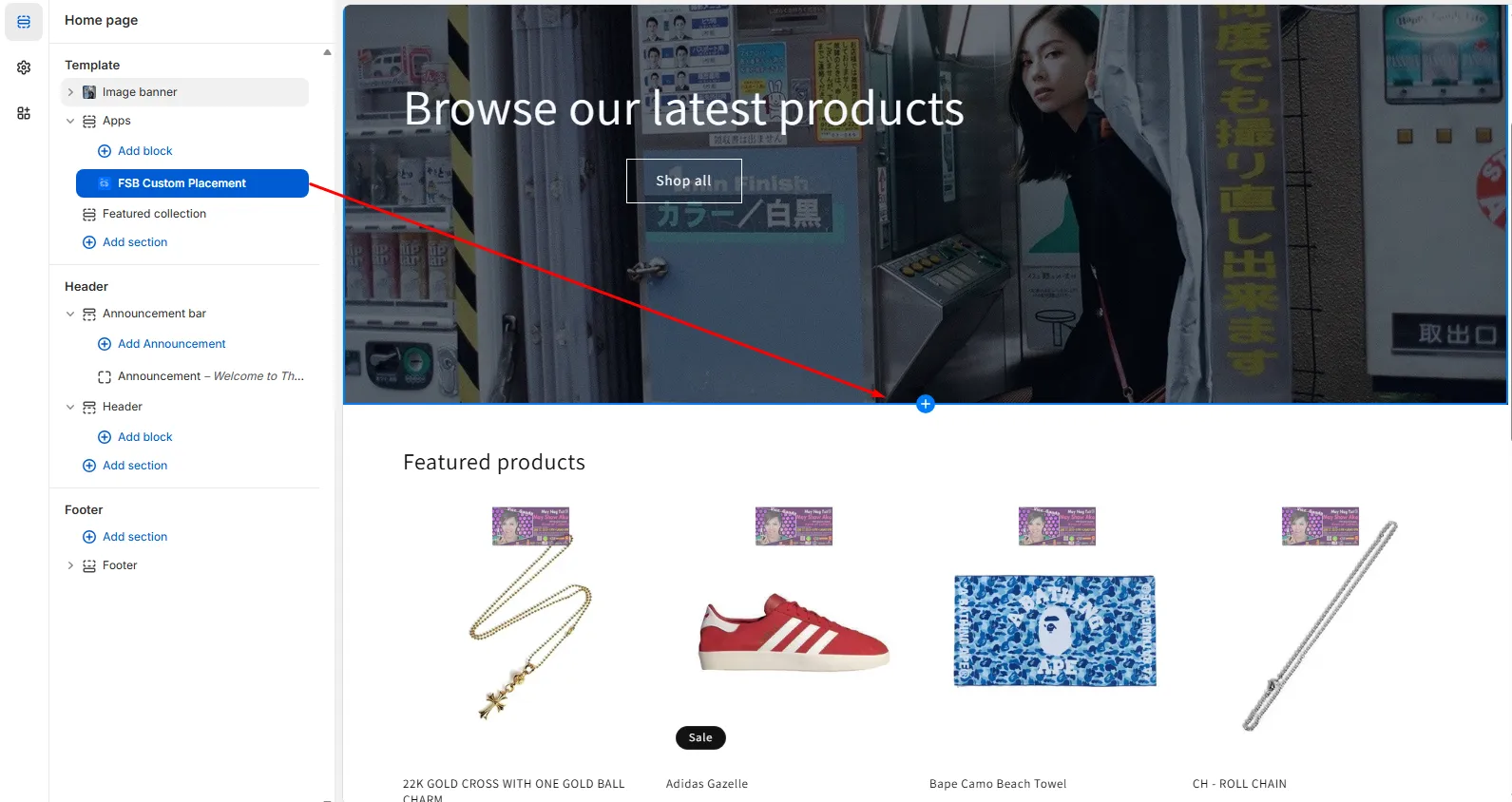
- You may drag the section to the desired position by hovering over the dotted tab.
- Save the changes for the bar to appear. Depending on the theme, you may also need to preview it to see the bar display correctly.
Here’s an example of the bar being dragged up below a slideshow element.
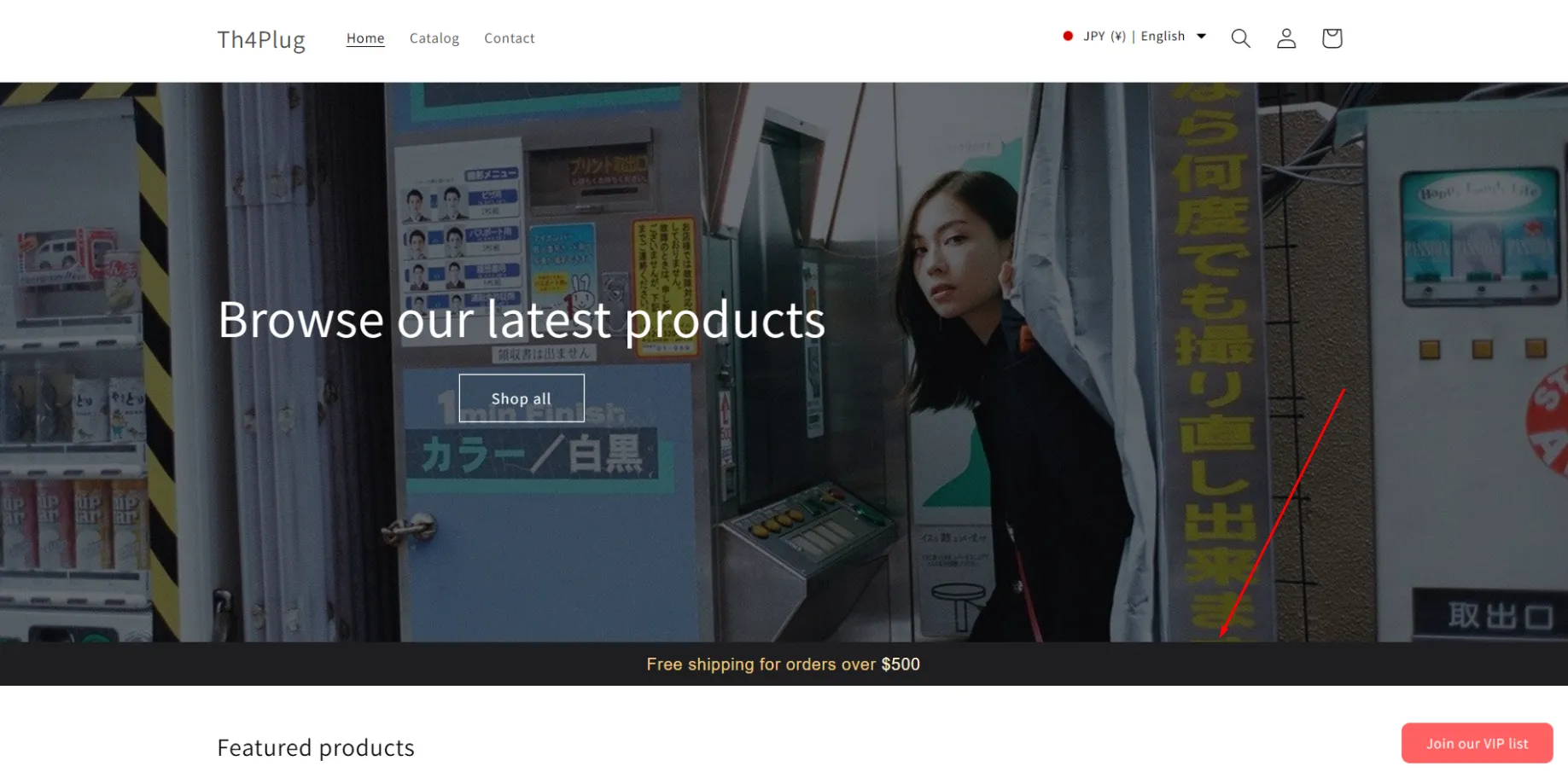
Here’s how it looks like in the live store:
If you need assistance with your theme or placement issue, feel free to contact our support team at help@hextom.com