
FAQs
How to use custom font in the bar
Our bars offer many fonts that you can apply with the simple click of a button and no knowledge of coding. However, you may want to set a specific font in your message for the Free Shipping Bar that isn’t among the selections. Please continue reading below to learn more.
On this page
To set font to entire bar
This styling code can set the font in the bar to the font of your choice:
Copy this code.
<style>
#fsb_bar, #fsb_amount, #fsb_symbol{
font-family: Courier !important;
}
</style>
Simply paste the code into the bottom code section:
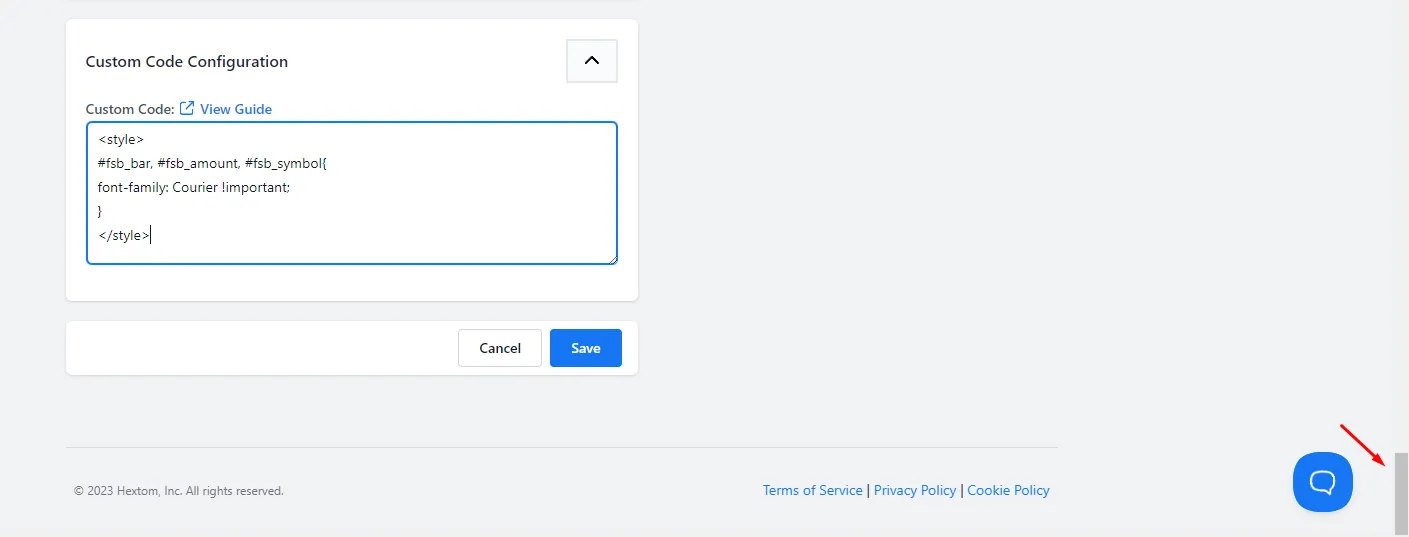
Now you need to alter that code by replacing ‘Courier’ with the name of the font you would like to use.
For example, in the image below, even though I have selected “courier in the “fonts” section, it still changed it to Serif.
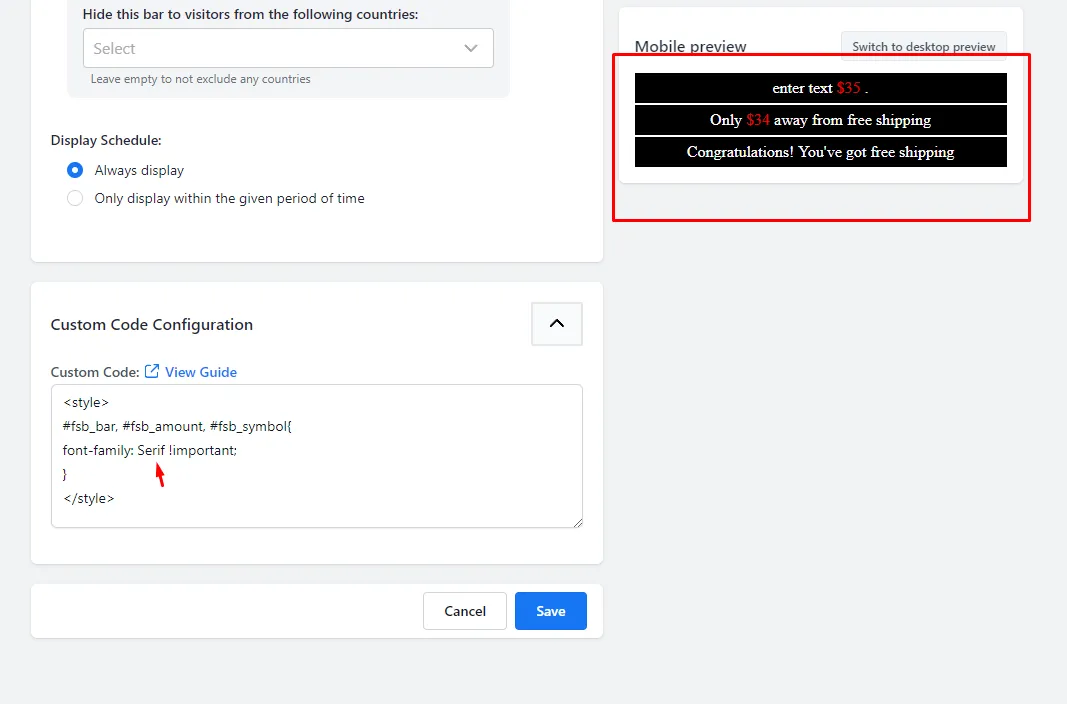
This is how it looks without the code.
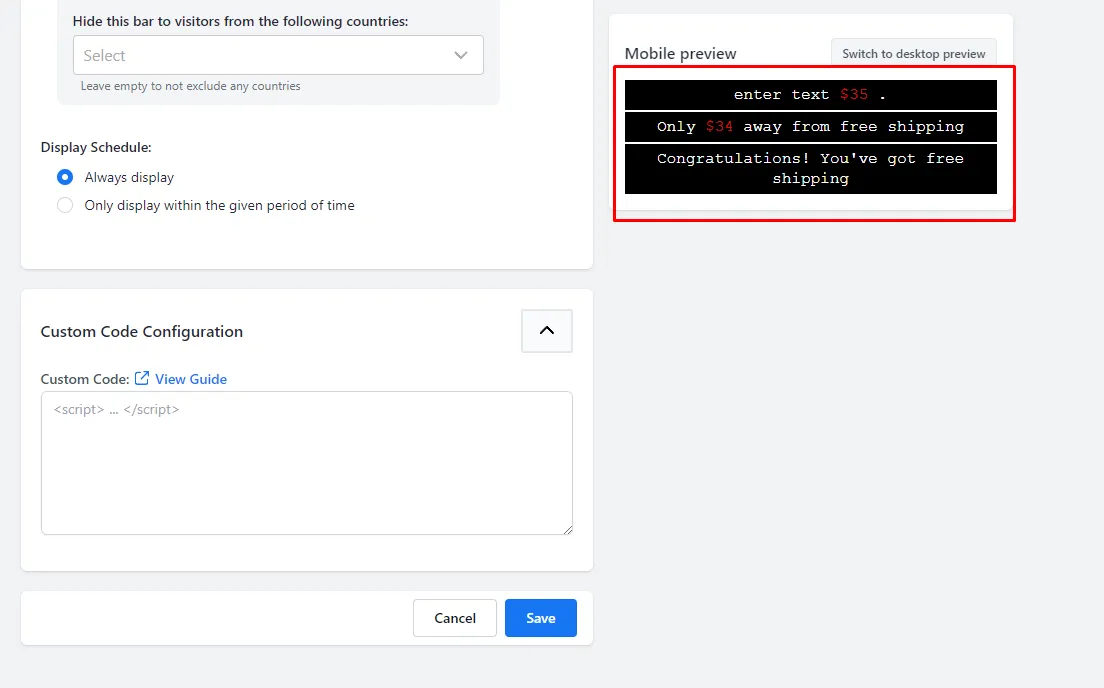
To set font for specific Section
If you want to only set the font to a specific word or group of words, you would add a bit of code in the message.
Here’s the code you’d need:
<span style="font-family: courier;">enter text</span>Simply replace ‘courier’ with whichever font name you would like to use, then replace ‘enter text’ with your message.
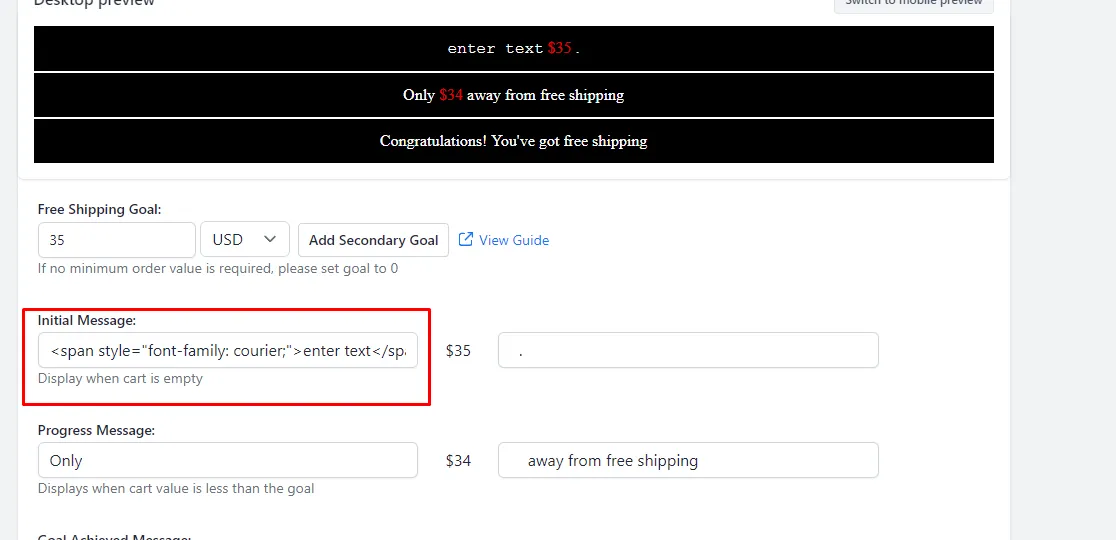
As you can see, the ‘enter text’ section has a different font than the others.
Adding Google Fonts
This next section is a little more advanced.
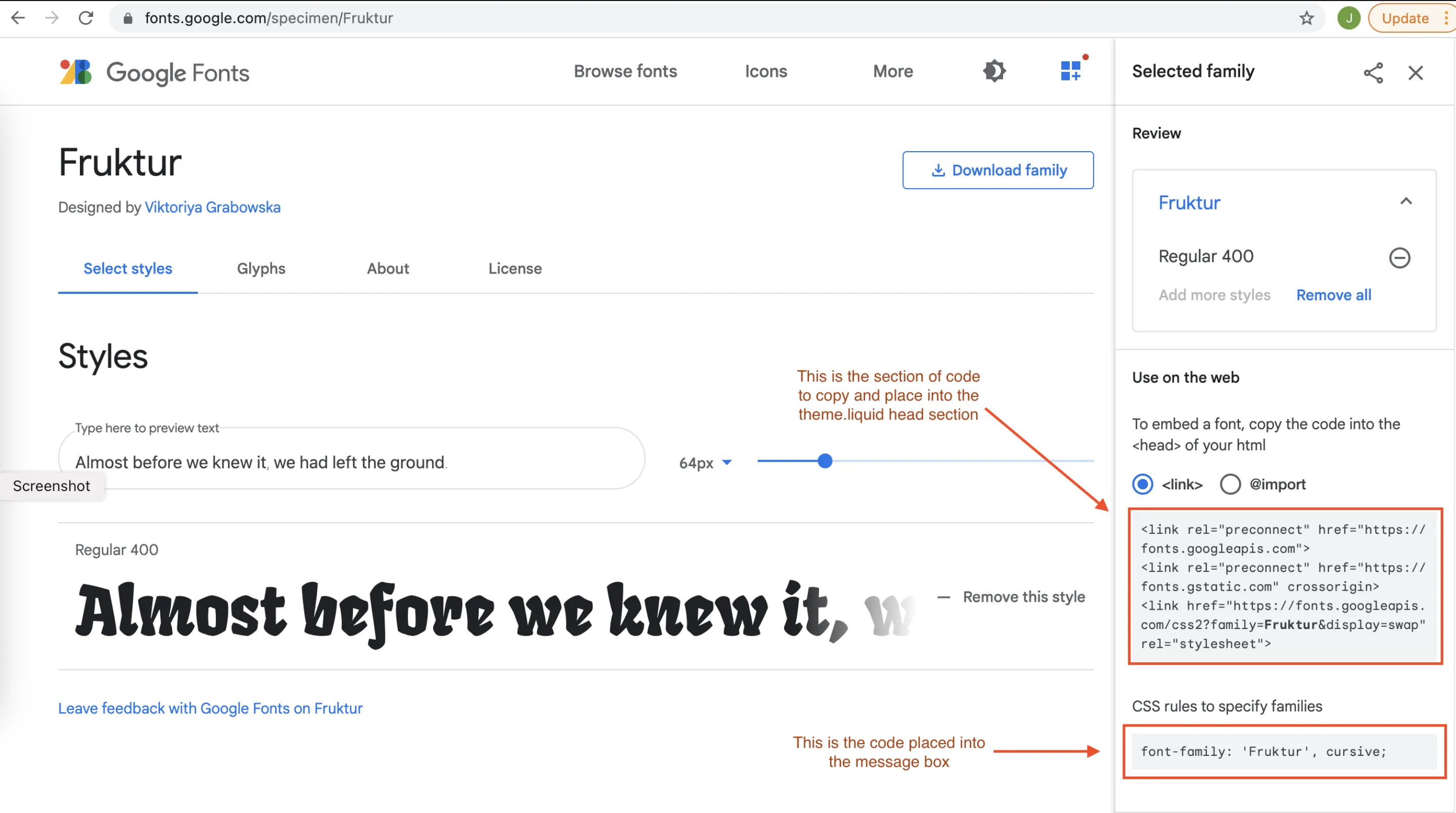
On Google fonts, once you click on a font you like, the page will display code sections. One section you copy and paste into your theme’s theme.liquid file in the <head> section. The other is the font-family name that you’ll put into the message box.
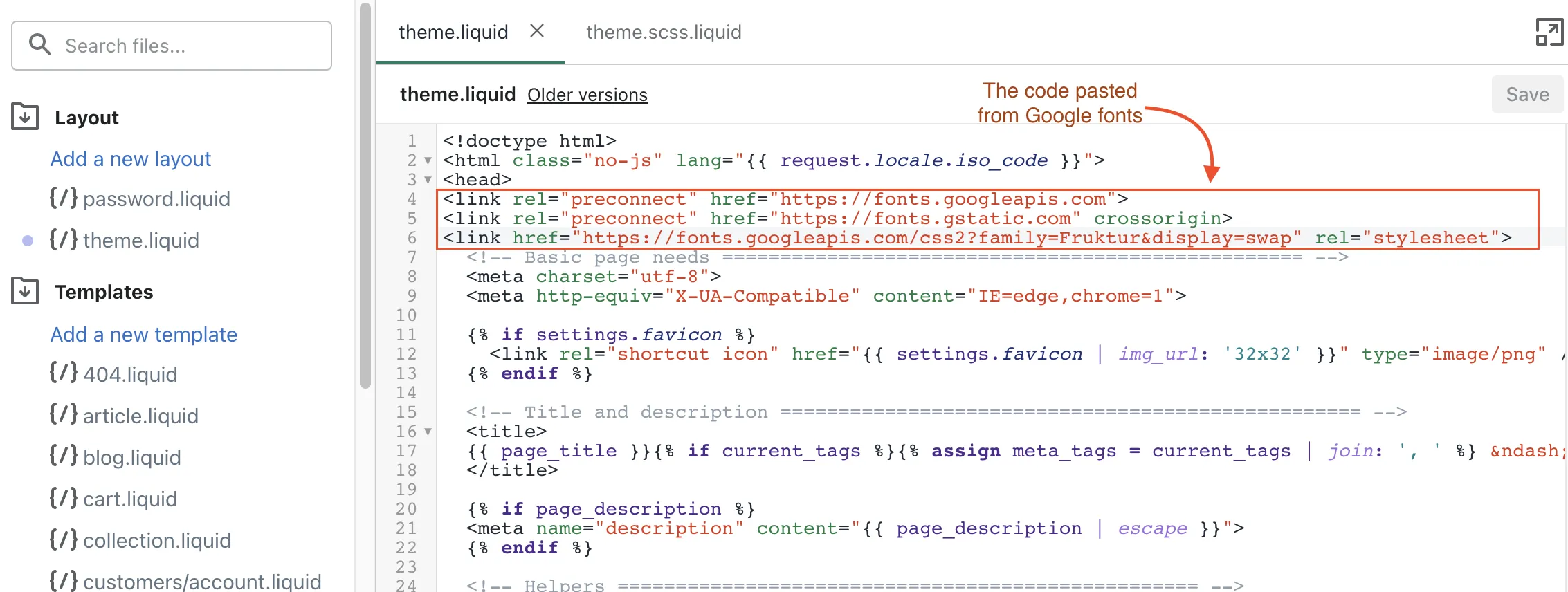
Note that the preview may not not reflect the new font, but the live site will.
Final result:

This manual option and the examples are provided to make it possible for merchants and their developers to implement their own customizations. It is recommended to hire a developer for any theme customizations, and to implement any edits on a duplicated copy of your theme. We do not offer any customization services.
If you have any questions or need further assistance, please don’t hesitate to contact us at help@hextom.com.