
Features
Free shipping exceptions

Free Shipping Bar offers you the ability to exclude specific products from counting toward free shipping, as well as mark products that always have shipping fees.
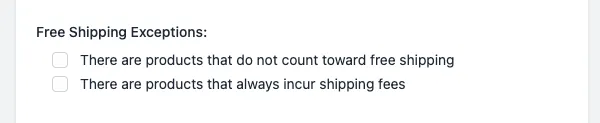
Any exceptions from free shipping will need to be set in your Shopify Admin section. Once that is done, this app can help clearly and accurately advertise it.
Option 1: Excluding Products from Free Shipping
The first option allows you to designate certain products as not counting toward free shipping. When a product from this category is added to the cart, it will not contribute to the free shipping goal. However, other products in the cart can still contribute toward achieving free shipping.
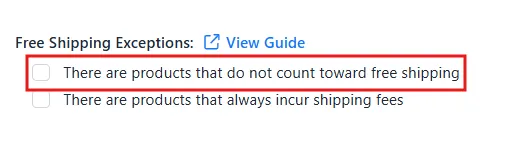
How to Configure This Option
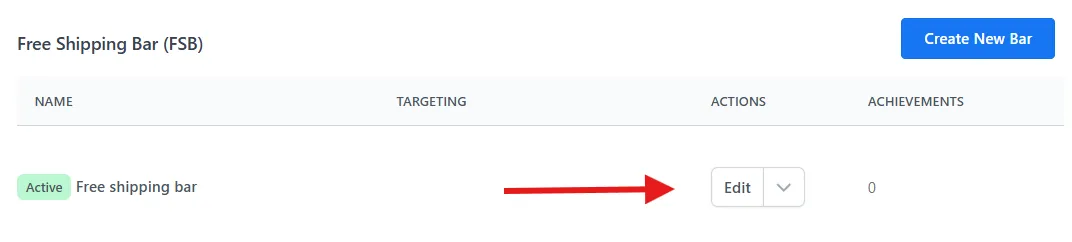
- Go to the app dashboard, then click Edit on the bar where you want to configure this setting.

- Go to the Free Shipping Exceptions setting, then click the checkbox on option 1: There are products that do not count toward free shipping. A new section will appear where you can add products, either individually or by collection.
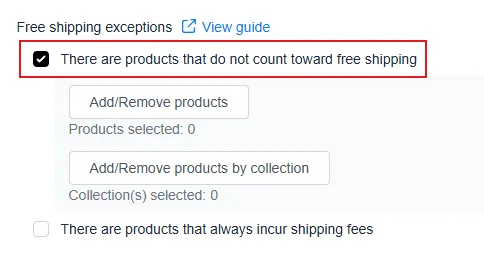
- Click on the button to Add/Remove products or Add/Remove products by collection and a product picker will appear. Select the products you would like to exclude from achieving free shipping, once done click the add button.
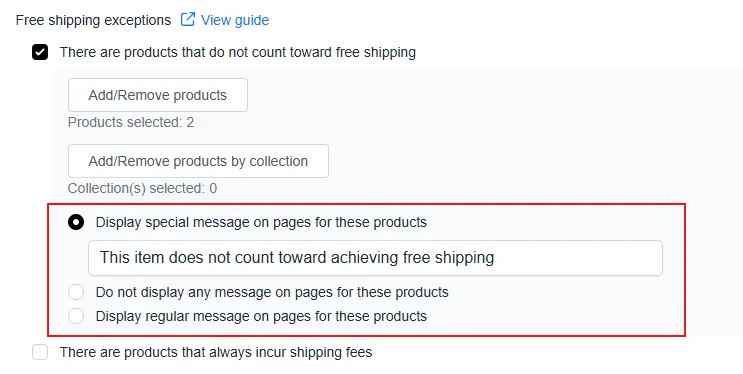
- New settings will then appear that let you choose what message should display when customers visit product pages for the selected products.
- Lastly, click the Save button at the bottom of the page to apply the changes.
Option 2: Mark the Products That Always Incur Shipping Fees
The second option lets you identify products that always incur shipping fees:

In this scenario, if one of the products in this list is added to the cart, a message can display to the customer that free shipping cannot be achieved - shipping charges will apply.
How to Configure This Option
- Go to the app dashboard, then click Edit on the bar where you want to configure this setting.
- Go to the Free Shipping Exceptions setting, then select Option 2: There are products that always incur shipping fees. A section will appear with a button to add products.
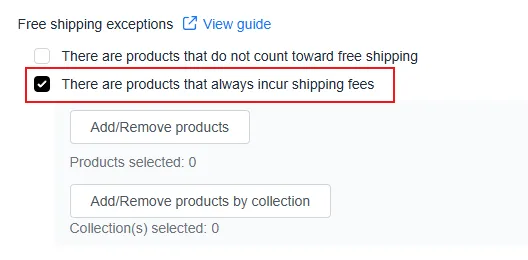
- Click on the button to Add/Remove products or Add/Remove products by collection and a product picker will appear. Select the products you would like to identify as always incurring shipping fees, once done click the add button.

- New settings will then appear that let you choose what message should display when customers visit product pages for the selected products.
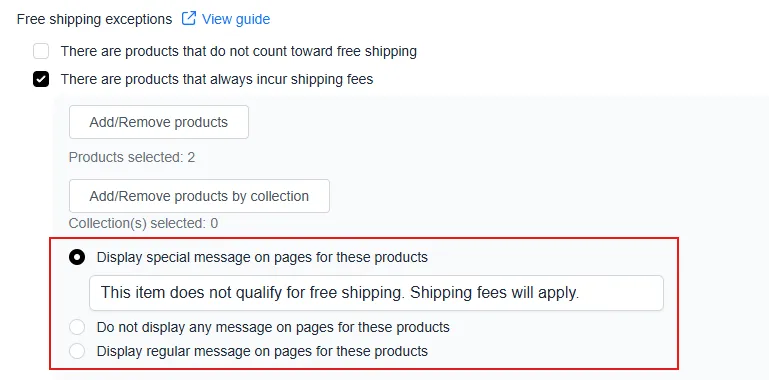
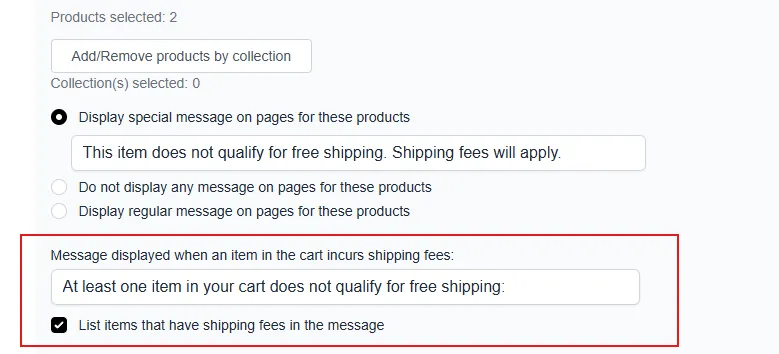
- You can also set the message that will display when a selected item is added to the cart:
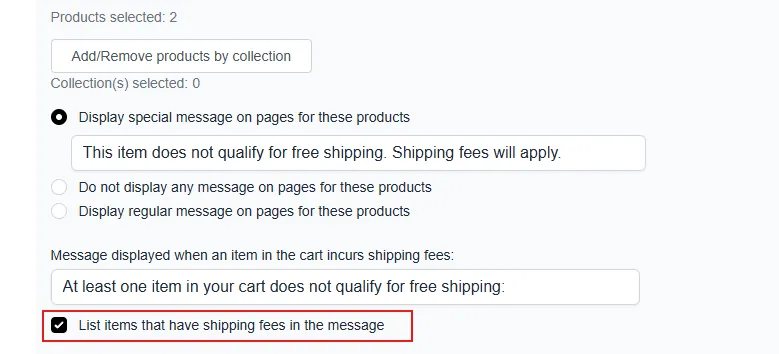
- Along with that message, you can opt to list the item that is incurring the shipping fee in the message:
- Lastly, click the Save button at the bottom of the page to apply the changes.
If you have any questions or concerns, please reach us out at help@hextom.com